Lighting
Lighting has two parts: the venue’s global scene lights — the ambient and directional lighting that lights the whole 3D scene — and the individual point and spotlight lights you place. Both render in the 3D view, so open the 3D or Split view to see their effect. Lighting has no representation on the 2D map.
How lighting works
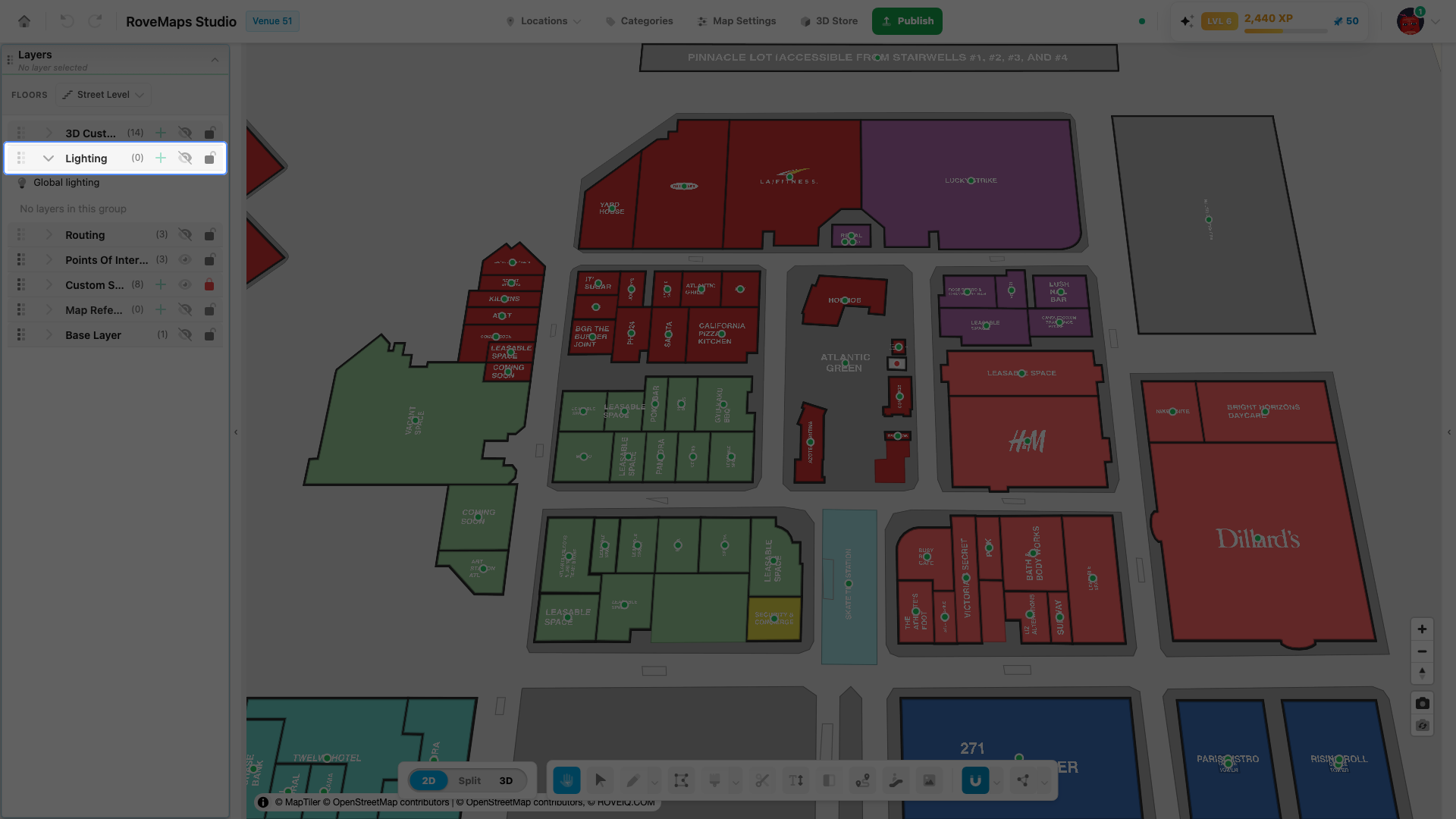
The Lighting group in the Layers panel holds everything that lights the 3D view:
- Global lighting — the venue-wide ambient (even, non-directional fill) and directional (sun-like) lighting. It is a venue setting, not a placed object, and always applies to the whole scene.
- Lights — individual point or spotlight lights you place in the venue. Each is its own record with its own position and settings.
Expand the Lighting group to reach the Global lighting row and any lights you have created. Every edit repaints the 3D view immediately, so you can tune lighting without publishing — open the 3D or Split view to watch the effect.
Update the scene lights
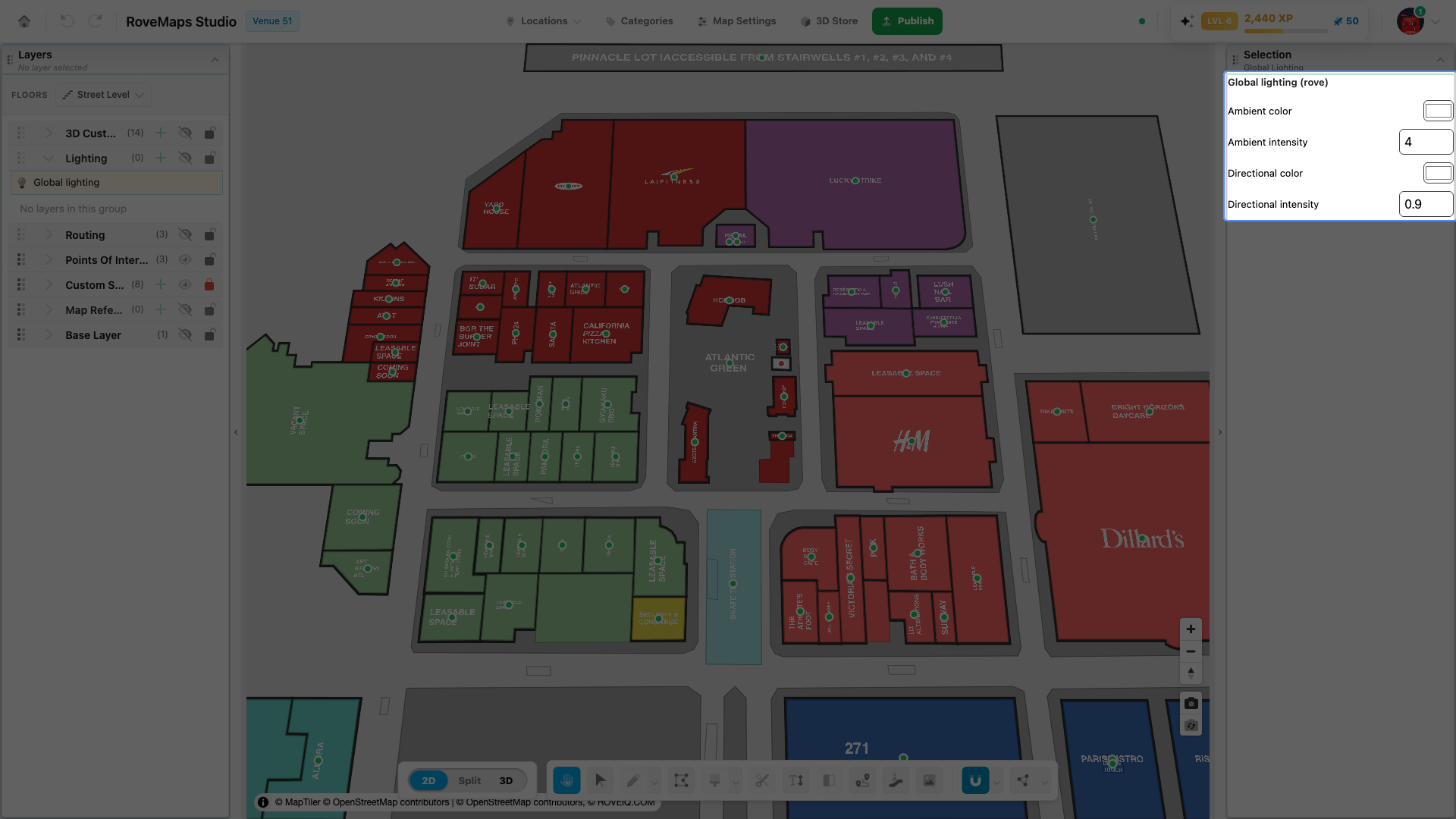
The scene lights are the venue’s global ambient and directional lighting. They light the whole 3D scene, separate from the individual lights you place.
- Open the Layers panel and expand the Lighting group.
- Click the Global lighting row. The Global lighting (rove) panel opens in the selection panel.
The same controls also appear below a light’s panel when you select an individual light.
Adjust the four controls:
- Ambient color — the color of the even, non-directional fill light. Pick a color from the swatch.
- Ambient intensity — the strength of the ambient fill. Higher values brighten the whole scene.
- Directional color — the color of the directional (sun-like) light. Pick a color from the swatch.
- Directional intensity — the strength of the directional light, which drives highlights and shading.
Notes
- Changes apply to the 3D render only. These settings have no effect on the 2D map.
- Each edit repaints the 3D view immediately, so you can tune the lighting without publishing.
- Intensity values are entered as numbers and cannot go below 0.
Publish impact: the four scene-light values are stored on the venue record, not as individual light records. On publish they are saved upstream as venue settings, and only the values you changed are sent. Changes stay in your draft until you publish.
Create a light
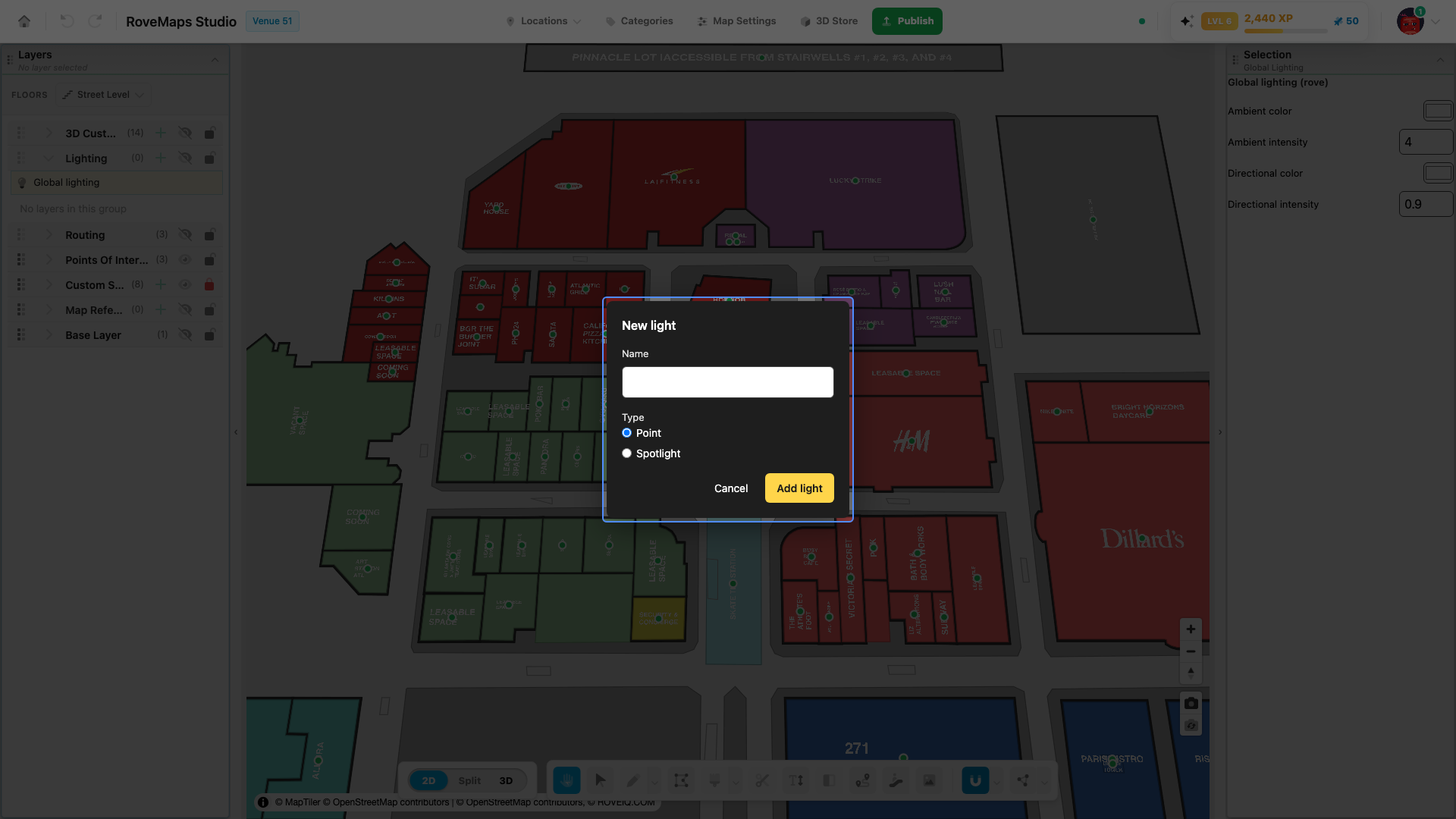
Lights are individual point or spotlight lights placed in the venue. New lights are added from the Lighting group in the Layers panel.
- Open the Layers panel and expand the Lighting group.
- Click the Add (+) button on the Lighting group header. The New light modal opens.
- Enter a Name. If you leave it blank, the light is named
Light. - Choose a Type: Point or Spotlight.
- Click Add light.
The new light is placed at the venue center, added to the Lighting group, and selected so its panel opens for further editing.
Notes
- New lights start with default values for intensity, range, decay, altitude, and cast shadow. See Default lighting configuration.
- A new light appears at the venue center. Drag it in the 3D view to move it, or use the light’s panel to adjust its settings.
- Lights render in the 3D view only — they have no representation on the 2D map.
Publish impact: each light is its own record. A newly created light is staged in your draft and, on publish, is created upstream in the venue’s lights. Changes stay in your draft until you publish.
Transform a light
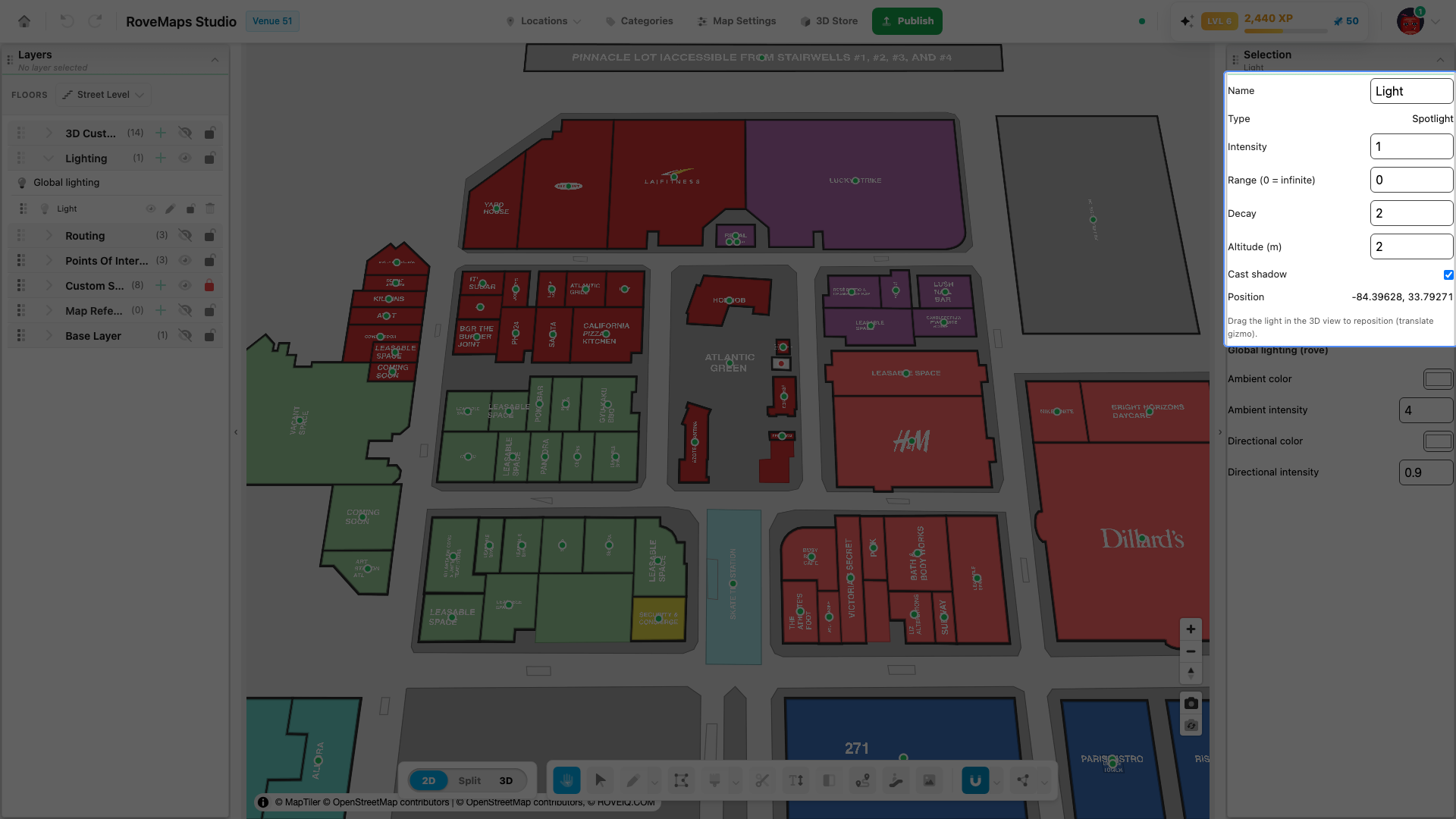
Each light has a panel for editing its name, brightness, falloff, height, and shadow, plus its position.
Select a light to open its panel:
- Click the light’s row in the Lighting group in the Layers panel, or
- Click the light’s marker in the 3D view.
Edit the light:
- Name — the light’s label.
- Type — Point or Spotlight. This is set when you create the light and is read-only here.
- Intensity — the light’s brightness.
- Range (0 = infinite) — the distance the light reaches. Enter
0for no limit. - Decay — how quickly the light fades over distance.
- Altitude (m) — the light’s height above the floor.
- Cast shadow — when checked, the light casts shadows in the 3D scene.
To move a light, drag it in the 3D view. Lights use the translate (move) gizmo only — they have no rotate or scale. The panel shows the light’s current Position as longitude and latitude (read-only).
Notes
- Lights render in the 3D view only — edits do not change the 2D map.
- Edits apply to the 3D view as you make them, so you can tune a light without publishing.
Publish impact: editing a light marks it as modified in your draft. On publish, an existing light is updated upstream and a not-yet-published light is created. Changes stay in your draft until you publish.
Default lighting configuration
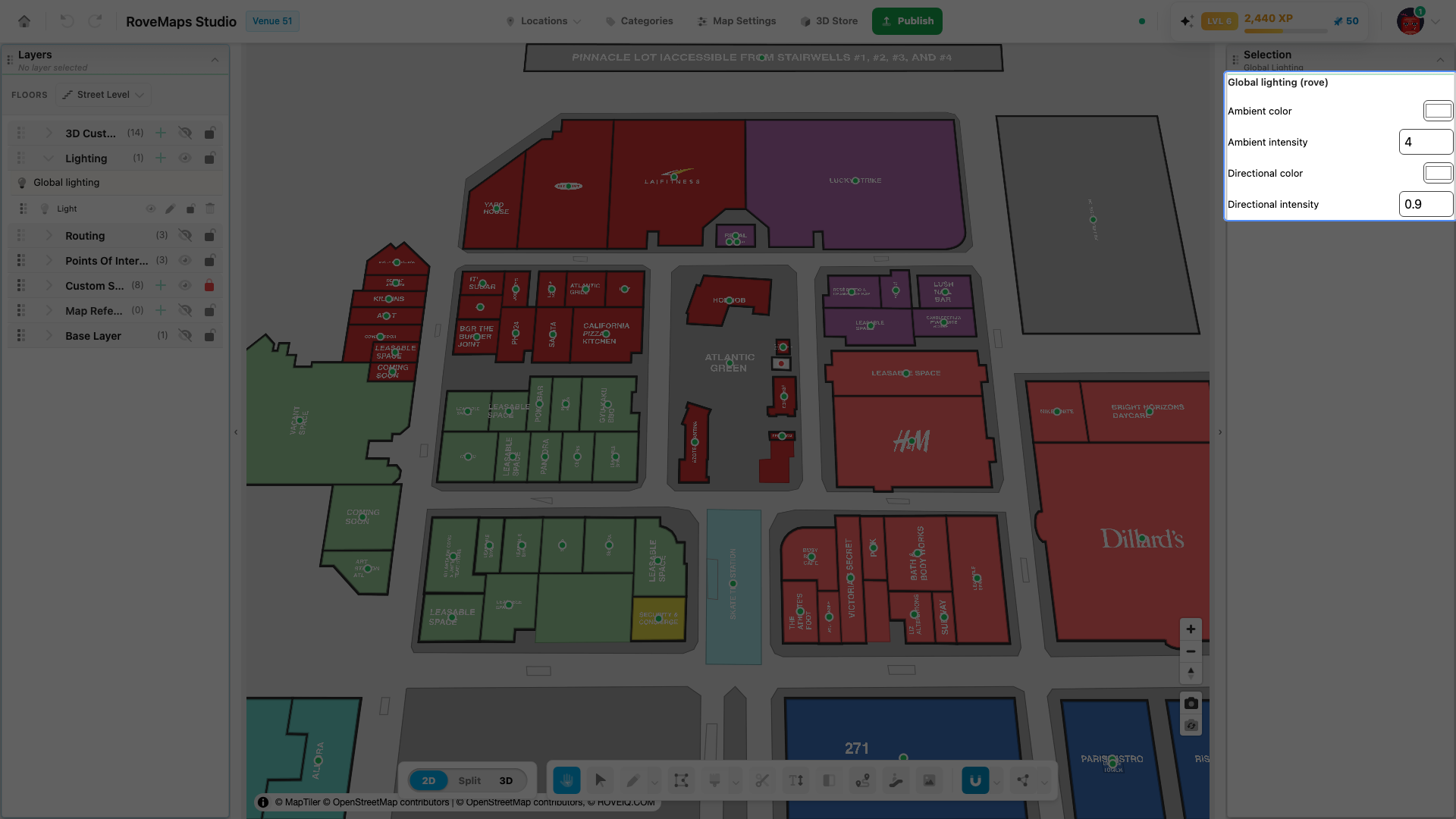
Lighting starts from built-in defaults you can change at any time.
Scene light defaults apply to the venue’s global lighting until you change them:
- Ambient color —
#dddddd - Ambient intensity —
4 - Directional color —
#ffffff - Directional intensity —
0.9
Edit these from the Global lighting row in the Lighting group. See Update the scene lights.
New light defaults — when you create a light, it starts with these values:
- Type — Point (or Spotlight, whichever you choose)
- Position — the venue center
- Altitude —
2m - Intensity —
1 - Range —
0(no limit) - Decay —
2 - Cast shadow — on
Edit any of these after the light is created. See Transform a light.
Notes
- These defaults affect the 3D render only. Lighting has no effect on the 2D map.
- Only point and spotlight lights are placed as individual lights. Ambient and directional lighting are global scene settings, not separate lights.
Glossary
- Global lighting — the venue-wide ambient and directional lighting for the 3D scene, stored as a venue setting.
- Ambient light — even, non-directional fill light that brightens the whole scene equally.
- Directional light — a sun-like light with a direction that drives highlights and shading.
- Light — an individual point or spotlight light placed in the venue, stored as its own record.
- Point light — a light that emits in all directions from a single point.
- Spotlight — a light that emits in a cone from a single point.
- Intensity — the brightness of a light.
- Range — the distance a light reaches;
0means no limit. - Decay — how quickly a light fades over distance.
- Cast shadow — whether a light casts shadows in the 3D scene.