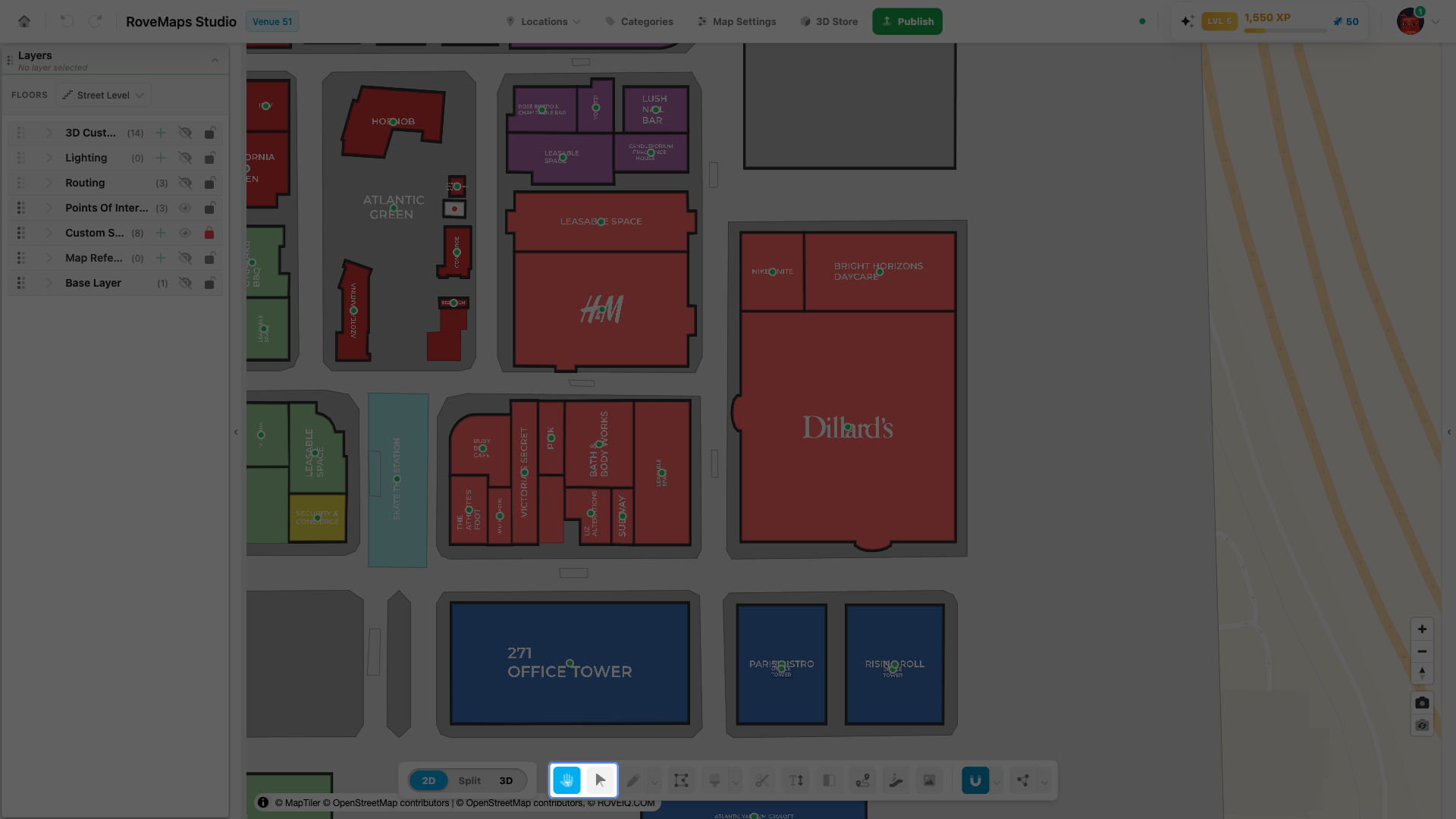
Select + Pan (Hand Tool)
The toolbar has two select tools that share one mode and differ only in what a left-drag does. Single-click selection and double-click editing behave the same in both — only the drag gesture changes. Use them to move around the map, select features, and jump into editing an outline.
The two select tools
Select + Pan (the hand icon) is the default, leftmost tool. Select (the arrow icon) sits next to it.
- Select + Pan (hand) — a left-drag pans the map; a click selects a feature.
- Select (arrow) — a left-drag draws a marquee box that selects the features it touches; a click selects a single feature. Hold Space and drag to pan without leaving the tool.
Click either button in the toolbar to switch. Switching changes the drag behavior only; whatever you had selected stays selected. Press Esc at any time to return to the View tool.
Move around the map
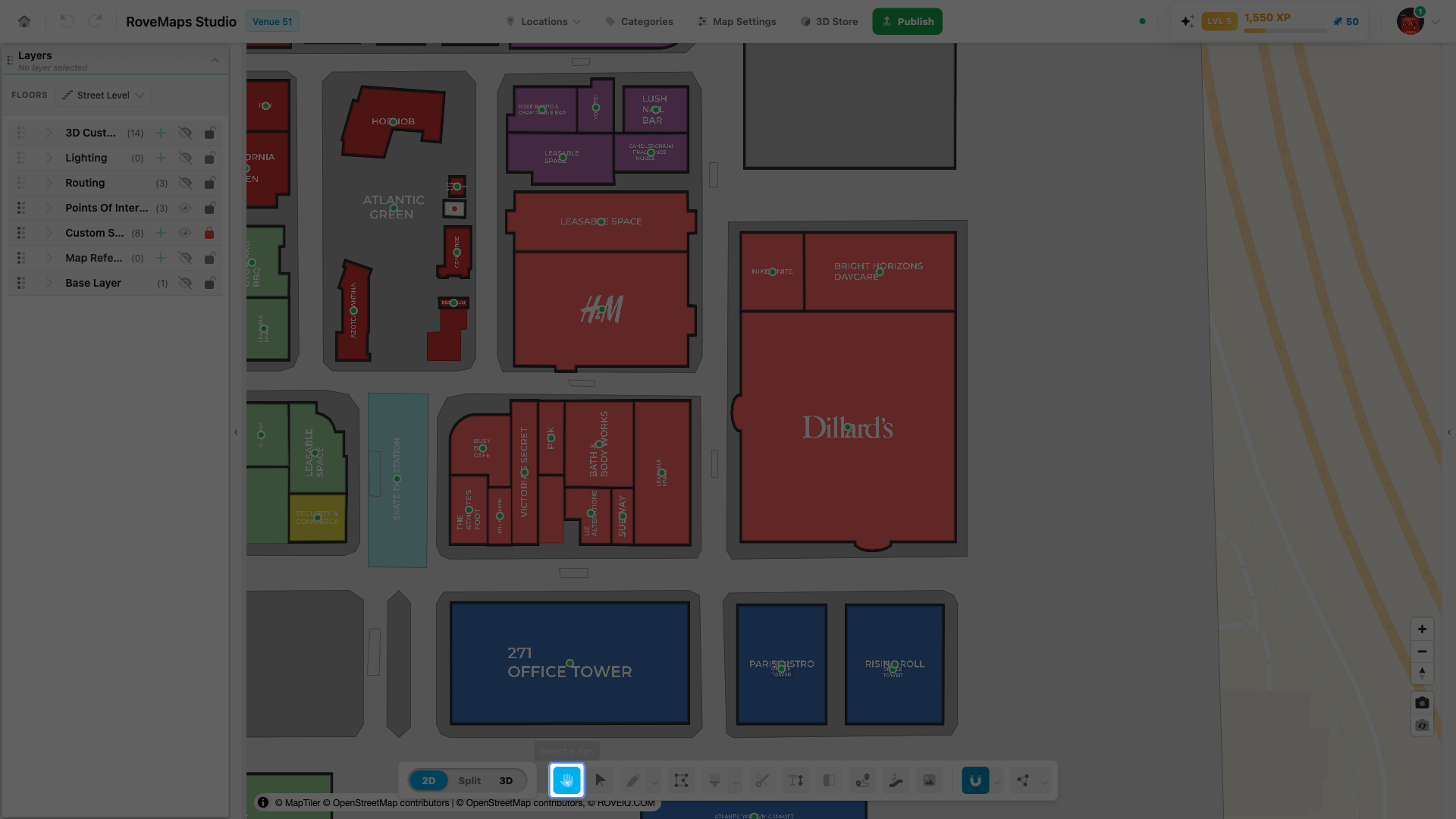
Pan the map to reposition your view without changing any features.
- Click Select + Pan (the hand icon) in the toolbar — the default, leftmost tool.
- Drag anywhere on the map to pan.
- Release to stop.
Notes
- With the Select (marquee) tool active instead, a left-drag draws a selection box. To pan without leaving it, hold Space and drag, then release Space to return to marquee selection. Holding Space is ignored while you type in a field, so it never interferes with editing a name or label.
- Panning only moves the camera — it never changes feature data.
Select features
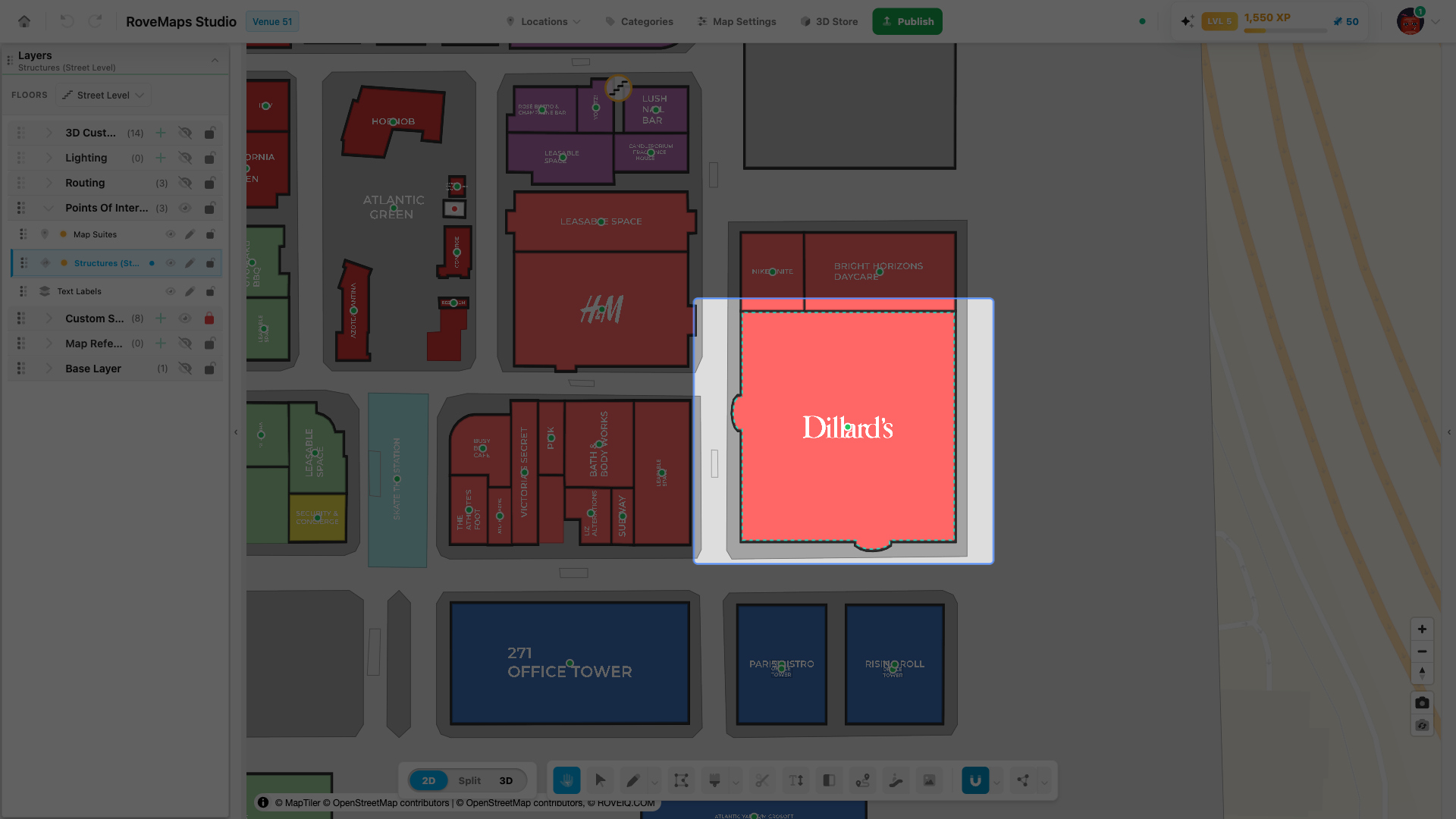
Click a feature to select it. The feature is highlighted and its details appear in the selection panel, ready to edit or delete. Both select variants click-select the same way.
- Activate Select + Pan or Select in the toolbar.
- Click a feature on the map. It highlights, and the active layer switches to that feature’s layer.
- Hold Shift, Ctrl, or Cmd and click more features to add them to the selection.
- Click empty space to clear the selection.
Notes
- Selection is layer-scoped — selecting a feature makes its layer the active layer.
- Clicking a feature on a locked layer shows a lock indicator instead of selecting it. Unlock the layer in the Layers panel first.
- Hidden or floor-filtered features cannot be selected; only visible features respond to a click.
Marquee selection
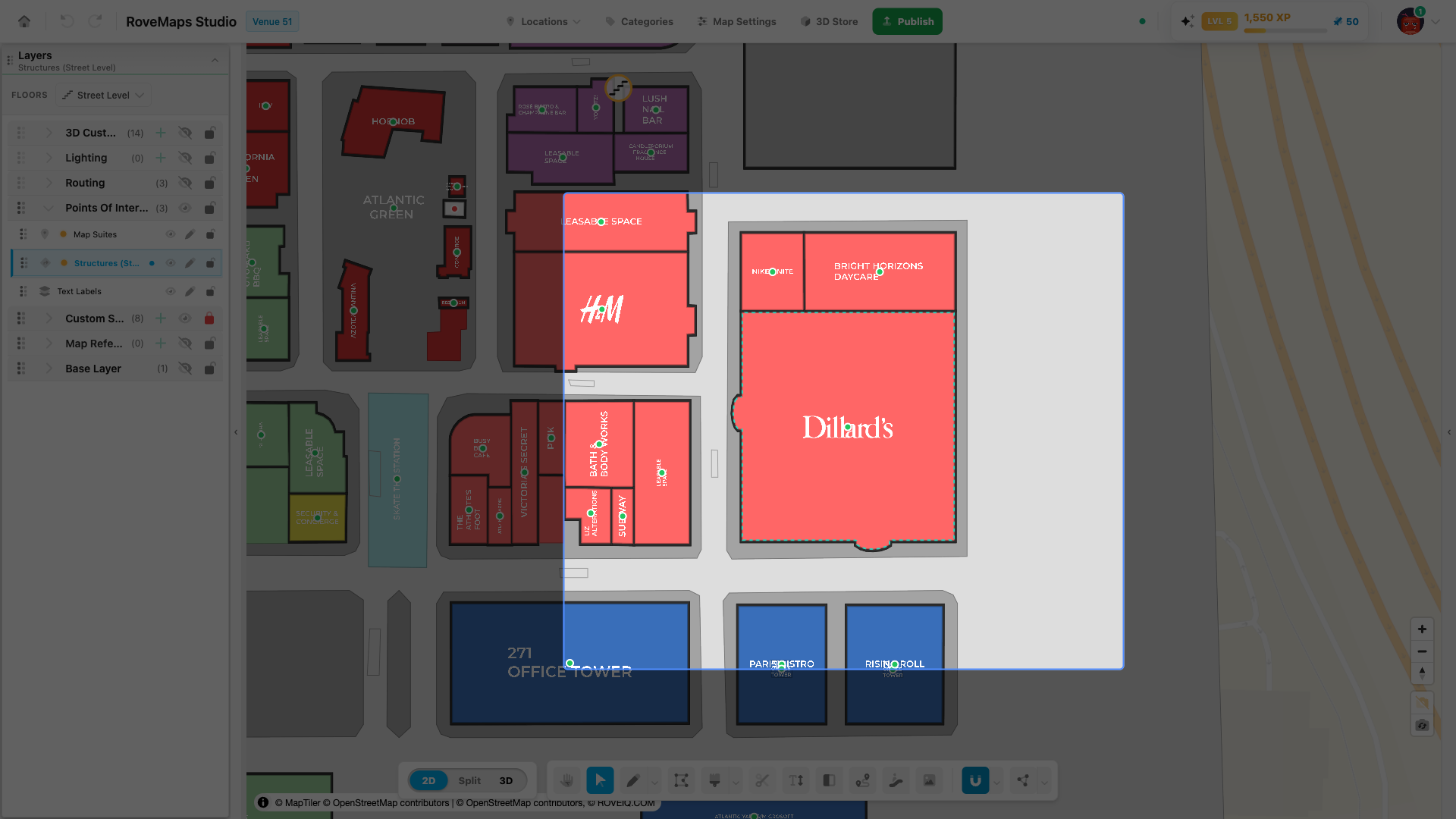
With the Select (arrow) tool, drag a box to select every feature the box touches.
- Click Select (the arrow icon) in the toolbar.
- Pick the layer you want to select on — click any feature, or choose the layer in the Layers panel. The box is layer-scoped, so with no active layer it draws but selects nothing.
- Drag a box across the features. A feature is selected if the box touches it.
- Hold Shift while dragging to add the box’s features to the current selection instead of replacing it.
Notes
- A drag under about 5 pixels counts as a click (single select) rather than a box.
- Locked layers and hidden or floor-filtered features are never selected.
Enter edit mode for a feature
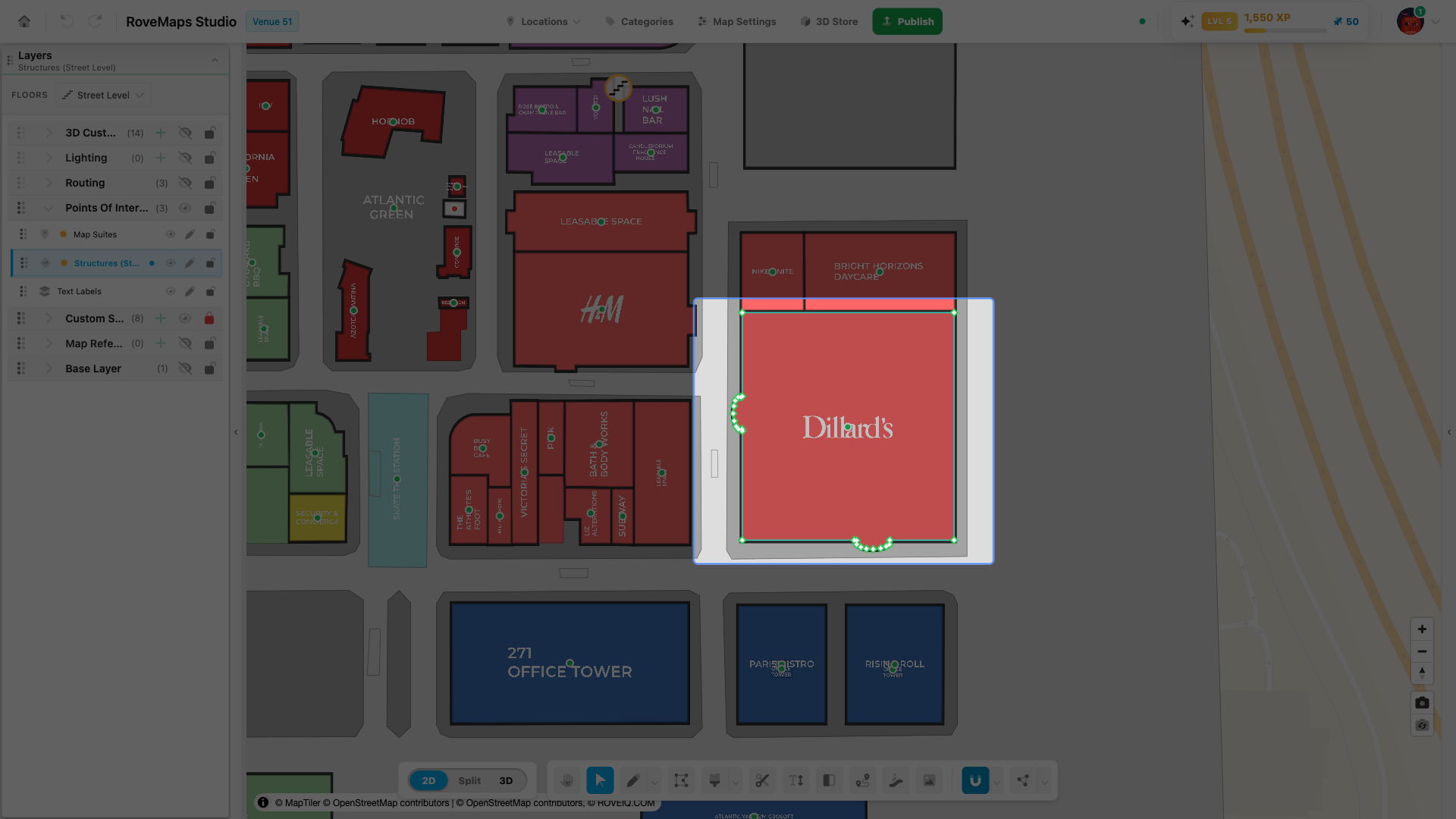
Double-click a feature to jump straight into editing its outline, focused on that one shape.
- Activate Select + Pan or Select in the toolbar.
- Double-click a polygon feature, such as a structure or custom style.
- The feature is selected and vertex editing opens, locked to that shape — its vertices appear as draggable handles.
- Reshape the outline (drag a handle, add a vertex on an edge, or delete a vertex).
- Click empty space or press Esc to leave edit mode.
Notes
- Double-click edits only the shape you clicked; it does not switch to other features under the cursor.
- To edit vertices across the whole floor instead of one locked shape, open the Vertex Tool from the toolbar. The vertex-editing controls are the same in both.
Glossary
- Select + Pan (hand) — the default select tool; a left-drag pans the map, a click selects.
- Select (arrow) — the marquee select tool; a left-drag draws a box that selects the features it touches. Hold Space to pan.
- Marquee — the drag-box selection drawn by the Select tool. Layer-scoped and intersect: it selects visible features of the active layer that the box touches.
- Active layer — the layer currently targeted by selection and drawing. Clicking a feature makes its layer active.
- Edit mode — vertex editing for a single feature, opened by double-clicking it.