Snapping
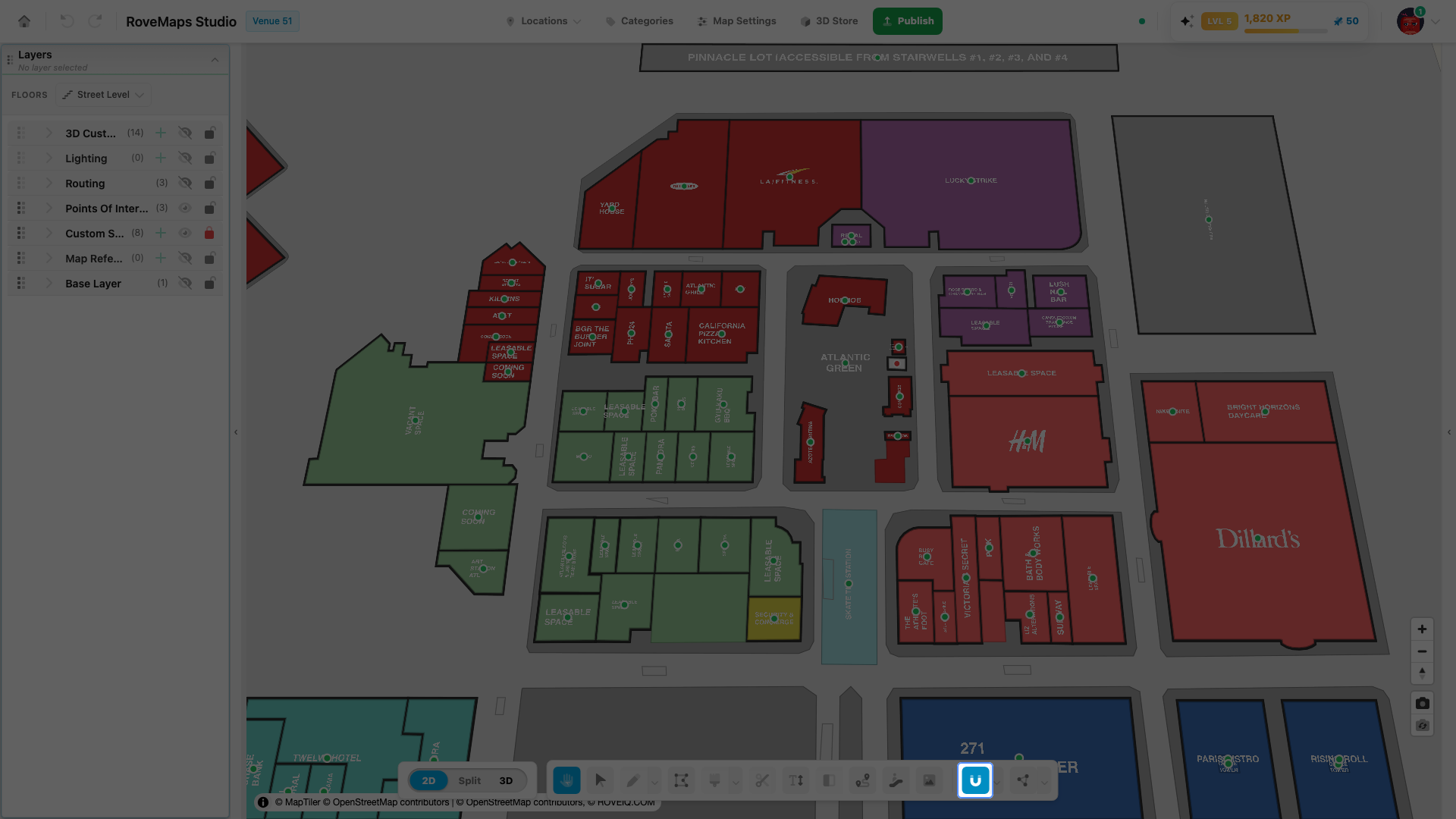
Snapping is the magnet modifier in the editor toolbar. When it is on, the point you place or drag is pulled onto nearby geometry so edges and corners line up exactly instead of landing a pixel or two off. It is a modifier, not a tool — it changes how your draw and vertex edits land — and it is on by default.
How snapping works
- In the editor toolbar, find the magnet button. When it is highlighted, snapping is on.
- Click the magnet to toggle snapping on or off — its tooltip reads Snapping: On or Snapping: Off.
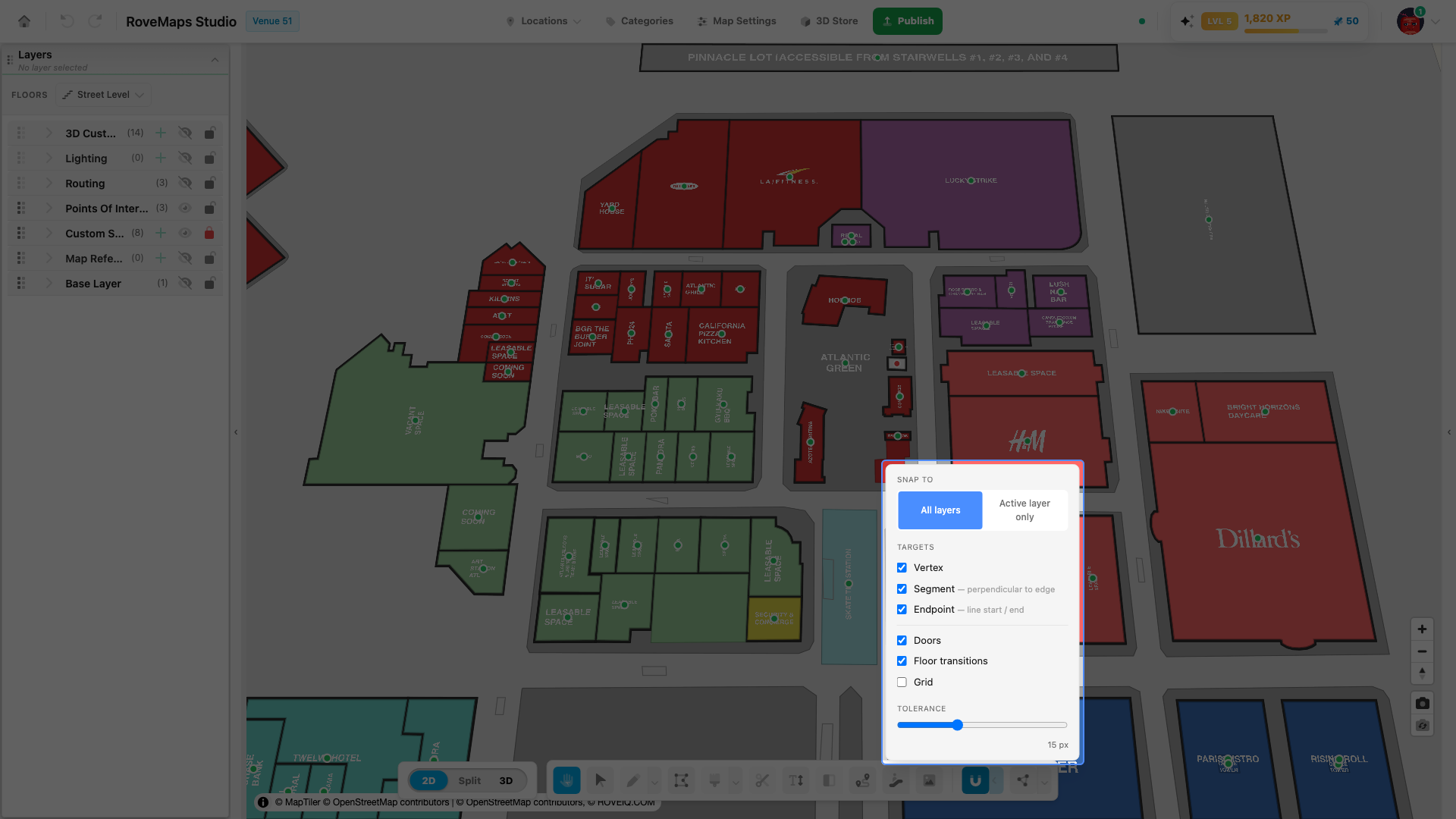
- Click the chevron next to the magnet to open the snap settings panel.
- In the panel, set what the magnet snaps to and which layers it considers.
The panel has two groups:
- Snap to — the layer scope: All layers or Active layer only.
- Targets — what counts as a snap point: Vertex, Segment (perpendicular to an edge), Endpoint (line start / end), Doors, Floor transitions, and Grid. A Tolerance slider sets how close, in pixels, a point must be to snap.
Notes — snapping is on by default and only sees geometry currently drawn on the map; features hidden by the floor filter or on a hidden layer are not snap targets.
Snap to all visible layers
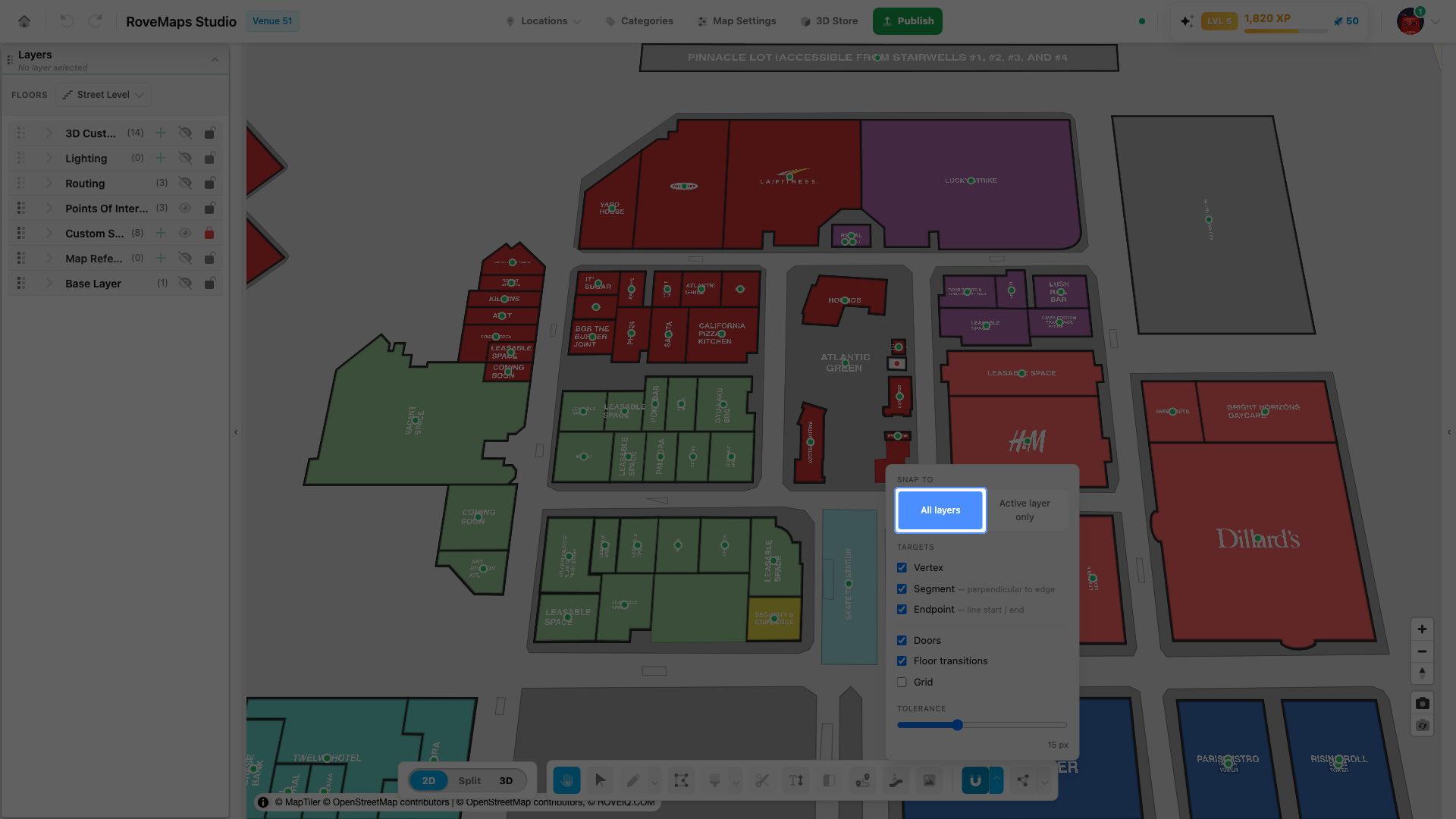
Let the magnet pull to geometry on any layer currently shown on the map, not just the one you have selected. This is the default. Use it when you are aligning a feature to its neighbours across layers — for example, lining a structure up with a door or a routing line.
- Click the chevron next to the magnet to open the snap settings panel.
- Under Snap to, click All layers.
Notes — “All layers” means all visible layers; hidden or floor-filtered geometry is never a snap target. The scope is saved in your browser and persists across sessions.
Snap to the active layer only
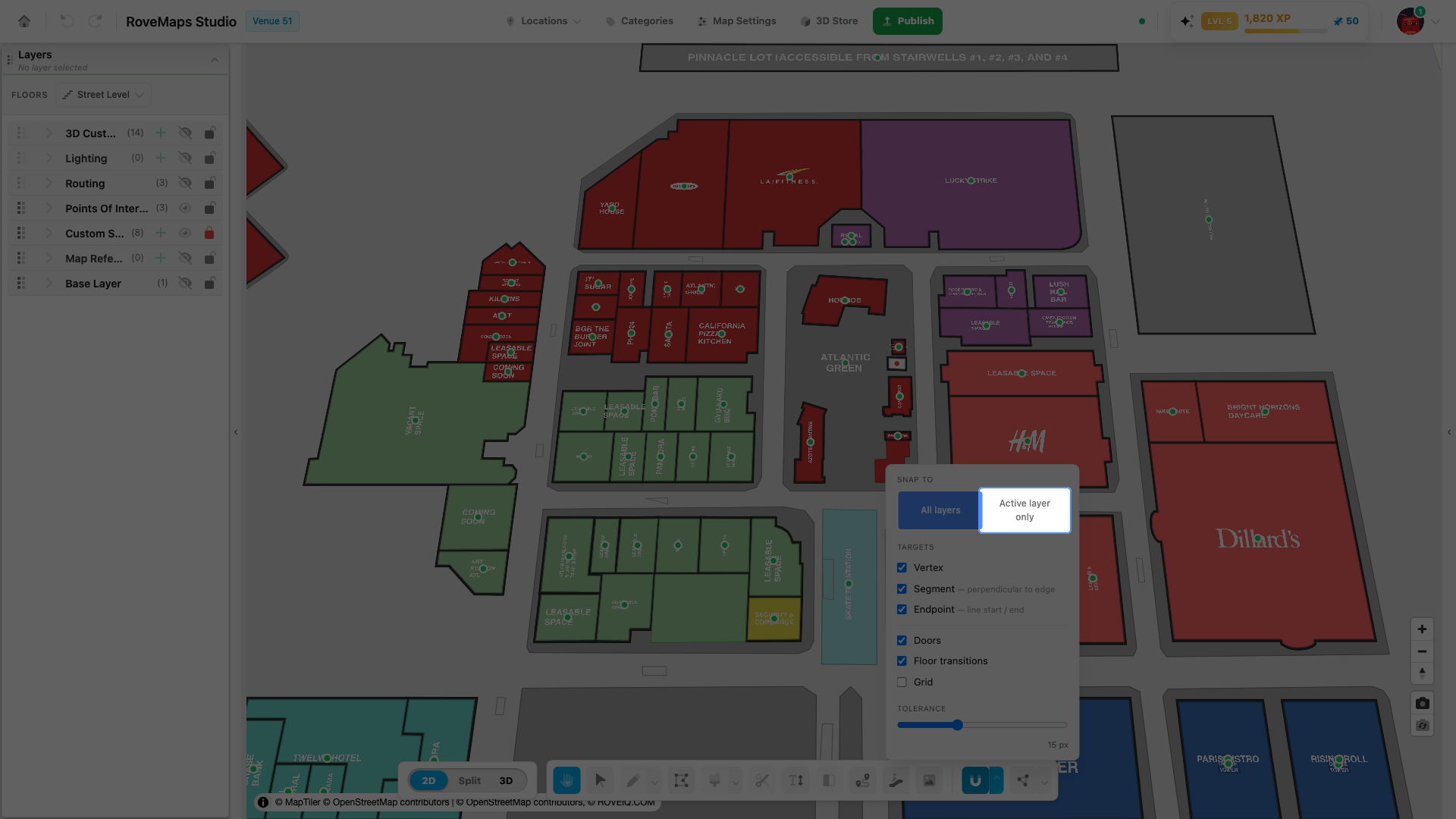
Limit the magnet so it pulls only to geometry on the layer you have selected, ignoring everything else on the map. Use it when you are tracing one layer and do not want to catch vertices from neighbouring layers.
- Click the chevron next to the magnet to open the snap settings panel.
- Under Snap to, click Active layer only.
- In the Layers panel, select the layer you want to snap against.
Notes — the active layer is whichever layer is selected in the Layers panel; if none is selected, nothing snaps while this scope is active. The active layer must be visible on the current floor for its features to act as snap targets.
Glossary
- Magnet — the snapping modifier toggle in the toolbar.
- Snap target — a point the magnet can pull to (vertex, segment, endpoint, door, floor transition, or grid).
- Snap scope — which layers the magnet considers: all visible layers, or the active layer only.
- Tolerance — how close, in pixels, a point must be before it snaps.