Camera Modes
Camera settings cover two separate things: an on-map control pill that locks map movement while you edit, and the venue’s starting camera, which sets the view the map opens at. The pill is a local editing aid that applies only to your session; the starting camera is a venue setting that publishes.
The camera control pill
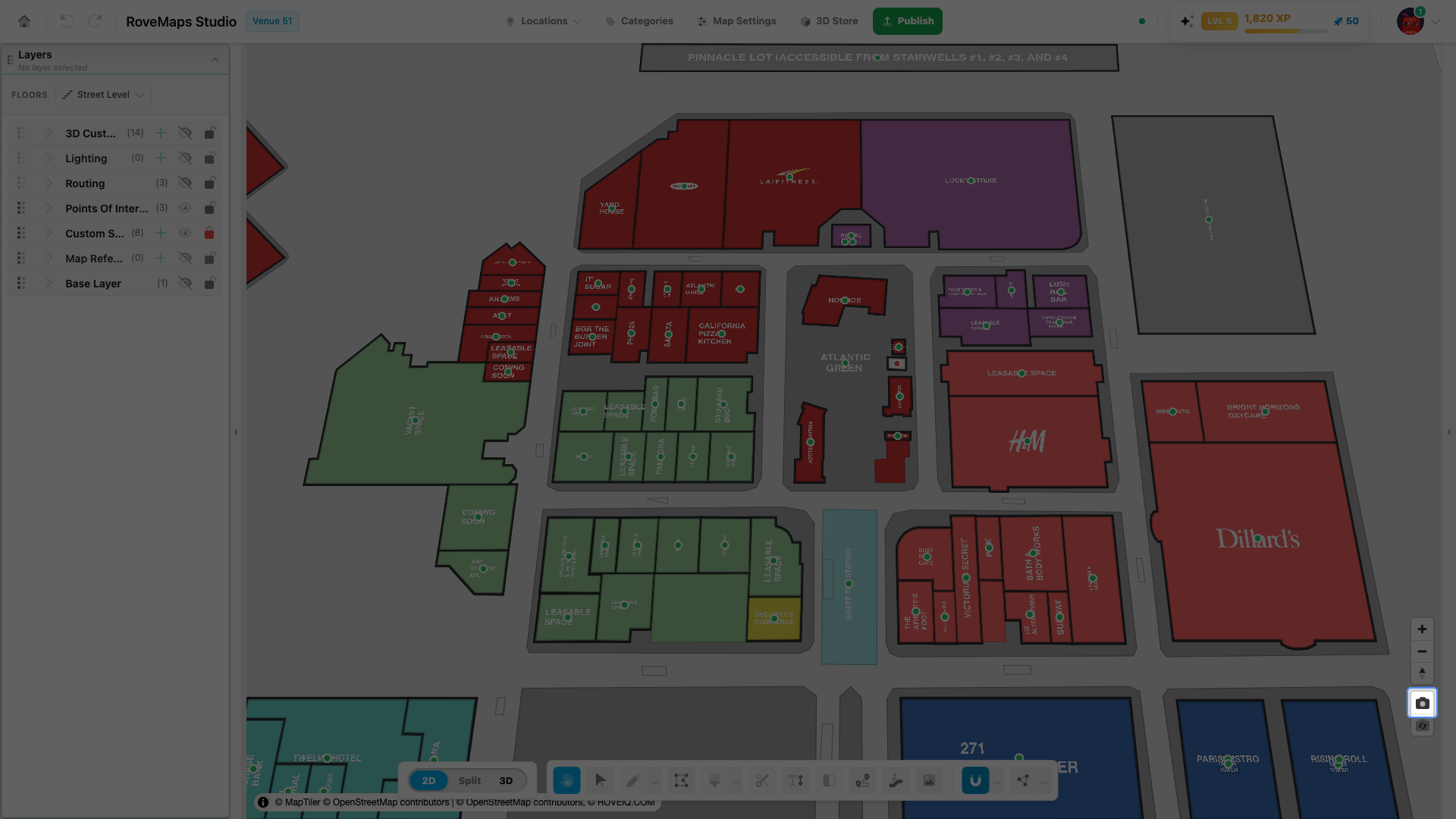
A second control pill sits below the zoom and compass controls in the bottom-right corner of the editor. It holds two toggle buttons — pan and tilt and rotate. Each turns amber when its lock is on. When the active tool already controls that movement, the matching button is disabled and its tooltip notes the current mode owns it. These locks apply to your current editor session only — they are not saved with the venue and do not publish.
Lock panning
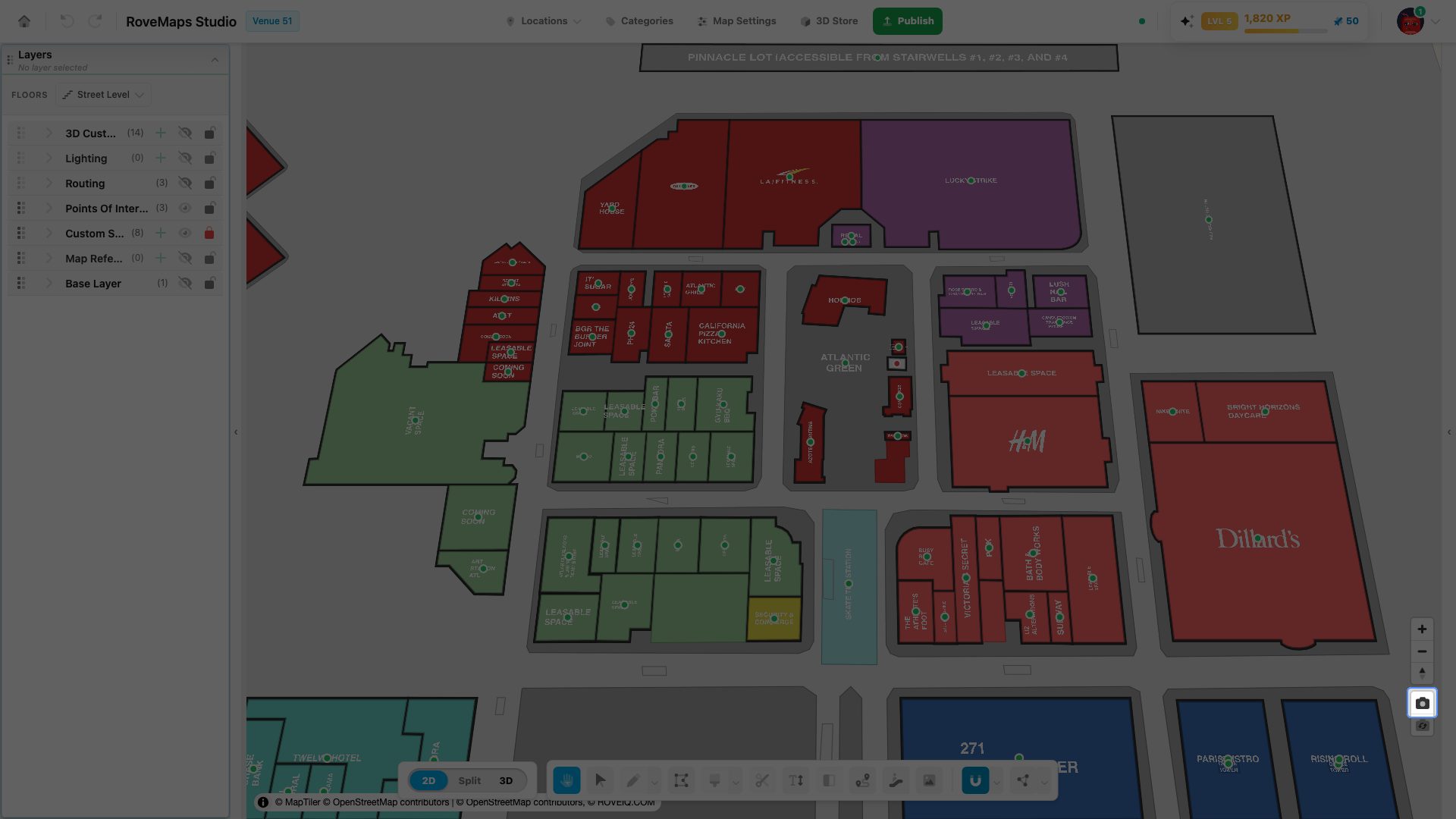
Locking pan freezes the map so it cannot be dragged — useful to hold a frame steady while you edit features. Zoom still works.
- Find the camera control pill below the zoom and compass controls, bottom-right.
- Click the pan button (the camera icon). It turns amber and the icon switches to a crossed-out camera.
- Click it again to unlock panning.
Notes — the tooltip reads Map panning on — click to lock when unlocked and Map panning locked — click to unlock when locked. When the active tool controls panning itself (for example the routing tool or marquee select), the button is disabled and reads Panning controlled by the current mode. The lock stops dragging only; zoom is unaffected. Publish impact: none — this is a session-only view control.
Lock tilt and rotate
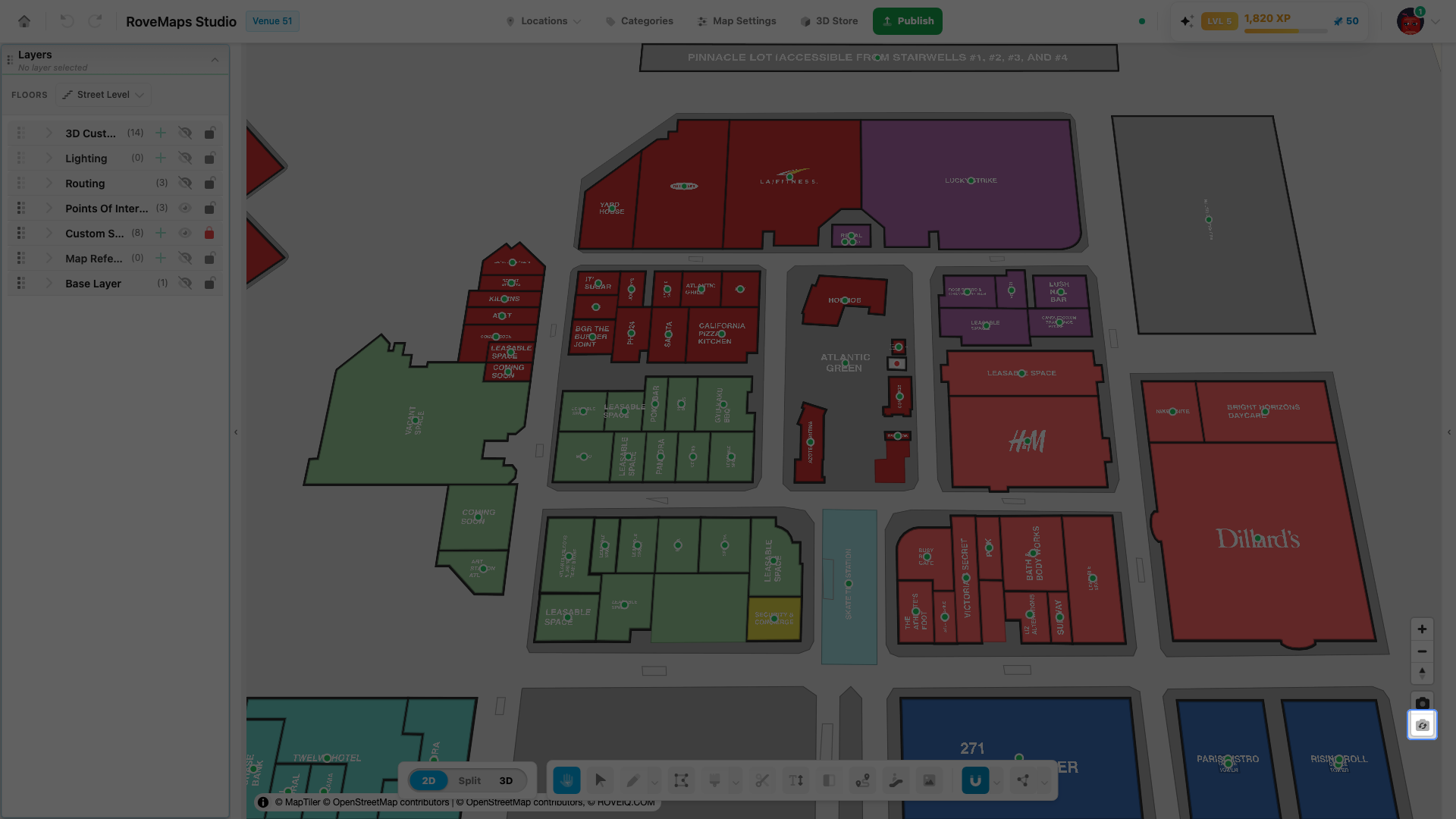
Locking tilt and rotate freezes the camera so the map cannot be pitched or spun while you edit — good for keeping a fixed top-down or angled view. Panning and zoom still work.
- Find the camera control pill, bottom-right.
- Click the tilt and rotate button (the rotating-camera icon). It turns amber.
- Click it again to unlock.
Notes — one toggle covers both tilt and rotation. When the active tool controls them (for example the routing tool or the bounds config view), the button is disabled. This is separate from Starting pitch in Map Settings, which sets the published opening tilt. Publish impact: none — session-only.
The starting camera
The view the map opens at lives on the View tab of Map Settings. Open Map Settings from the header, then select View. The Zoom card holds Default zoom (2D) and 3D zoom (rove). Type these values directly, or use Set on map to frame the venue and capture the current view. Unlike the control pill, these are venue settings and publish with the rest of Map Settings.
Set the 2D starting zoom
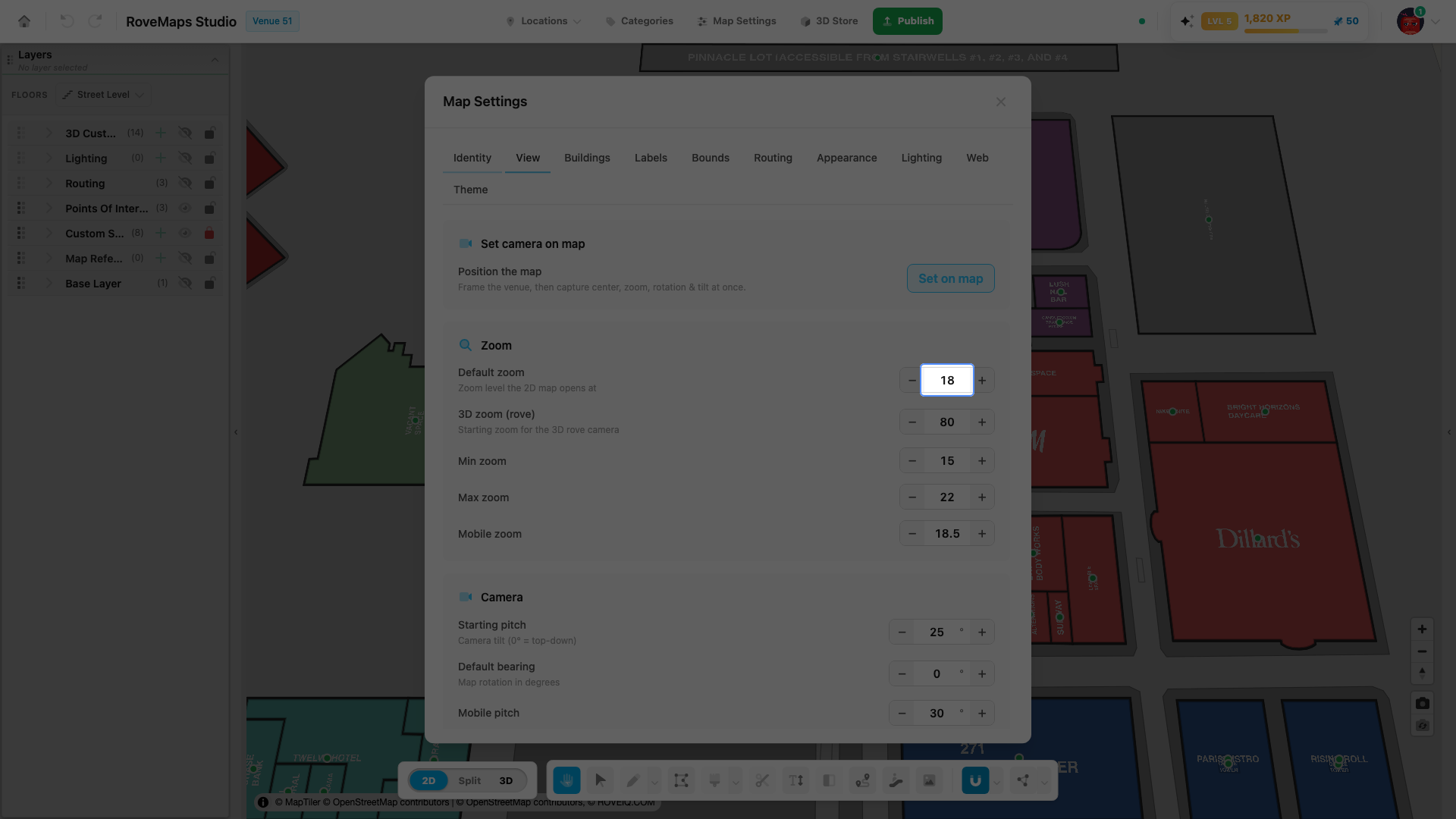
Default zoom is the zoom the 2D map opens at (0 = whole world, 24 = very close).
- Open Map Settings from the header, then select the View tab.
- In the Zoom card, set Default zoom using its number field or the − / + steppers.
To capture from the map instead, click Set on map, frame the venue, and click Set starting view; Cancel puts the map back where it was. If the view is far from your structures or outside your map bounds, a prompt asks you to confirm before it saves. Set on map captures center, zoom, bearing, and tilt at once, and also derives the 3D rove zoom from the same framing — type Default zoom to change only the 2D value. In split view each pane keeps its own zoom and both save together; from the 3D-only layout the 2D zoom saves as the hidden 2D pane last had it (the bar’s 2D zoom readout) and the 3D one is captured. Cancel restores only the panes that were open when you started.
New venues frame this view during setup: the Frame your starting view step after Find Your Venue is the same viewfinder with Use this view in place of Set starting view.
Notes — this is separate from Min zoom / Max zoom, which limit how far the 2D map can zoom rather than where it opens. Publish impact: publishes as a venue setting.
Set the 3D starting zoom
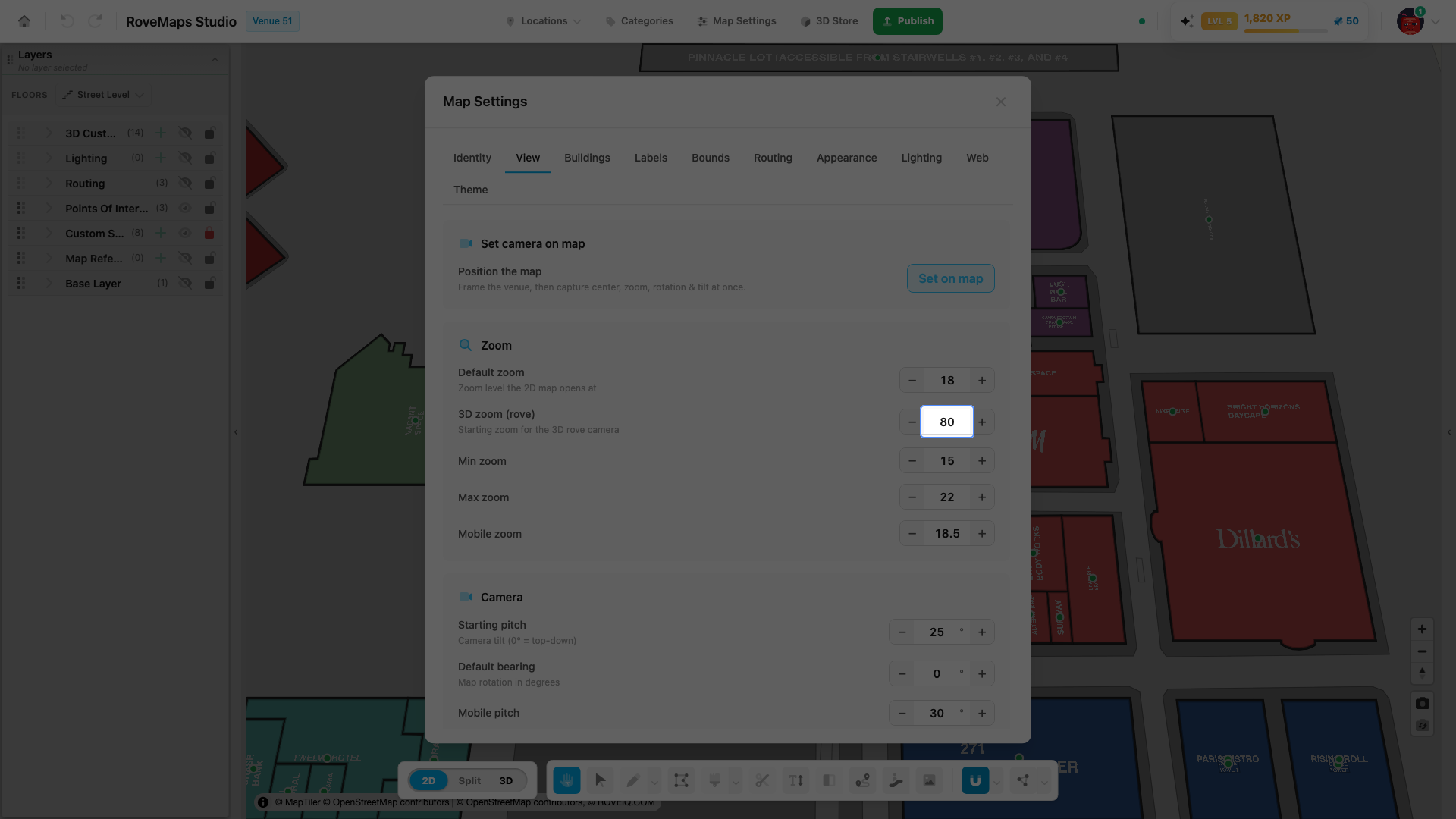
3D zoom (rove) is the zoom the 3D rove camera opens at. It uses the rove zoom scale, which is separate from the 0–24 MapLibre scale the 2D zoom uses — higher values open the rove camera closer in.
- Open Map Settings from the header, then select the View tab.
- In the Zoom card, set 3D zoom (rove) using its number field or the − / + steppers.
Set on map records the 2D framing and converts it to a matching rove zoom, so the 3D view opens at the same framing — type 3D zoom (rove) to change only the 3D value.
Publish impact: publishes as a venue setting.
Glossary
- Camera control pill — the bottom-right on-map pill with the pan and tilt/rotate locks.
- Pan lock — freezes map dragging for your session.
- Tilt / rotate lock — freezes camera pitch and rotation for your session.
- Starting camera — the center, zoom, bearing, and tilt the map opens at (a venue setting).
- Default zoom — the 2D opening zoom on the 0–24 MapLibre scale.
- 3D zoom (rove) — the 3D opening zoom on the rove scale.