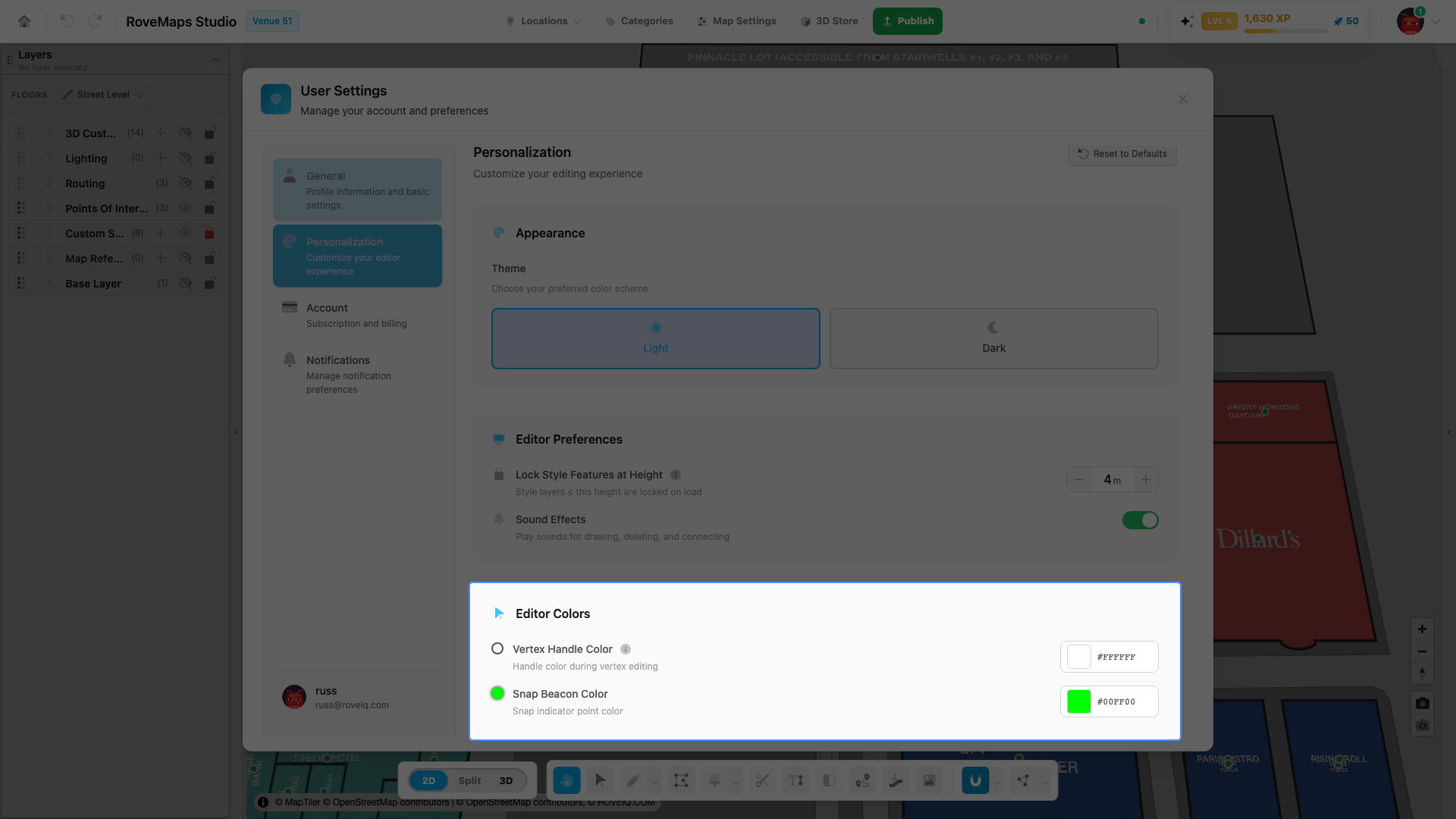
Editor colors
The Editor Colors card in the Personalization tab sets the colors for your vertex handles and the snap beacon while you edit. These are personal preferences saved in your browser; they do not change the map.
Steps
- Open User Settings from the user menu and select the Personalization tab.
- Find the Editor Colors card.
- Click a color swatch to open the color picker. The current value is shown in the hex field beside it.
- Choose a new color. The change applies to your editor immediately.
The colors
- Vertex Handle Color — color of the circular handles at polygon corners during vertex editing.
Default
#ffffff. - Snap Beacon Color — color of the snap indicator point. Default
#00ff00.
The color and outline used to highlight a selected feature are set separately in the Select polygon card — see Selected-feature highlight color.
Notes
- Use Reset to Defaults at the top of the Personalization tab to restore every editor color.
- Preferences are saved in your browser and persist across sessions. They are not part of the map.
- The draggable handle styling used by the Vertex Tool (shape, size, fill, stroke) is set separately in Vertex handle defaults.