Direct Select
Direct Select is how you select features — one at a time or several at once — and edit them: reshape a polygon’s vertices, move the whole shape, and update its properties. To edit vertices across many features at once instead, use the Vertex Tool.
Select features
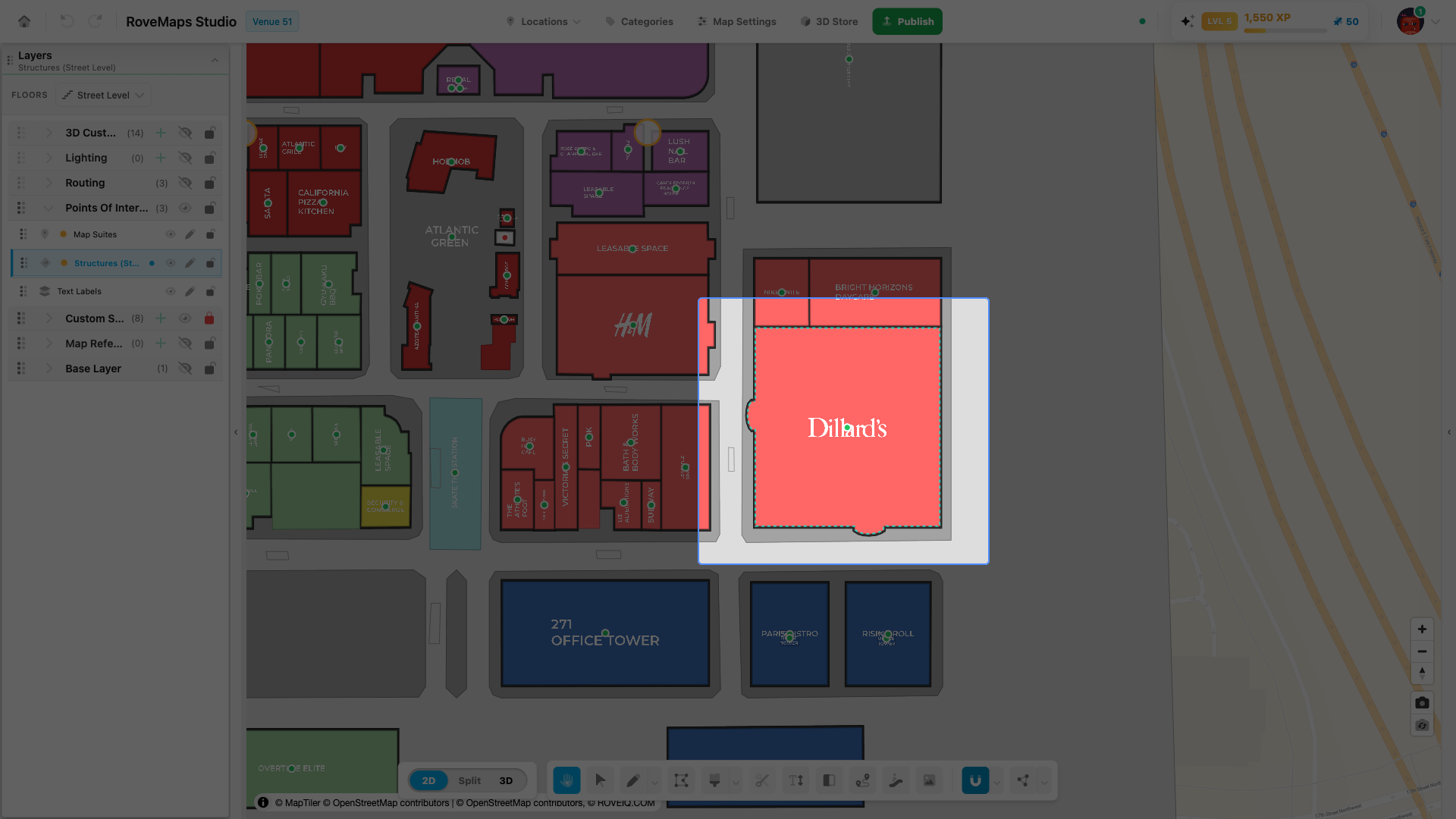
Click a feature to select it, or drag a box to select several at once.
- Select one — click a feature. It highlights and the Selection panel opens with its details.
- Select multiple — drag a box (marquee) across the map. Every feature the box touches on the active layer is selected. Hold Shift while dragging to add to the current selection.
- Cut, copy, delete — with features selected, right-click one of them to open a menu with Cut, Copy, and Delete. Paste appears once you have copied something.
Notes
- The marquee is layer-scoped: it only selects features on the active layer. Click a feature or pick a layer in the Layers panel first.
- Locked layers and hidden or floor-filtered features are never selected.
Edit polygon vertices
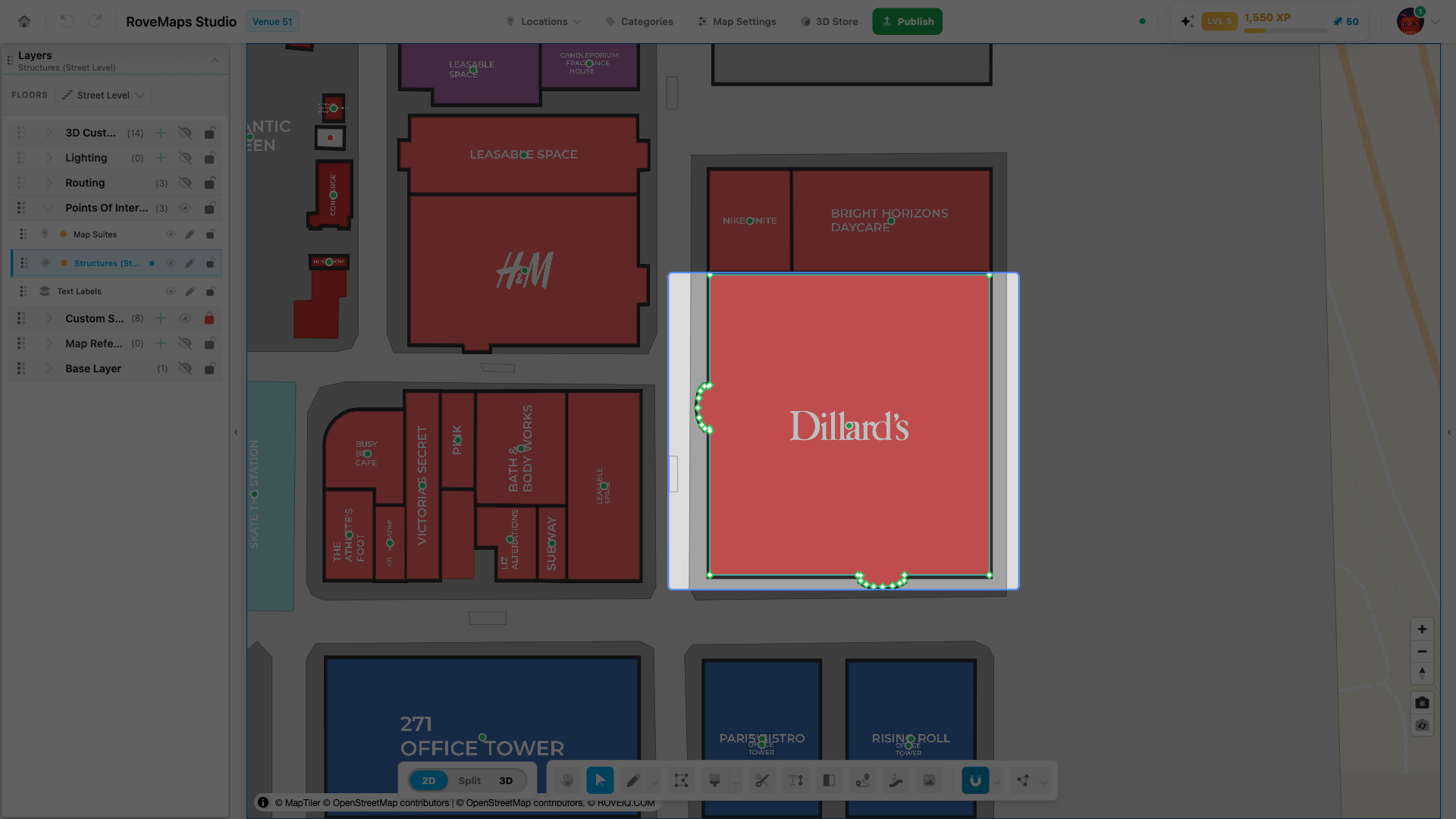
Reshape one polygon by moving, adding, and removing its vertices.
- Double left-click the polygon you want to edit. The map locks to that shape and shows its vertices as diamond handles, with + midpoints on its edges.
- Drag a handle to move that vertex and reshape the outline — release to apply the change.
- Add a vertex — hover an edge until the + marker appears, then click the edge there.
- Remove vertices — click a handle (hold Shift to add more), then press Delete or Backspace.
- Move a whole edge — grab the segment between two vertices and drag it.
Notes
- Click off the polygon, or press Esc, to leave edit mode.
- Snapping and Move Together apply while you drag — a vertex can pull to nearby geometry, or carry coincident vertices on touching features.
- Cut a hole in the open polygon with the Draw Hole tool.
Publish impact: vertex edits change draft geometry only and mark the layer as modified. Each edit is a single undo step and stays in your draft until you Publish.
Move a polygon
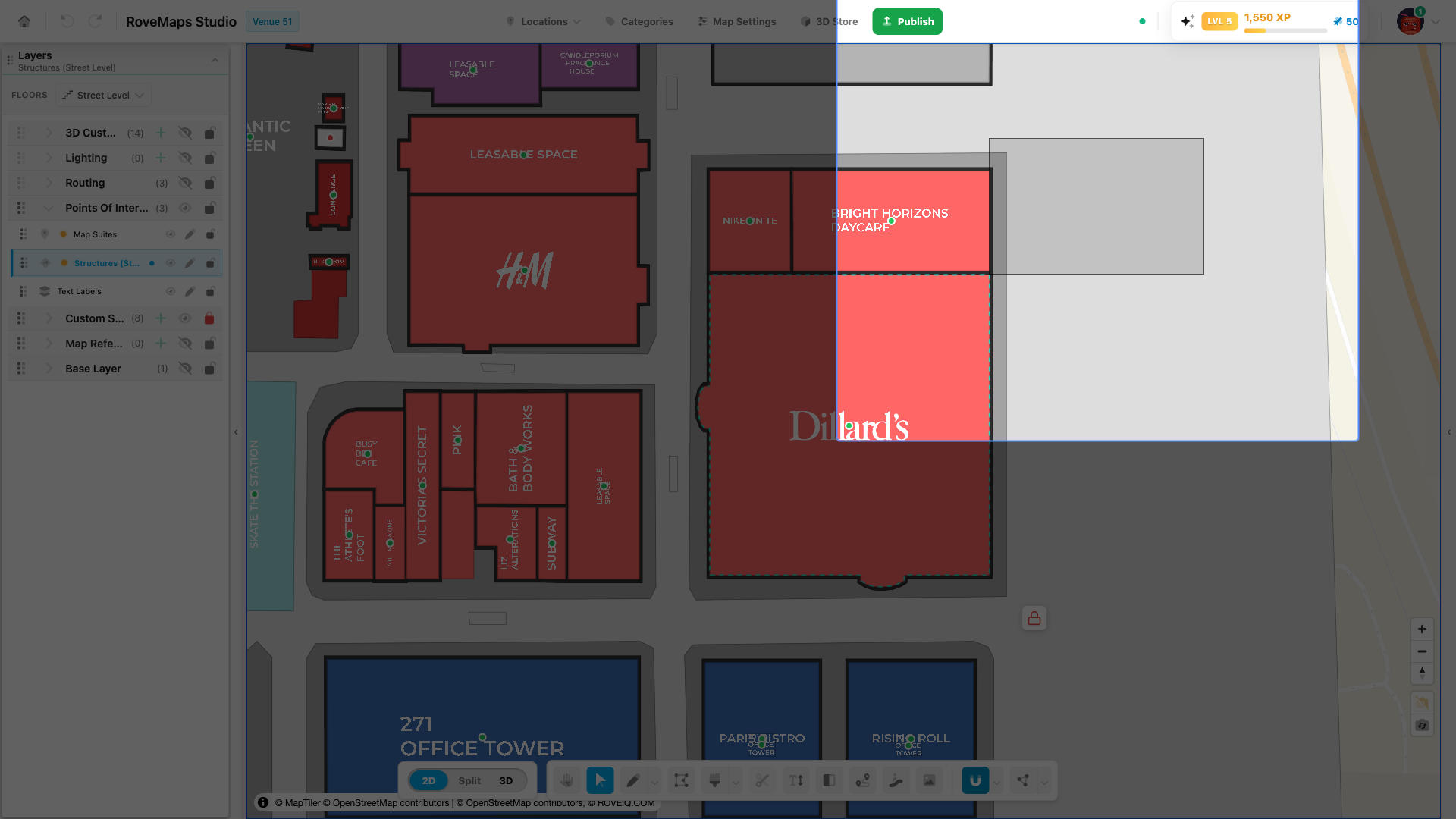
Move a whole polygon by selecting all of its vertices and dragging them together.
- Double-click the polygon to open it, then drag a box across the whole shape to select every vertex.
- Drag a selected handle — all the vertices move together, shifting the polygon as one.
- Release to drop it in its new position. Press Esc to cancel a move in progress.
Notes
- There is no separate “grab the body” handle; moving the polygon means moving every vertex at once.
- Turn off Move Together first if you want only this polygon to move; with it on, vertices it shares with touching features move too.
Publish impact: moving the polygon changes draft geometry and marks its layer as modified — a single undo step, held in draft until you Publish.
Update selected feature properties
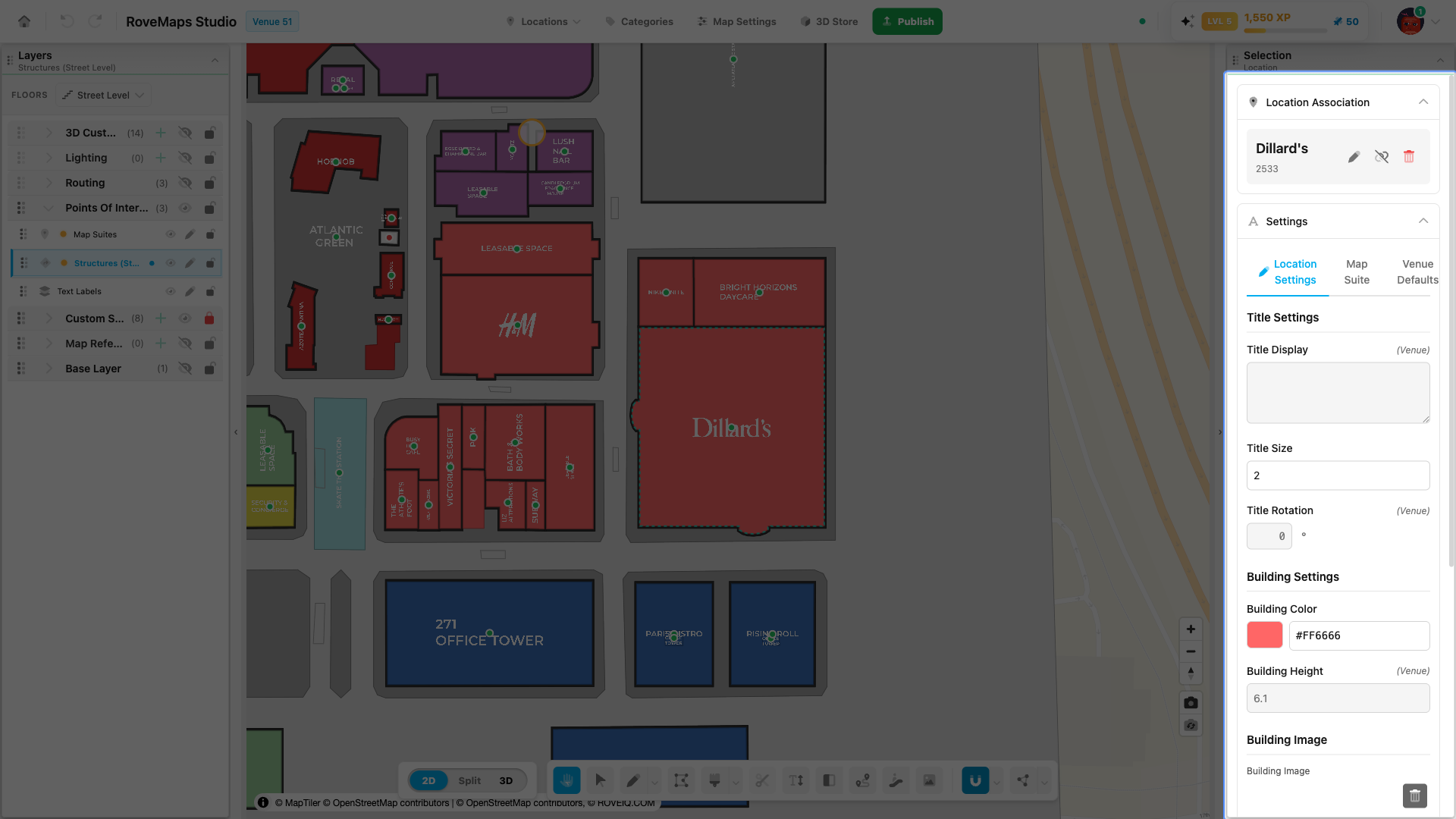
The Selection panel opens in the right drawer and shows the selected feature’s properties. Its fields adapt to the feature’s type — a Location (structure or suite) shows different attributes than a Custom Style.
- Click a feature to select it. The right drawer shows the Selection panel with that feature’s properties, and the feature is highlighted on the map.
- Edit the fields shown. The panel changes with the selection — Location, Custom Style, Floor Transition, Text Label, 3D Object, Light, or Routing.
- Select more than one feature and the panel reads Multiple Selected with the count.
Notes
- With nothing selected the panel reads No Selection. It auto-expands when you select something.
- Some types show read-only details rather than editable fields — for example Routing and Door.
Publish impact: property edits stay in your draft until you Publish, grouped in the publish preview under the feature’s layer type.
Customize how selections look
Selecting a polygon dims the rest of the map with a wash and outlines your selection so it stands out. You can restyle all of it in User Settings → Personalization → Select polygon.
- Open User Settings from the user menu and choose the Personalization tab.
- In the Select polygon card, adjust:
- Overlay Color and Overlay Opacity — the dim wash over everything except your selection. Default black at 25% (opacity ranges 0–70%).
- Edge Style — a Solid or Dashed outline on the selected feature. Default Dashed.
- Edge Color and Edge Width — the outline’s color and thickness. Default teal
#2dd4bfat 2px (width ranges 0.5–6px).
- Reset to Defaults at the top of the tab restores every editor preference at once.
Entering the vertex/edit tool keeps a wash and switches to its own Edit-Mode Styling (a solid outline by default), set in the same tab.
Your view only: these are per-user preferences saved in your browser. They change only your own editing view — never the published map or what your collaborators see. To change what published-map viewers see, edit the map’s colors in Map Settings or on the feature itself (for example a structure’s color).
For the full reference, see Selected-feature highlight color.
Keyboard shortcuts
Press a single letter to switch tools without leaving the map. Shortcuts are on by default; you can turn them off under User Settings → Personalization.
- S — Select (this tool)
- V — View (the default pan and look-around mode)
- Esc — return to View
See the full keyboard shortcuts reference.
Scale a polygon
Scaling a polygon from Direct Select is coming soon. For now, resize a shape by dragging its individual vertices (see Edit polygon vertices).
Make curved features
Curved (bezier) edges are coming soon. For now, approximate a curve by adding vertices along an edge and nudging them into shape.
Glossary
- Direct Select — the tool that selects features and edits their shape and properties.
- Diamond handle — a draggable vertex marker shown while a feature is open for editing.
- Midpoint (+) — the add-vertex marker that appears on an edge on hover.
- Marquee — the drag-box that selects every feature it touches on the active layer.
- Move Together — the topology modifier that carries coincident vertices on touching features when you drag; toggle it in the toolbar.
- Selection panel — the right-drawer panel that shows and edits the selected feature’s properties.