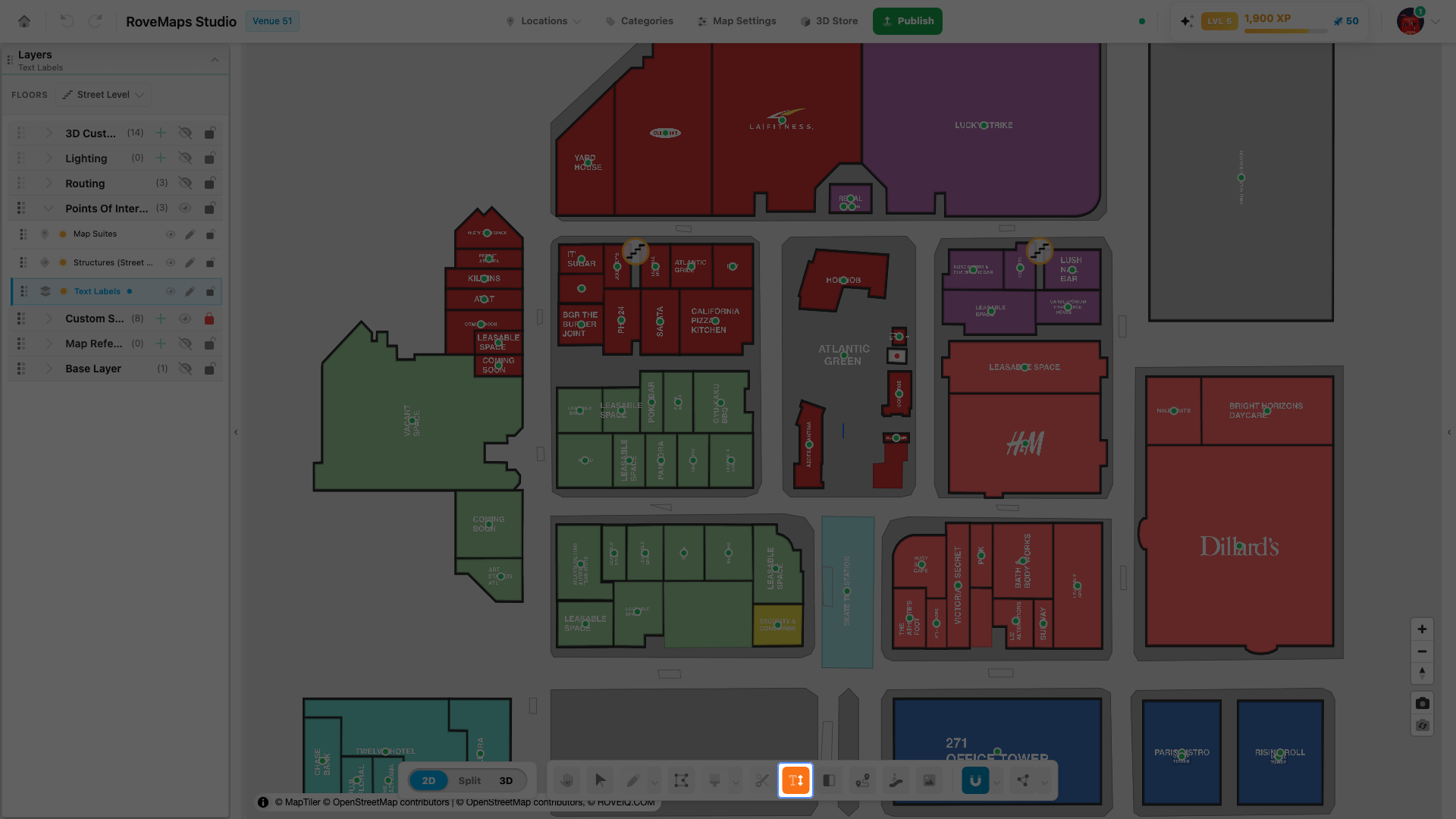
Text Label
The Text Label tool places freestanding text labels by typing directly on the map. Pick the tool, click where you want the label, type the words, and press Enter. It is a stamping tool — every click drops a label — and it self-selects the Text Labels layer, so you never need to select a layer first.
Place a text label
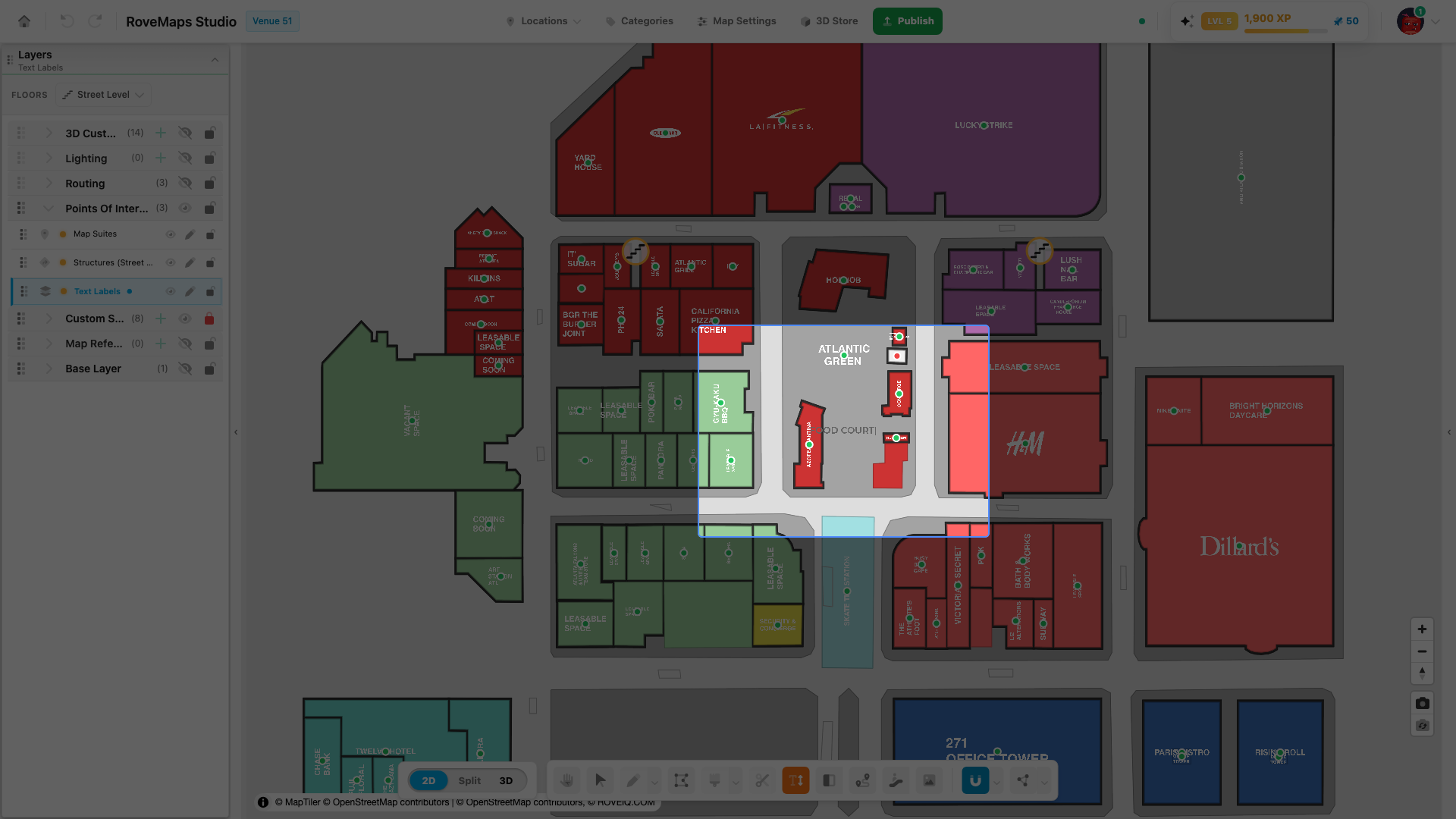
- In the toolbar, select the Text Label tool (shortcut T). The Text Labels layer is selected and a blinking caret follows your cursor.
- Click the map where you want the label. A text cursor appears at that point.
- Type the label text — it renders live on the map as you type.
- Press Enter to place it. The label is created, selected with its transform handles, and the Text Label panel opens.
Notes
- Press Escape — or Enter with nothing typed — to cancel. Whitespace alone also cancels.
- While typing, clicking elsewhere places the current label and starts a new one, so you can drop several in a row.
- A label is placed on the current floor. Switching floors while typing finishes or cancels the in-progress label first.
Publish impact: a placed label stays in your draft and is visible only in the editor until you Publish, where it appears in the preview under Map Texts.
Edit a label’s text
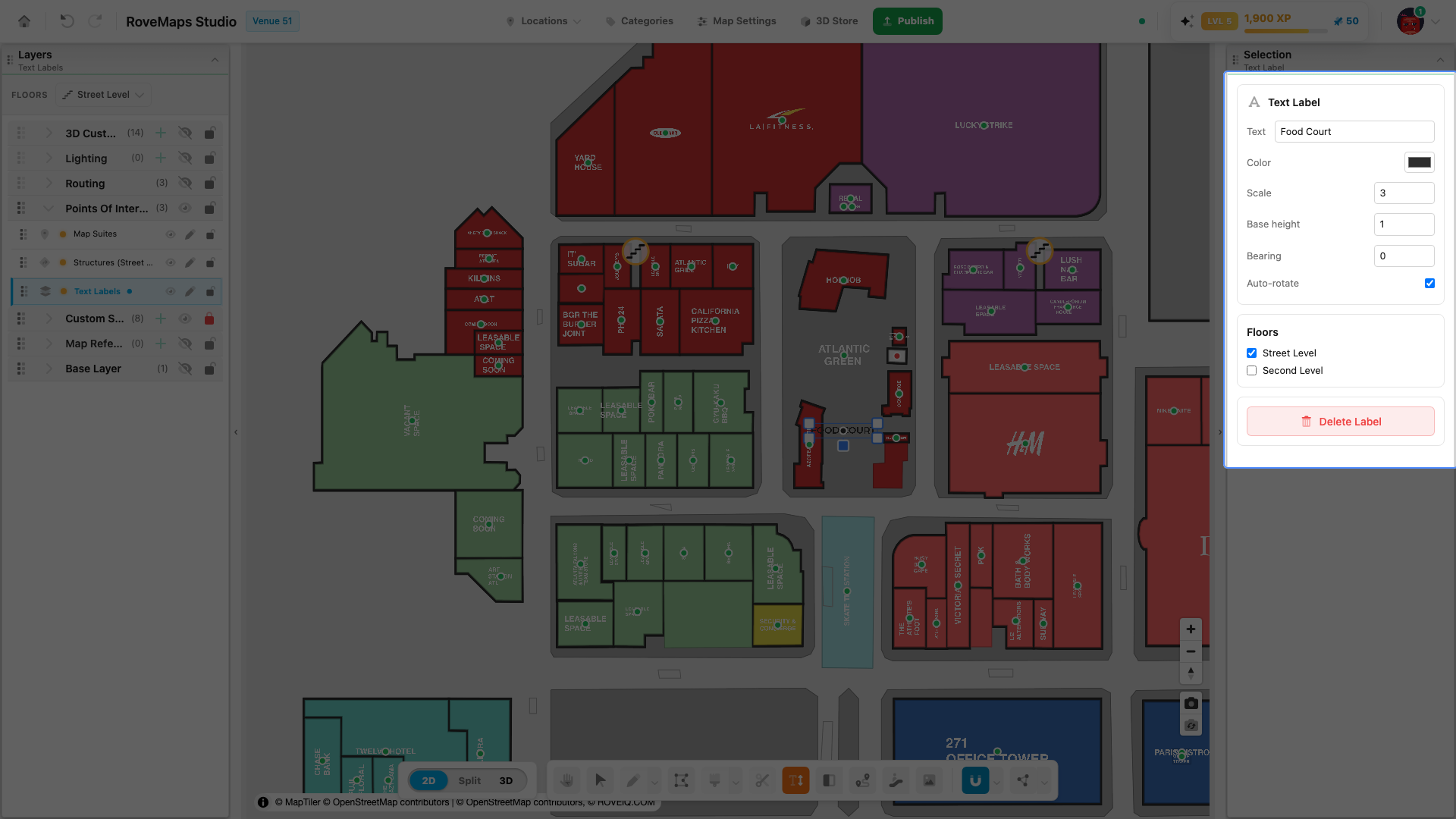
Change the words on an existing label either on the map or in the panel — both update the same label.
- On the map: with the Text Label tool active, double-click the label’s handle dot. Its text loads into an inline editor; edit it and press Enter to commit (Escape discards).
- In the panel: click the label to select it, then edit the Text field. The change commits when you leave the field (blur or Enter), as one undoable step.
Notes
- Every other property — color, scale, height, bearing, auto-rotate, floors — is edited in the Text Label panel, not the on-map editor.
Rotate and scale a label
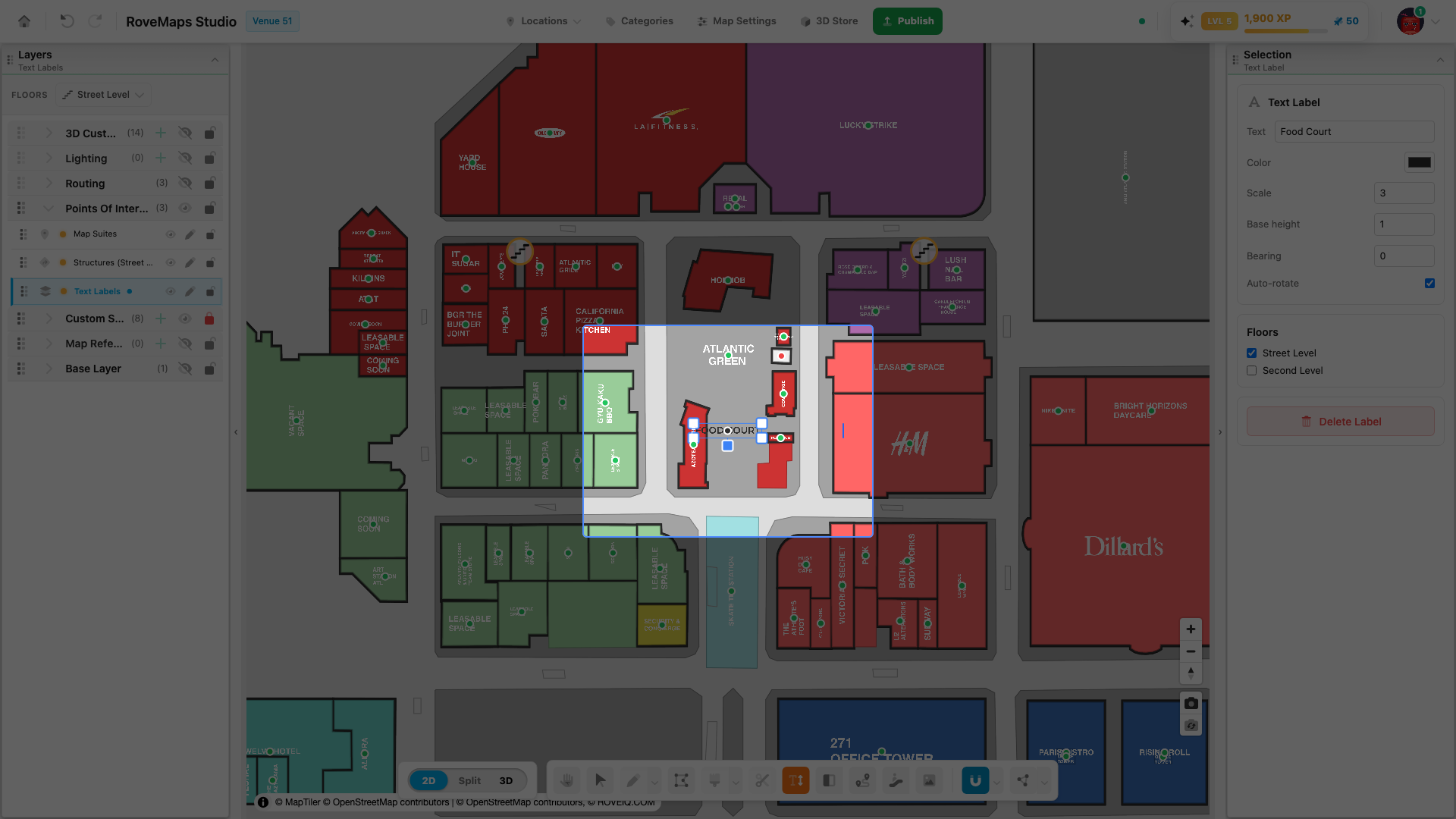
Resize and rotate a label two ways — with its on-map handles or the panel fields. Both adjust the same label, and the change shows in both the 2D map and the rove-js 3D view.
- Scale (size): drag a corner handle, or set the Scale field (minimum 0.1).
- Rotate (bearing): drag the blue rotation handle on the map, or set the Bearing field (0–360°, clamped). Either way the label turns in both 2D and 3D.
Notes
- On-map handle drags commit on release, as one change; panel fields commit on blur or Enter.
- Dragging the rotation handle sets Bearing only — it never touches Auto-rotate.
- Bearing (rotation) is separate from Scale (size) and Base height (3D elevation).
Auto-rotate
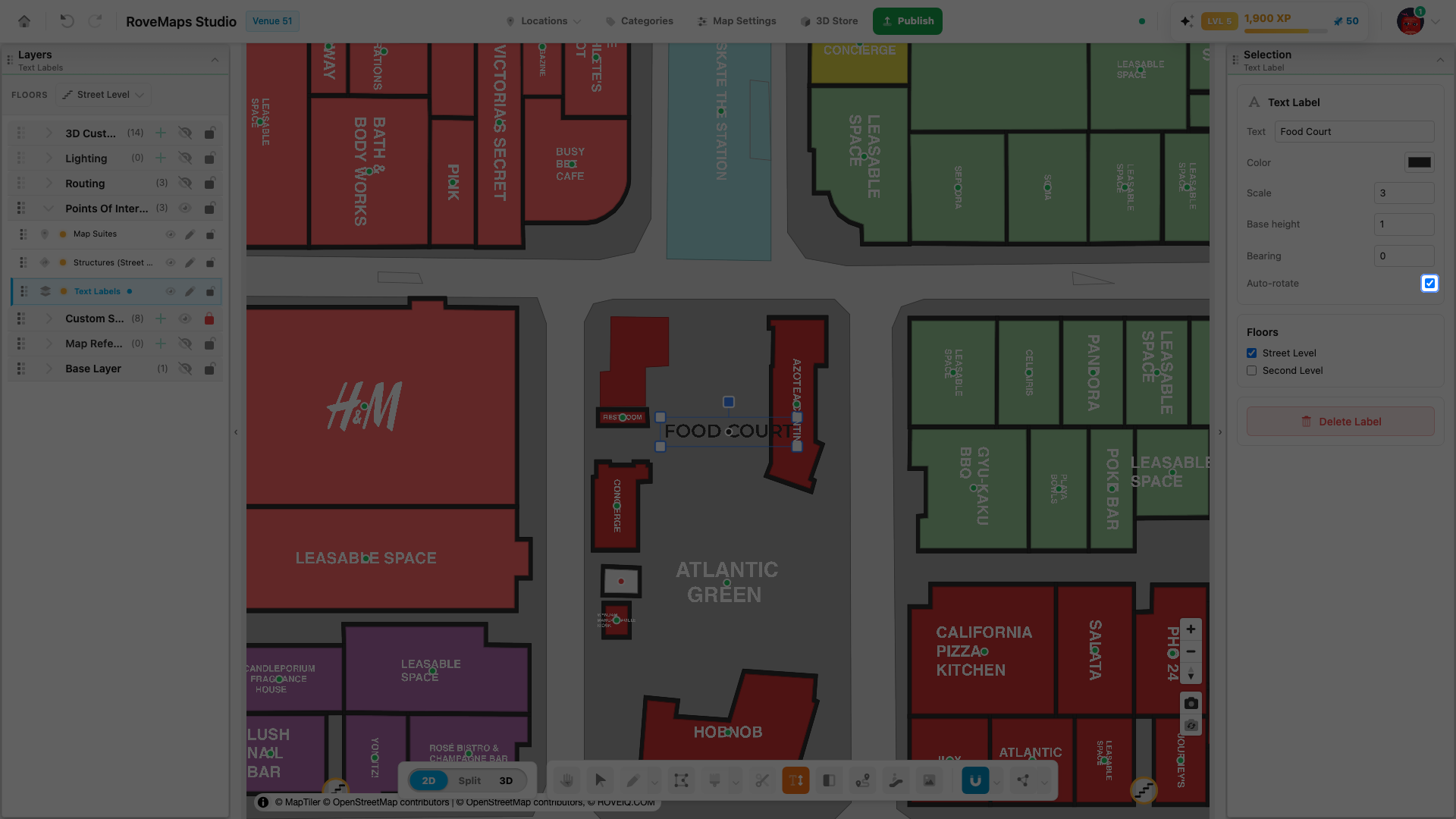
Auto-rotate controls whether a label re-orients on its own to stay readable as the map is rotated. It’s on by default.
- On: when the map is rotated far enough that the label would read upside down, it flips 180° to stay upright and readable (the same behavior as your venue’s structure labels).
- Off: the label holds its exact bearing — so at a 180° map rotation it reads upside down.
Toggle it from the Auto-rotate checkbox in the panel. Turn it off when you want a label pinned to a specific angle no matter how the map is turned.
Adjust label height in 3D
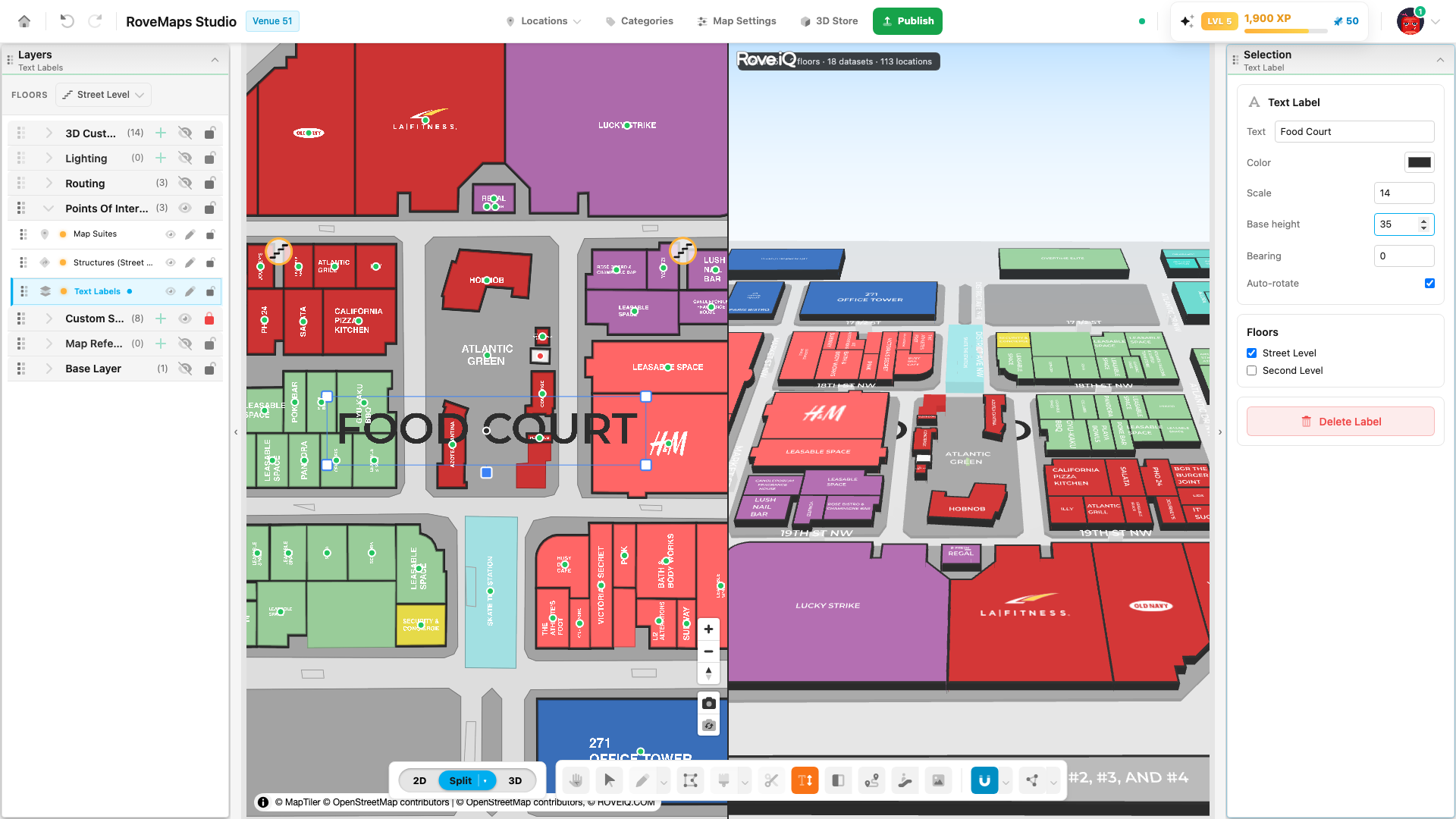
A label’s Base height sets how high it floats above the floor, in meters. The flat 2D map always lies on the ground, so the elevation only shows in the 3D or Split view.
- Click a label to select it and open the Text Label panel.
- Set Base height — its height above the floor, in meters.
- Switch to 3D or Split to see the label lifted to that height.
Notes
- Base height is separate from Scale (size) and Bearing (rotation).
- In 2D the label lies flat regardless of base height — only the 3D and Split views show it lifted.
- Base height commits when you leave the field (blur or Enter), as one change.
Default label values
New labels don’t start from a fixed preset. When you place a label, the tool copies the most common values of the labels already on the map — Scale, Base height, Color, and Auto-rotate (labels on the current floor are preferred) — so the new one fits in. Bearing always starts at 0, and each label stays independently editable afterward. On a map with no labels yet, a new label uses the built-in starting values: scale 3, base height 1, bearing 0, auto-rotate on, and a default dark gray.
There is no separate settings screen for label defaults. To steer what new labels start with, set the size, height, and color you want on a few existing labels — the next label you place starts from those values.
Glossary
- Text label — a freestanding piece of text placed on the map, independent of any structure.
- Placement caret — the blinking marker that follows the cursor while the Text Label tool is active, showing where the next label will drop.
- Scale — the label’s size (minimum 0.1).
- Bearing — the label’s rotation in degrees (0–360).
- Base height — how high the label floats above the floor in the 3D view, in meters.
- Auto-rotate — whether the label reorients on its own instead of holding a fixed bearing.