Transform Box
The transform box moves, scales, stretches, and rotates a whole polygon at once — the shape and its rounded corners come along as one piece. It’s the fast way to reposition a structure or resize a custom-style footprint without touching individual vertices. To reshape a polygon vertex-by-vertex instead, use the Vertex Tool.
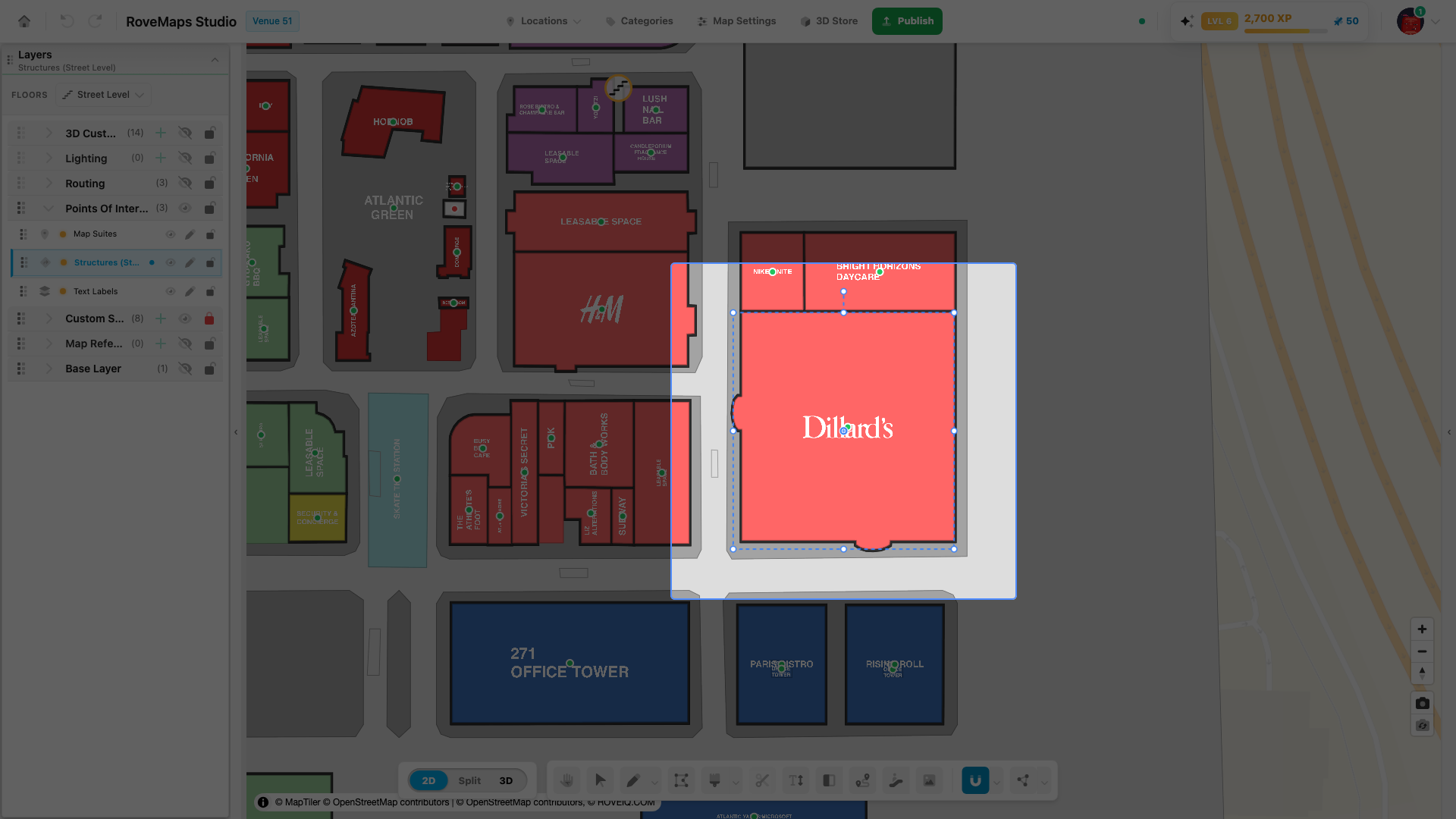
The transform box
A dashed blue box wraps the selected polygon, with a handle for every kind of edit:
- Center bubble — the grip in the middle. Drag it to move the whole box.
- Corner handles — the four corners. Drag one to scale the box uniformly.
- Edge handles — the midpoint of each side. Drag one to stretch along a single axis.
- Rotate handle — the dot on a short stem above the box. Drag it to spin the box.
Every gesture — a move, a scale, a stretch, a rotate — is a single change: one Ctrl+Z / Cmd+Z undoes it completely. Each also marks the touched layer modified, and the change stays in your draft until you Publish.
Enter the transform box
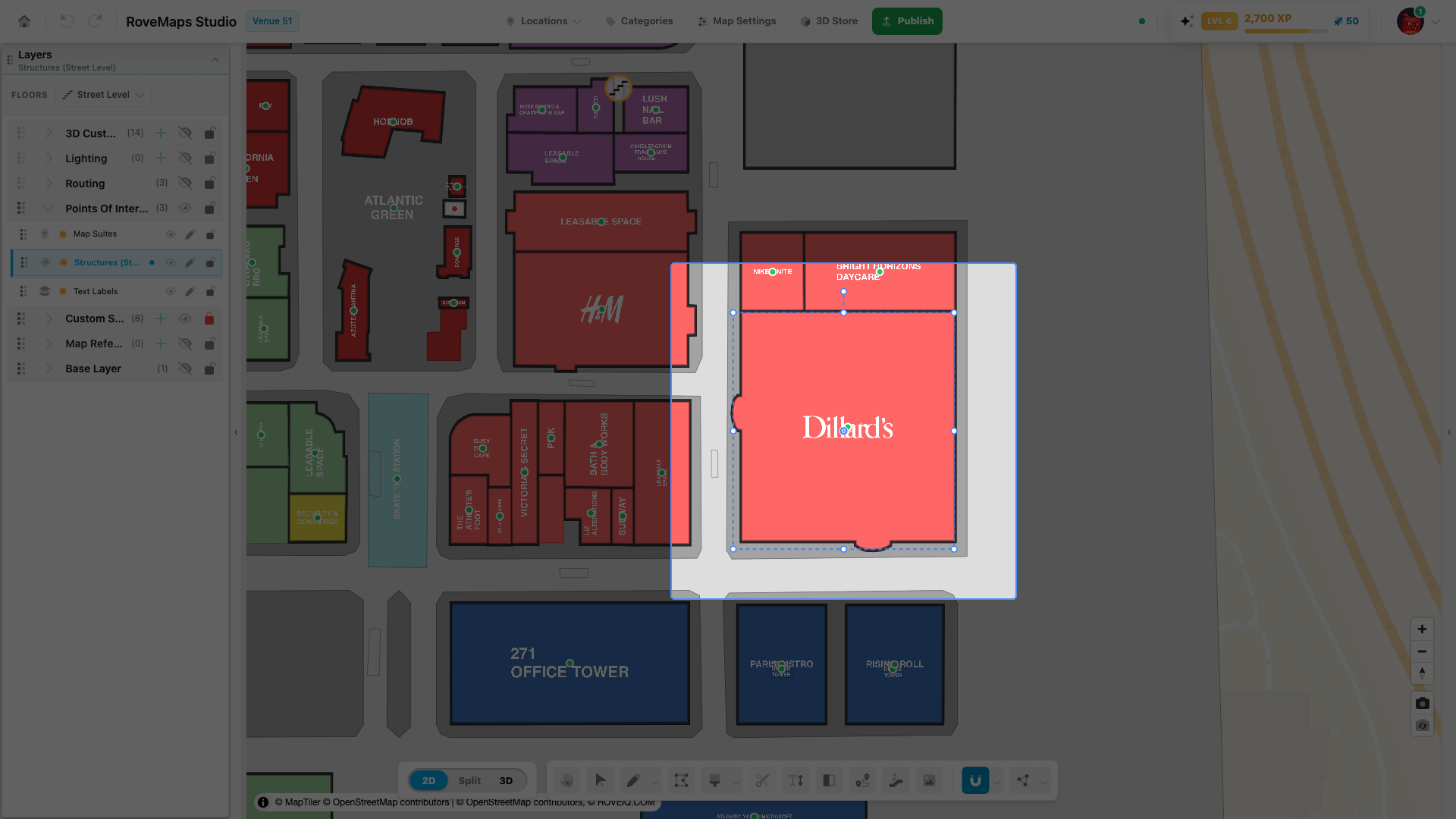
There are three ways in:
- With the Select + Pan (hand) tool active, double-click a polygon. Its transform box appears.
- To transform several polygons together, Shift-click each one, then Shift+double-click any member. One box wraps the whole group and moves them together.
- With one or more polygons already selected, press M.
Notes
- The transform box is for polygons — structure outlines, custom-style shapes, and imported GeoJSON map-reference shapes. Double-clicking with the Select (arrow) tool opens the Vertex Tool instead, for vertex-by-vertex editing.
- Imported GeoJSON reference shapes show a light dashed outline as you drag; all other polygons preview live inside the box.
Move the box
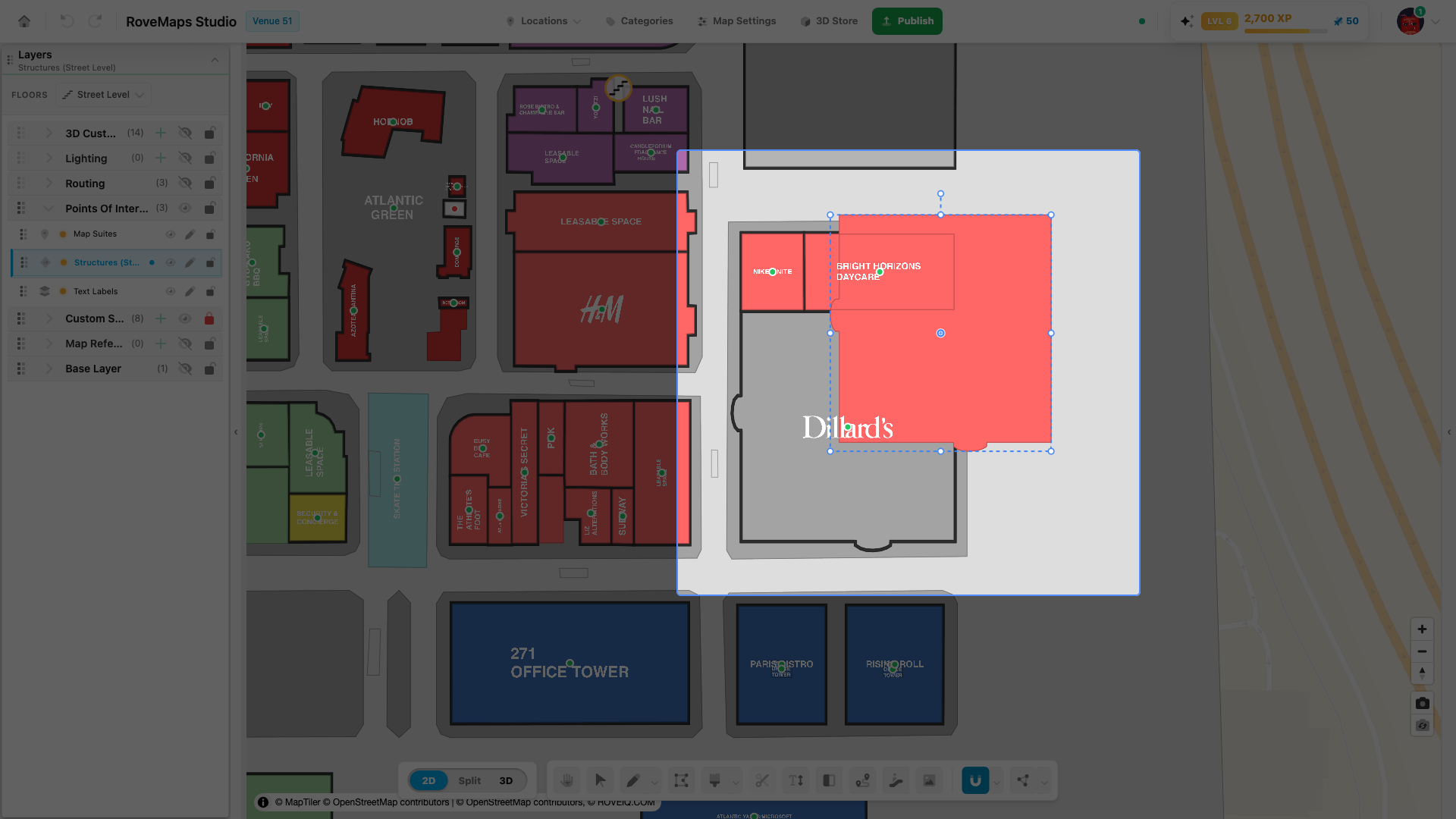
- Point at the center bubble in the middle of the box.
- Press and drag. The box and its polygon follow the cursor.
- Release to commit the move.
Notes
- Only the round handles transform the shape — corners scale, edge midpoints stretch, and the stem handle rotates. Dragging anywhere else, even inside the box, pans the map.
- Each move is a single undo step (Ctrl+Z / Cmd+Z).
Scale from a corner
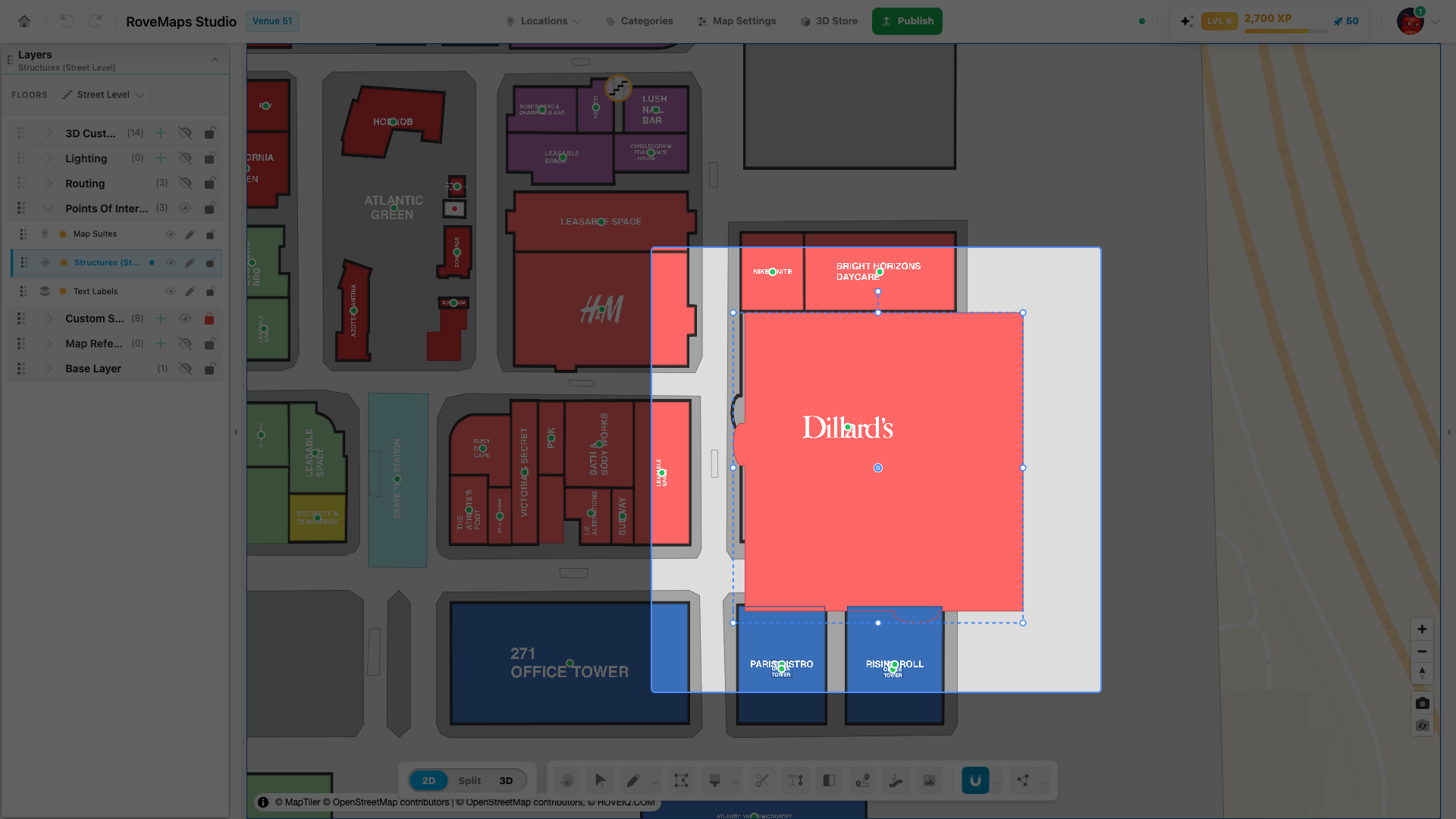
- Point at any corner handle.
- Press and drag. The box resizes uniformly — width and height scale together — while the opposite corner stays pinned in place.
- Release to commit.
Notes
- Rounded corners scale proportionally with the shape, so the outline keeps its look.
- Each scale is a single undo step.
Stretch from an edge
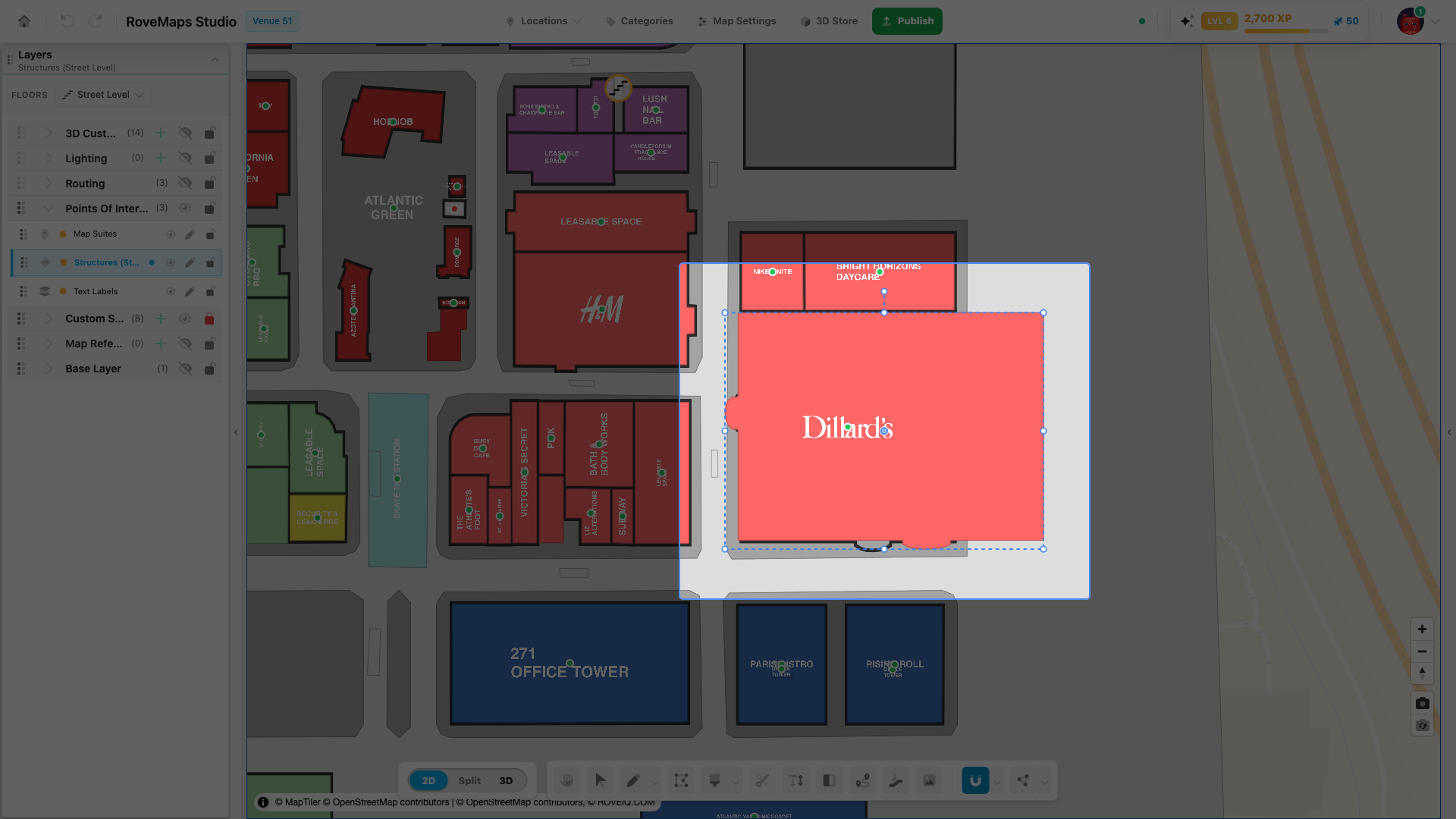
- Point at an edge handle — the midpoint of any side.
- Press and drag. The box stretches along that one axis only, and the opposite edge stays pinned.
- Release to commit.
Notes
- A side handle changes width or height; a corner handle changes both. Stretch to change a shape’s proportions.
- Each stretch is a single undo step.
Rotate the box
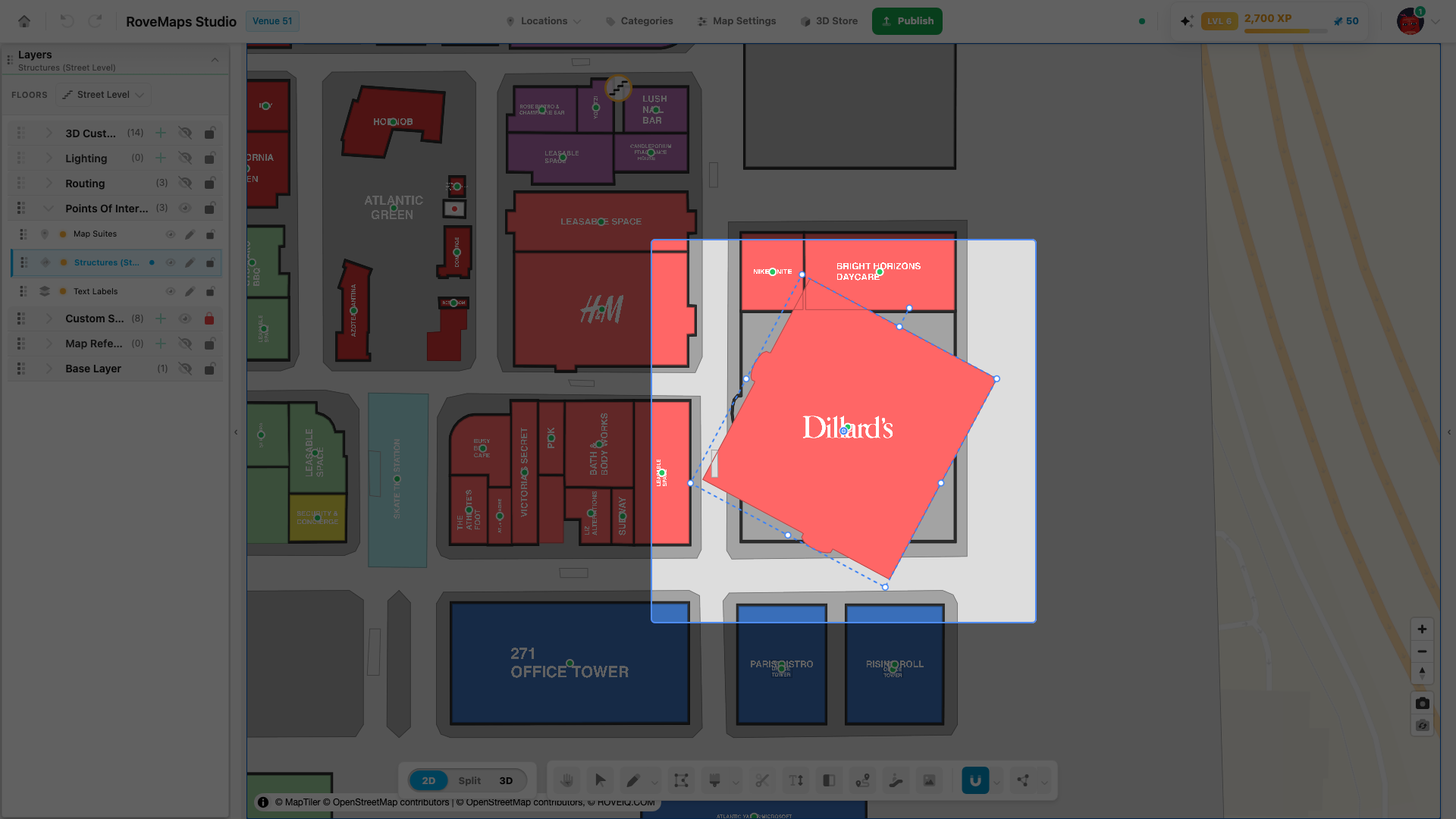
- Point at the rotate handle — the dot on the short stem above the box.
- Press and drag around the center. The box and its polygon spin to follow.
- Hold Shift while dragging to snap the angle to 15° steps.
- Release to commit.
Notes
- Rotation turns the box around its center, so the shape stays put while it spins.
- Each rotate is a single undo step.
Exit the transform box
Leave the transform box when you’re done:
- Press Escape, or
- Click anywhere off the box.
Either one returns you to the Select tool with the box dismissed. Nothing is left half-applied — each gesture already committed on its own release, and any gesture you cancel with Escape mid-drag leaves the polygon exactly as it was.
Glossary
- Transform box — the dashed blue box that moves, scales, stretches, and rotates a whole polygon as one.
- Center bubble — the middle grip; drag it to move the box.
- Corner handle — a box corner; drag it to scale uniformly about the opposite corner.
- Edge handle — a side midpoint; drag it to stretch one axis with the opposite edge pinned.
- Rotate handle — the dot on the stem above the box; drag it to spin the box, Shift to snap to 15°.
- Group box — one transform box wrapping several Shift-selected polygons that move together.