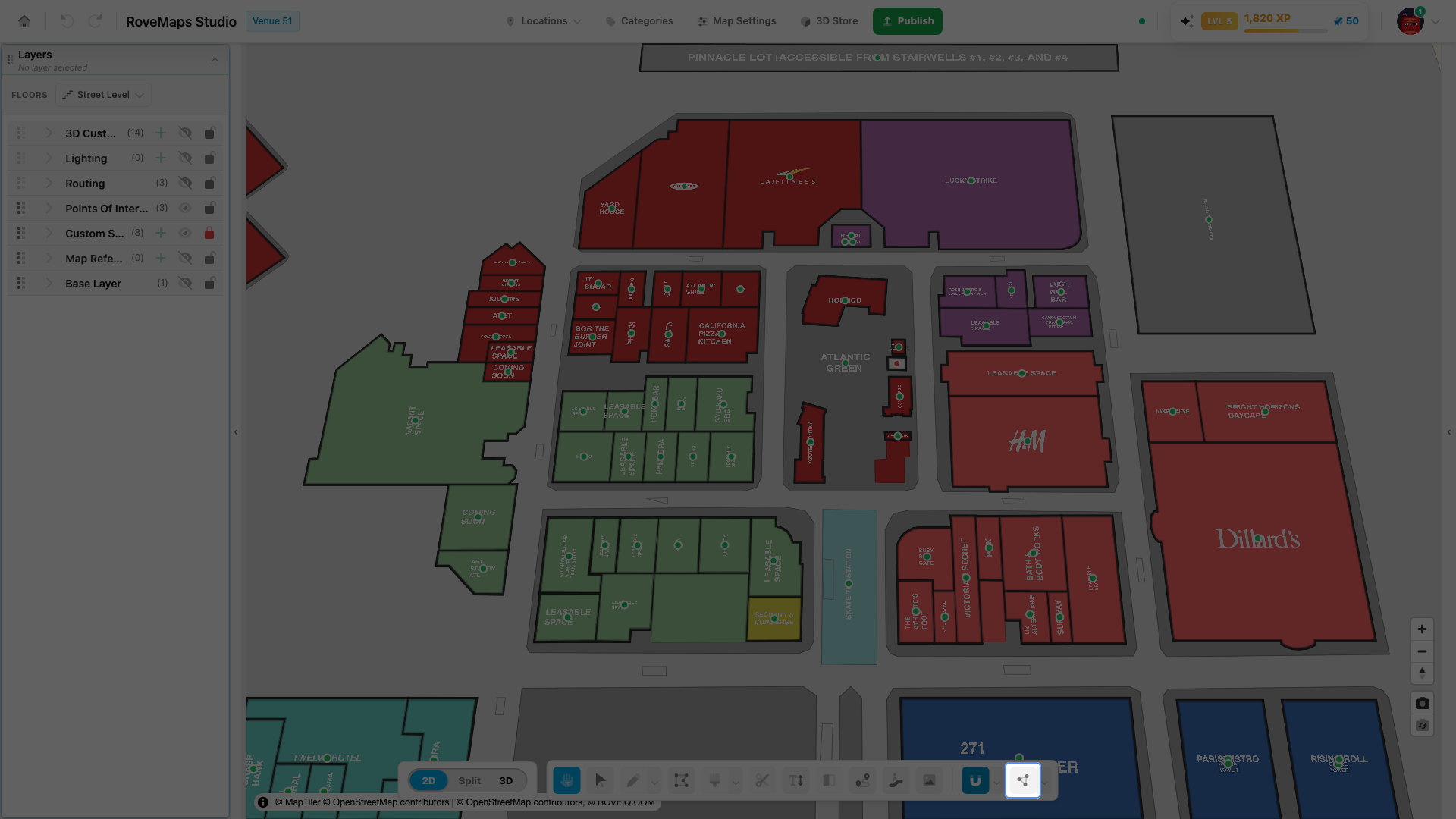
Topology
Topology is a toolbar modifier that keeps connected shapes connected while you edit. When it is on, dragging a vertex that several shapes share moves every shape that shares it at the same time. It is shown in the toolbar as Move together and is off by default.
Move features together
With Move Together on, editing one shape’s vertex also moves the matching vertices on every shape that shares them, so connected boundaries stay connected.
- In the toolbar, click Move together to turn the modifier on — the label reads “Move together: On”.
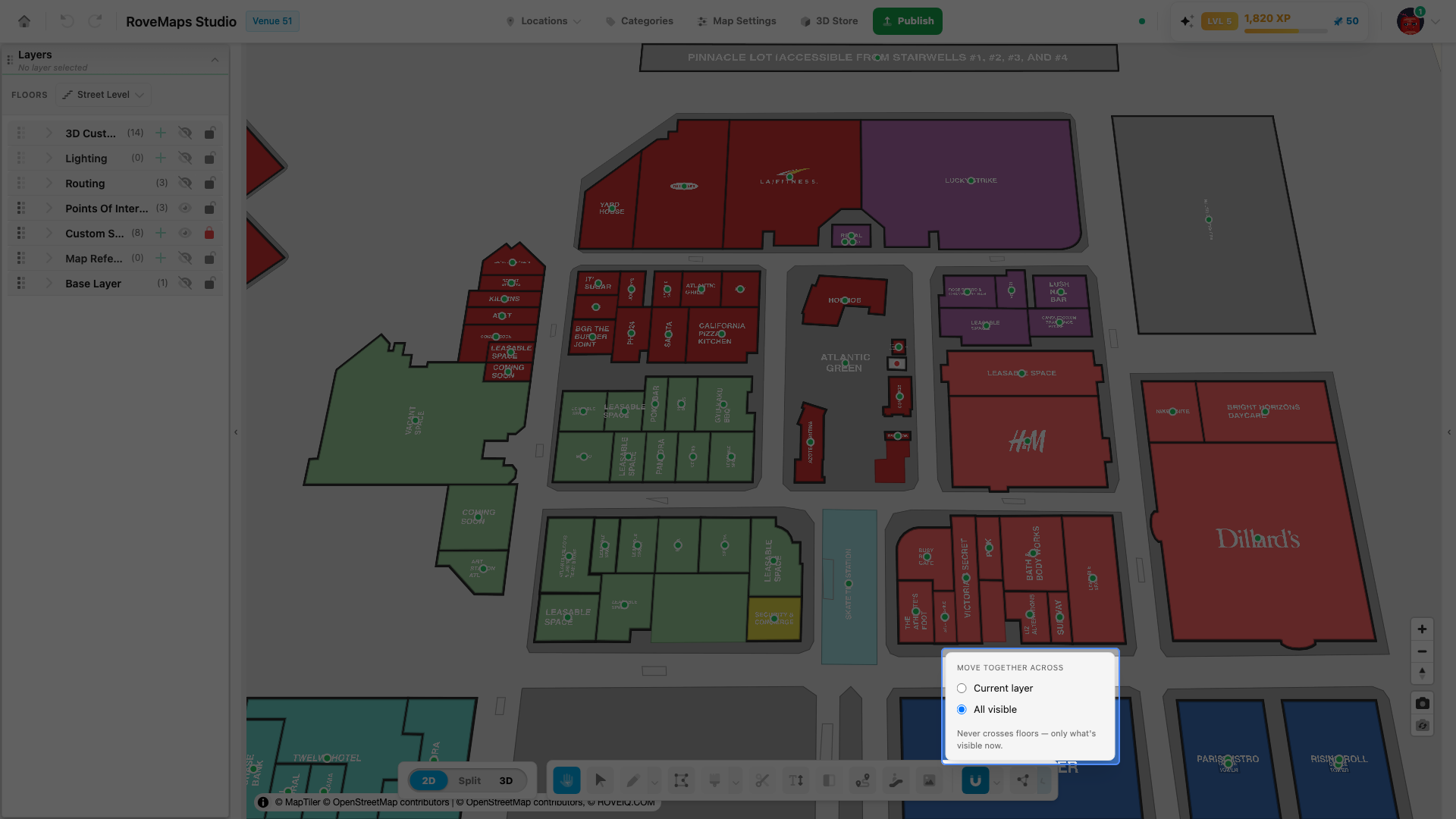
- Open the settings with the chevron and set the scope under Move together across (see Current layer or all visible).
- Select the Vertex Tool.
- Drag a vertex that is shared with neighbouring shapes — every coincident vertex on the other visible shapes on the same floor moves with it.
Notes — Move Together works on structure outlines and custom-style polygons visible on the current floor. On drop, vertices that were only nearly touching are welded to an exact match. A move is all-or-nothing: if it would collapse any shape to an invalid outline, the whole move is cancelled. Publish impact: none directly — it changes geometry through your vertex edits, which publish as normal.
Current layer or all visible
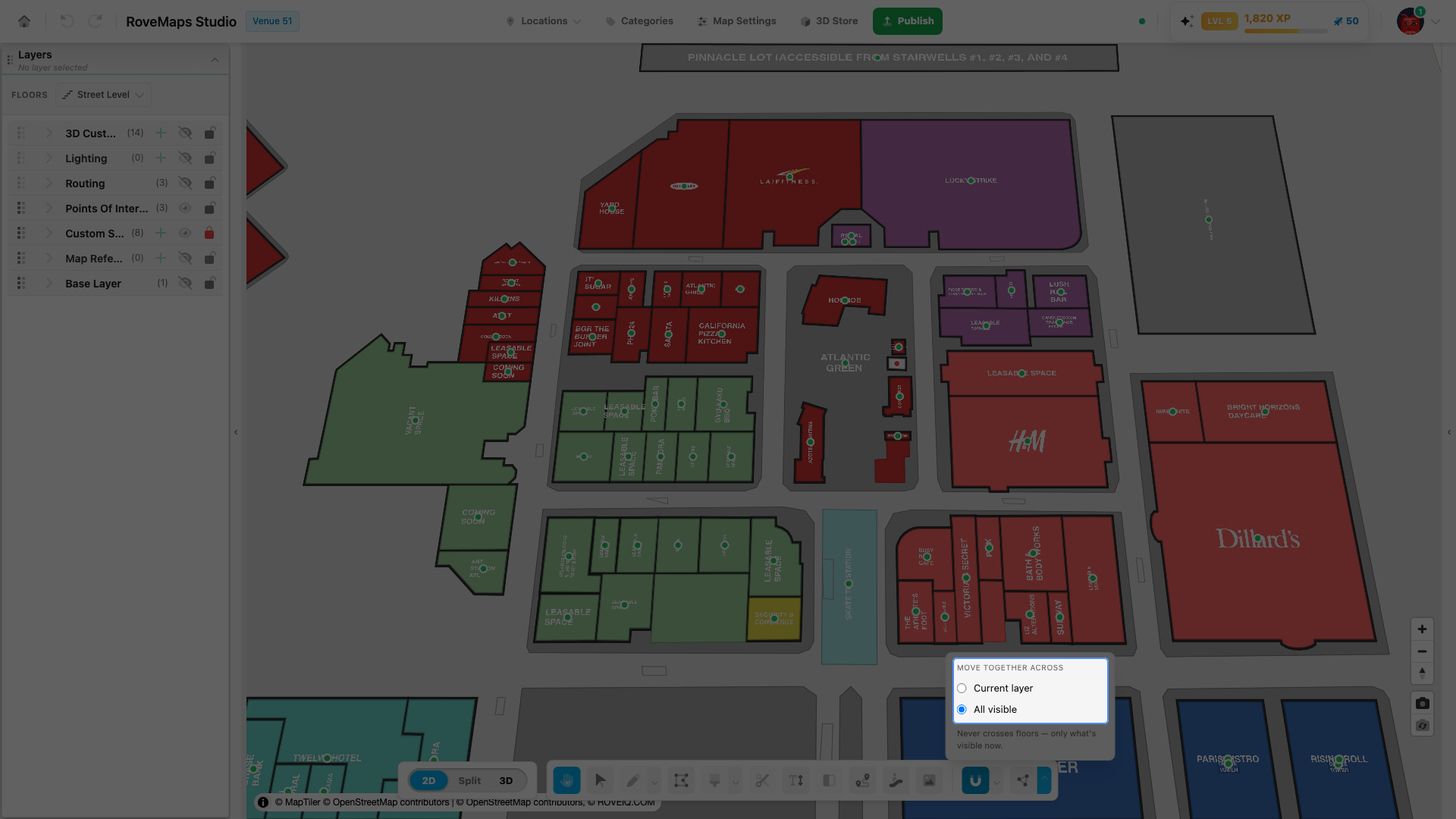
The Move Together settings let you choose how far a vertex move reaches — only the layer you are editing, or every visible layer on the floor.
- Open the Move together settings with the chevron next to the toggle.
- Under Move together across, choose a scope:
- Current layer — only vertices on the active layer move together.
- All visible — vertices on every visible layer on the current floor move together.
Notes — the choice applies to your next vertex drag and never crosses floors. It is remembered between sessions.
Stop moving together
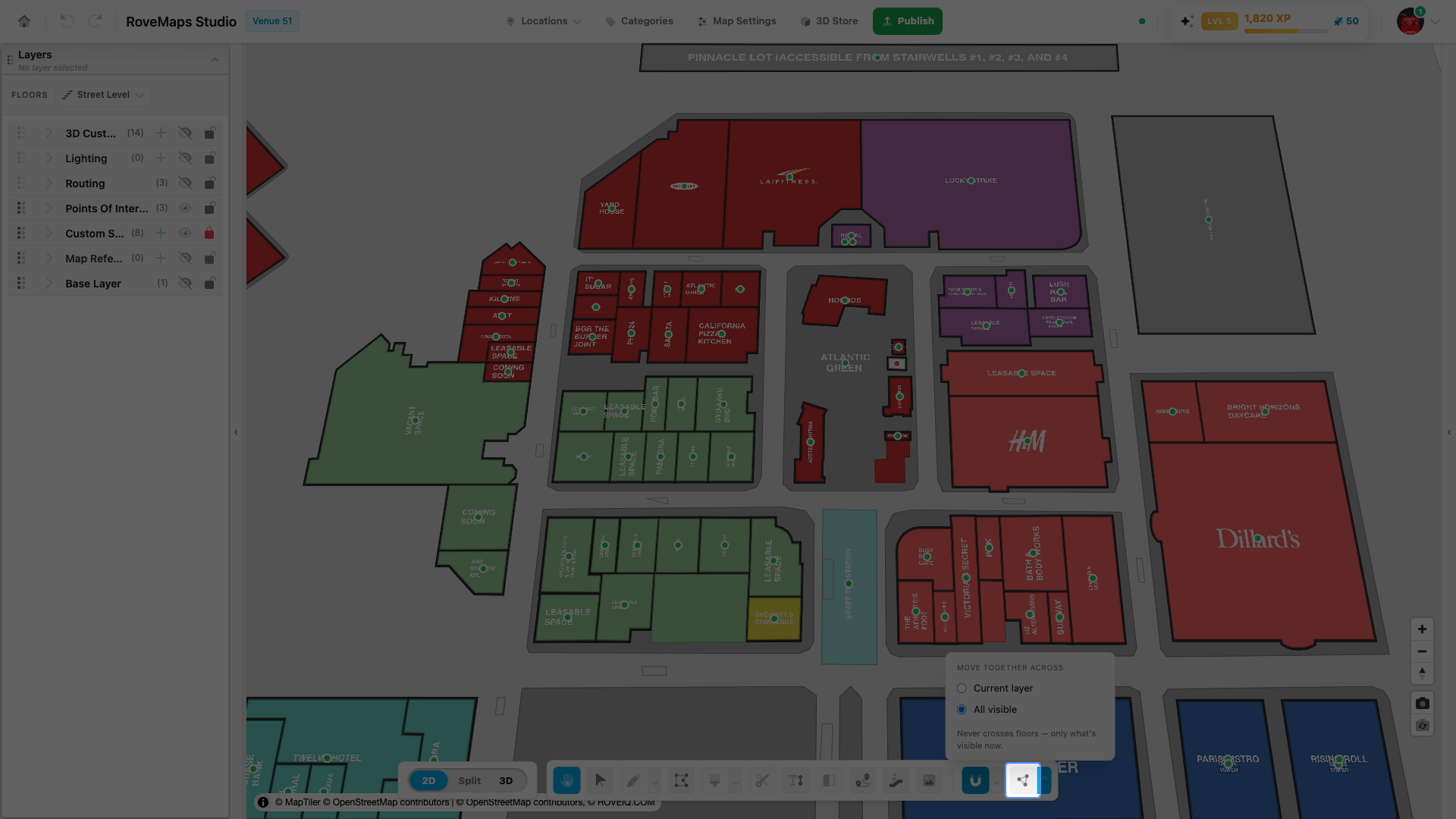
Turn Move Together off when you want to edit a single shape’s vertex without dragging the shapes that share it.
- In the toolbar, find the Move together toggle — it reads “Move together: On” while active.
- Click it. The label changes to “Move together: Off”.
- Vertex edits now affect only the shape you are editing; connected shapes stay put.
Notes — Move Together is off by default, and your last choice is remembered between sessions.
What it affects
- Works on structure outlines and custom-style polygons visible on the current floor.
- Never crosses floors and never moves vertices on hidden layers.
- On drop, nearly-touching vertices are welded to an exact match.
- All-or-nothing: a move that would make any shape invalid is cancelled entirely.
Topology preserves connections that already exist. To create a new connection between shapes, use Snapping while you draw or drag.
Glossary
- Move together (topology) — the modifier that drags coincident vertices on connected shapes together.
- Coincident vertices — vertices from different shapes that sit at the exact same point.
- Scope — how far a move reaches: the current layer only, or all visible layers.
- Weld — snapping nearly-touching vertices to an exact shared point on drop.