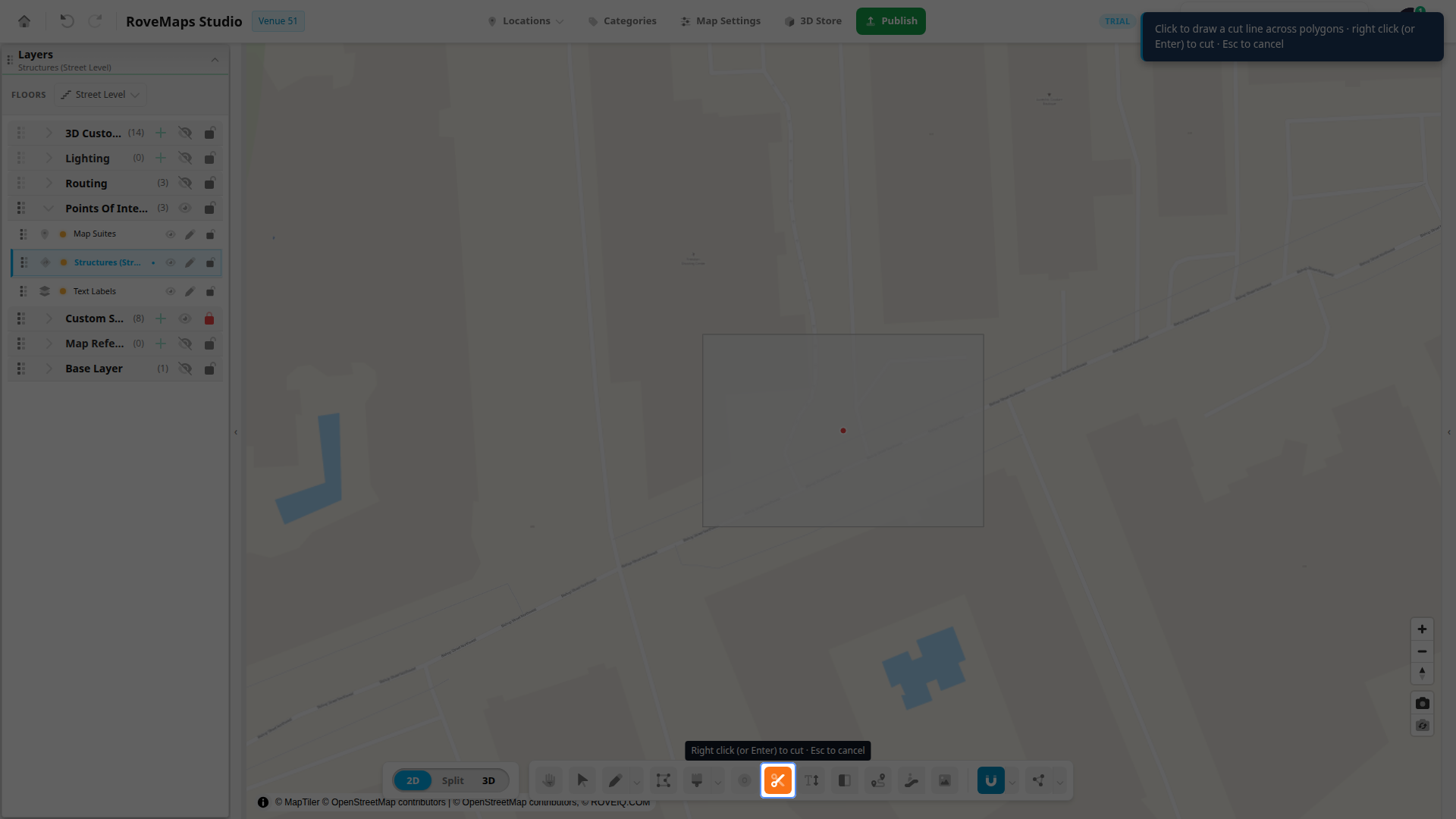
Cut
The Cut tool slices a polygon into separate pieces with a line you draw across it. Every polygon the line completely crosses on the active layer becomes two or more brand-new shapes. On a Structures layer each new piece gets its own map suite and door, exactly as if you had deleted the original and drawn the pieces by hand.
What the Cut tool does
Cut works on polygon layers — Structures, Custom Styles, and polygon map references. It has its own toolbar button — the scissors icon — next to Draw Hole.
Draw a line that passes all the way across one or more polygons, then commit. Each crossed polygon is replaced by the pieces the line carves out:
- The original polygon is removed and each piece becomes a new feature with reset properties — a cut is treated as “delete the polygon, then draw these new ones.”
- On a Structures layer, every piece gets a fresh map suite and door; the original structure’s suite and door are removed with it.
- The whole cut — every removed feature and every new one, across all affected polygons — is a single undo step.
A line that does not completely cross any polygon changes nothing. Cut only ever touches the active layer; polygons on other layers are never affected, even if the line passes over them.
Cut a polygon
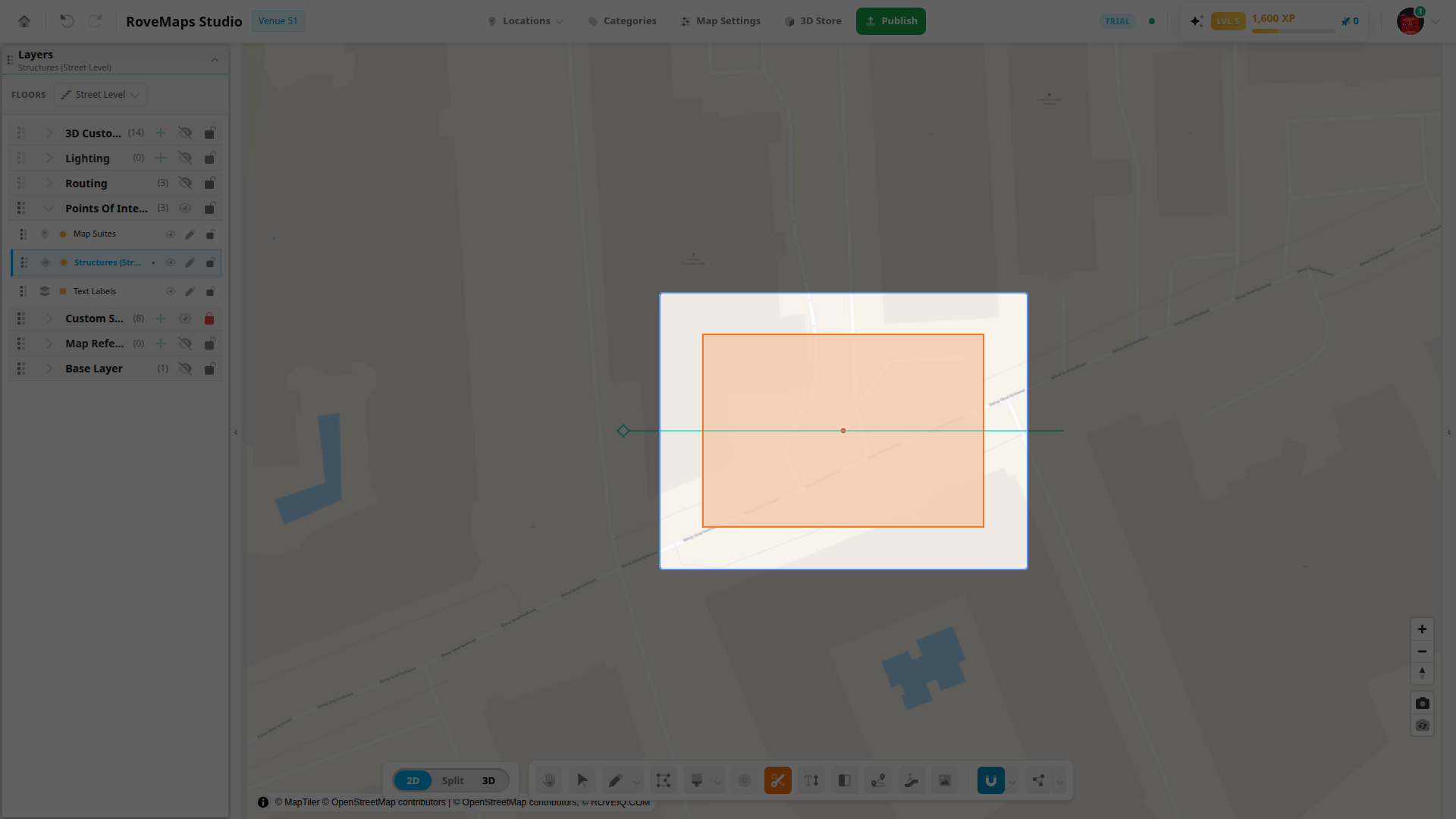
- Select a polygon layer (Structures, Custom Styles, or a polygon map reference), then click the Cut button (the scissors icon) or press C. Cut is disabled until a cuttable layer is selected; once armed the button turns orange.
- Click on the map to place each point of the cut line. Draw the line so it passes all the way across the polygon — entering one side and leaving the other.
- As you move the cursor, every polygon the line will completely cross highlights, so you can see what the cut will affect before you commit.
- Right-click — or press Enter — to make the cut. A toast reports how many polygons were split and into how many pieces.
Notes
- One line can cross several polygons at once; each fully-crossed polygon is split.
- A zig-zag that crosses a polygon more than once splits it into more than two pieces.
- Press Esc once to clear the line you are drawing and keep cutting; press Esc again with no line in progress to leave the Cut tool for the Select tool.
- The tool stays armed after a cut, so you can keep slicing.
What happens to suites and doors
Cutting a Structures polygon is a full reset, not an in-place edit. For each structure the line crosses:
- The original structure, its map suite, and its door are removed together.
- Each new piece is created as a fresh structure with default properties — its own new map suite and door at the piece’s center, and no carried-over name, category, or styling.
Cutting a Custom Style or map reference polygon just splits the geometry into new style or reference features — there are no suites or doors to recreate. Because the pieces are brand-new features, any per-feature settings on the original are not copied to them; set them again on the pieces you keep.
When a cut is rejected
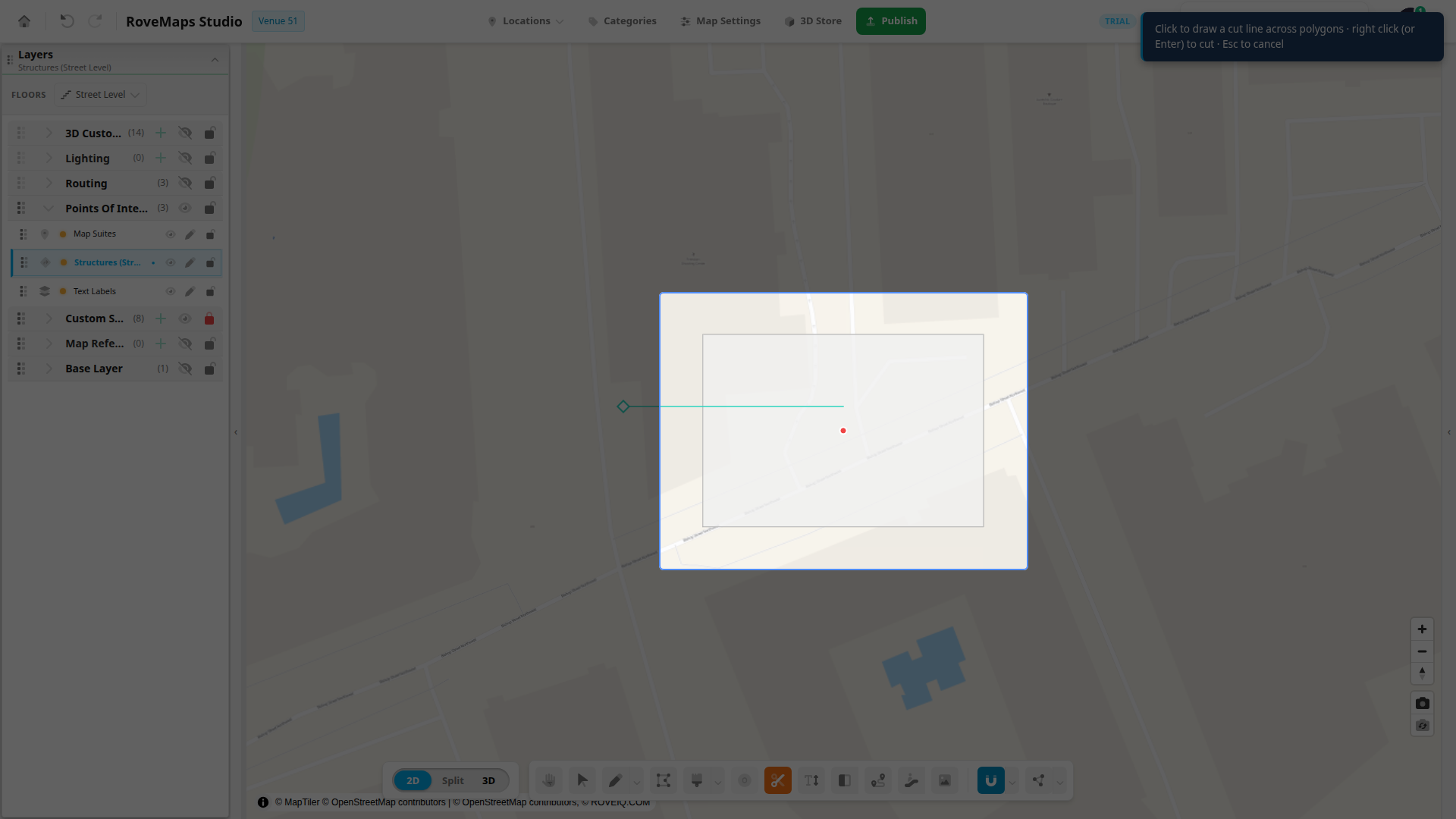
A cut only happens when the line completely crosses a polygon — entering one edge and leaving another. These strokes cut nothing:
- A line that stops inside a polygon, or only touches one edge, does not divide it. Committing shows “Cut must completely cross a polygon” and leaves the polygon unchanged.
- A self-intersecting line (one that crosses over itself) is rejected with “Cut line cannot cross itself” — redraw it as a simple line.
- A line with fewer than two points is not a cut.
When a piece would come out invalid (for example a sliver with no area), that one polygon is skipped and the toast notes how many were skipped; the other crossed polygons still split.
Undo
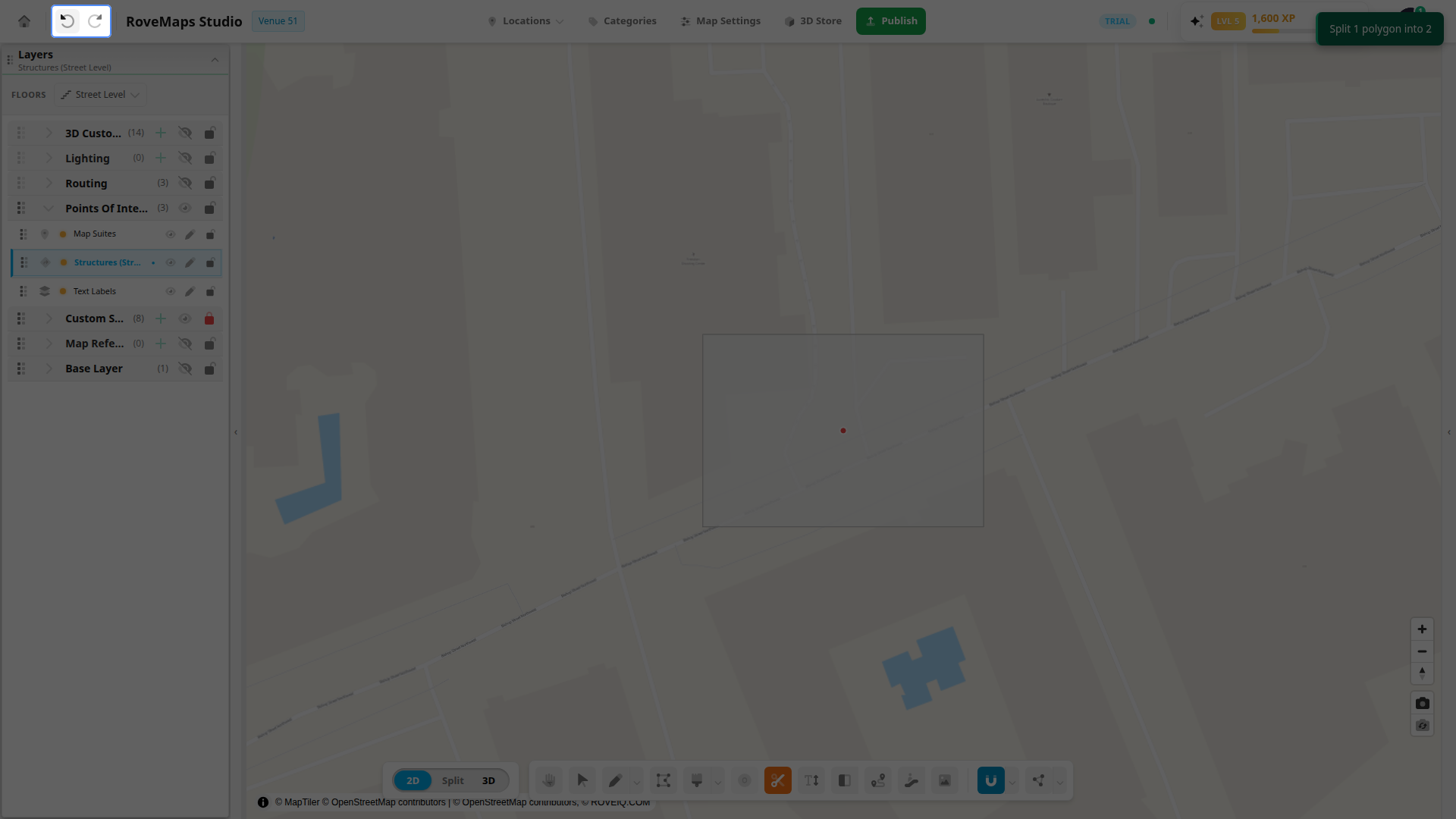
A cut is a single, atomic change. Undo (Ctrl+Z, Cmd+Z on Mac, or the undo button in the top-left of the header) restores the original polygon — and, on a Structures layer, its suite and door — while removing every piece the cut created, all in one step. Redo (Ctrl+Shift+Z / Ctrl+Y) re-applies it.
Undo and redo are per-user: you only undo your own cuts, never a collaborator’s.
Glossary
- Cut line — the multi-point line you draw to slice polygons; it must completely cross a polygon to divide it.
- Piece — one of the new polygons a cut produces from an original.
- Completely cross — enter a polygon through one edge and leave through another; a line that stops inside cuts nothing.
- Reset — new pieces start with default properties (and, on Structures, a fresh suite and door), as if drawn from scratch.