Publish
Publishing promotes your draft map to the live version your visitors see. You edit in a collaborative draft, then Publish reviews the pending changes and writes the approved ones to the live venue.
Draft vs live
The editor works in a collaborative draft. Changes can be visible to other editors in the same room before they are visible to visitors. Publish scans that draft, shows the pending changes, then writes approved updates to the live venue data.
For a new draft venue, publish first creates the venue, freezes collaborators during the handoff, then moves everyone to the numeric venue route when the publish finishes.
Save a draft vs publish
Your edits save to the shared draft automatically as you work — there is no separate save button.
- Every edit is written to the shared draft and synced to other editors in the same room in real time. Nothing is lost between sessions; reopening the map restores the draft.
- Draft changes are not visible to visitors. The live map keeps showing the last published version until you publish again.
- There is no manual “save draft” action. Saving is continuous; Publish is the explicit step that makes the draft live.
Publish your map
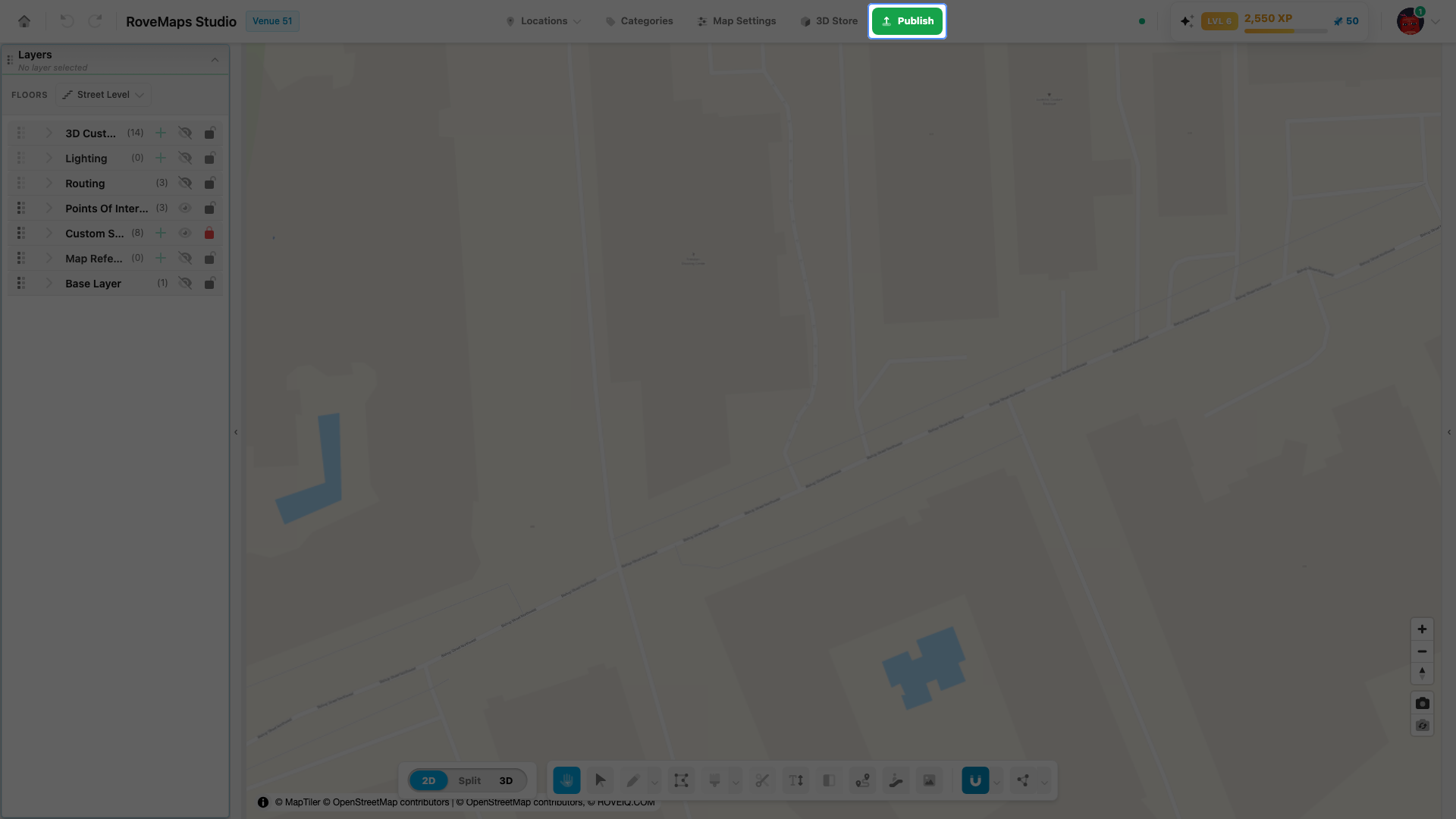
The Publish button lives in the editor header. It is the only step that makes draft changes visible to visitors.
- Click Publish in the editor header.
- On an existing venue, review the preview — it lists every pending change as new, modified, or deleted — then confirm to write the changes to the live venue.
- On a brand-new draft, Publish stays disabled until the required setup steps pass. Confirming creates the live venue, briefly freezes collaborators during the handoff, and moves everyone to the new venue.
Notes
- Only the draft creator sees the Publish button on a new draft. Other collaborators can edit the draft but cannot publish it.
- If your organization’s billing needs attention, Publish opens an upgrade prompt instead of the preview — editing the draft stays open.
Preview your changes
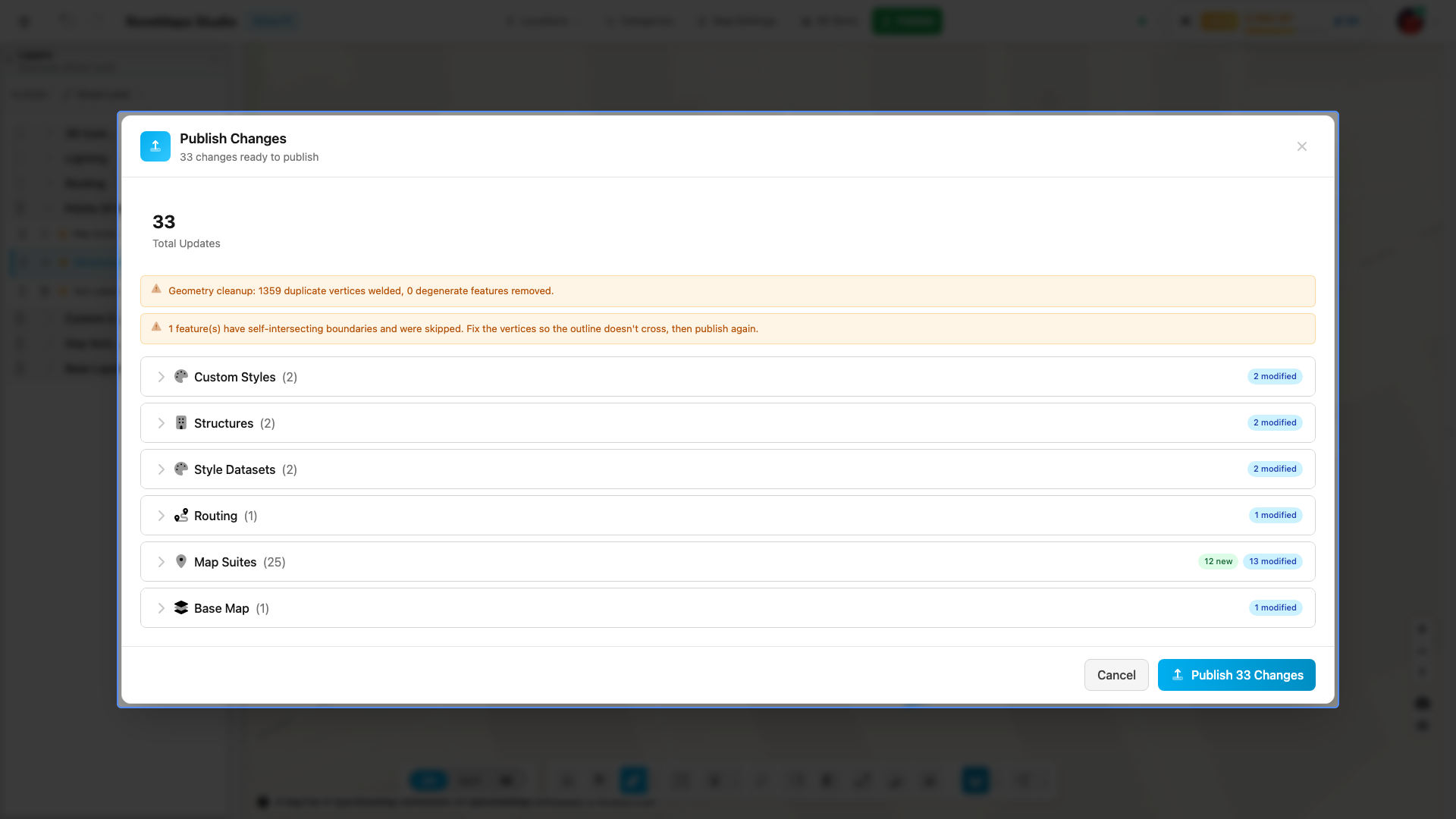
Open each section in the preview before publishing a large change. Every pending change is grouped by type and labelled with a badge:
- New — a draft-only item will be created upstream.
- Modified — an existing live item will be updated.
- Deleted — the live item will be removed after publish.
For geometry-heavy edits, the preview may also report cleanup. Duplicate vertices can be welded, degenerate features can be removed, and self-intersecting features can be skipped. Fix skipped geometry in the Vertex Tool and publish again.
Review the list, then confirm to publish. Closing the preview cancels — nothing goes live.
What happens on publish
- The editor scans the draft for changed entities.
- The preview groups changes by type and labels them as new, modified, or deleted.
- Dependencies are handled first, including new floors, styles, and categories.
- Updates are sent to the API. Modified records use a read-merge-write path so unknown upstream fields are preserved.
- Successful items are marked clean in the draft. Deleted items are removed after the delete succeeds.
The publish preview can include floors, categories, custom styles, structures, style datasets, routing, suites, map texts, floor transitions, custom objects, locations, lights, venue settings, raster and GeoJSON references, and base map settings. Door changes ride through map-suite publish payloads. The list is generated from real draft state: if a section is not shown in the preview, there are no pending changes for that entity type.
After publish, integrators consume the live venue data through the API, embed surface, or SDK path for the project.
Common blockers
- A draft venue cannot publish until required setup fields pass.
- API or authentication errors leave failed items dirty so they can be retried.
- New floor, style, or category references may need to be created before dependent layers can save.
- Very large publishes may be rate limited and take longer.
- Collaborators are blocked during a draft venue publish so the room does not keep changing while the venue is being created.
Embed on a website
Once a map is published, you can embed it on your own website with an iframe. The snippet is
generated from the dashboard Share Map modal. The embedded map is served from a separate viewer
(embed.roveiq.com); the editor only generates the code for you to paste.
- Go to your dashboard and find the published venue’s card.
- Click Share Map.
- On the Web / Mobile tab, use either option:
- Direct Link — copy the link and share it for users to open the map on any device.
- Embed on Website — copy the iframe snippet and paste it into your page’s HTML.
- Adjust the
widthandheightvalues in the snippet to fit your layout.
The snippet looks like this, with your venue’s id filled in:
<iframe
	src="https://embed.roveiq.com/venues/123"
	width="100%"
	height="600"
	frameborder="0"
	allow="geolocation"
	allowfullscreen
></iframe>
Notes
- Share Map appears only on published venue cards. A draft cannot be embedded until it is published.
- The Kiosk tab offers the same map in kiosk mode (a
?mode=kioskURL) for signage and public displays. - The SDK tab is for developers who need a custom, programmatic integration.
Set the starting camera
The venue’s starting camera sets the view the map opens at — its center, zoom, rotation (bearing), and tilt (pitch). It lives on the View tab of Map Settings and is a venue setting that publishes with the rest of your map. The live map opens at this saved view.
Capture it from the map or type each value directly on the View tab. This is the same View-tab control documented under Map Settings and Camera Modes:
- Set the starting zoom and Set the starting position — capture or type the opening zoom and center.
- Set the 2D starting zoom and Set the 3D starting zoom — the zoom the 2D map and the 3D rove camera open at.
The starting camera is a draft venue setting until you publish. On publish, pending venue-level changes appear under Venue Settings in the preview, and only the fields you changed are sent.
Embed the full directory
Embedding your venue’s full directory on a website is coming soon. The full directory is a searchable list of every published location, served by the embed viewer alongside the map. This section will document the embed code and options once the viewer flow is finalized.
Embed a highlighted location
Embedding a highlighted location — a link that opens the published map focused on one location — is coming soon. This section will document how to generate that link and its options once the embed viewer flow is finalized.
Glossary
- Draft — the collaborative working copy of your map. Edits save here automatically and are not visible to visitors.
- Live — the published version of the venue that visitors see.
- Publish — the explicit step that writes approved draft changes to the live venue.
- Preview — the pre-publish list of pending changes, grouped by type and labelled new, modified, or deleted.
- Embed — placing your published map on another website with an iframe, served by the embed
viewer (
embed.roveiq.com). - Kiosk — a full-screen public-display mode of the published map (a
?mode=kioskURL).