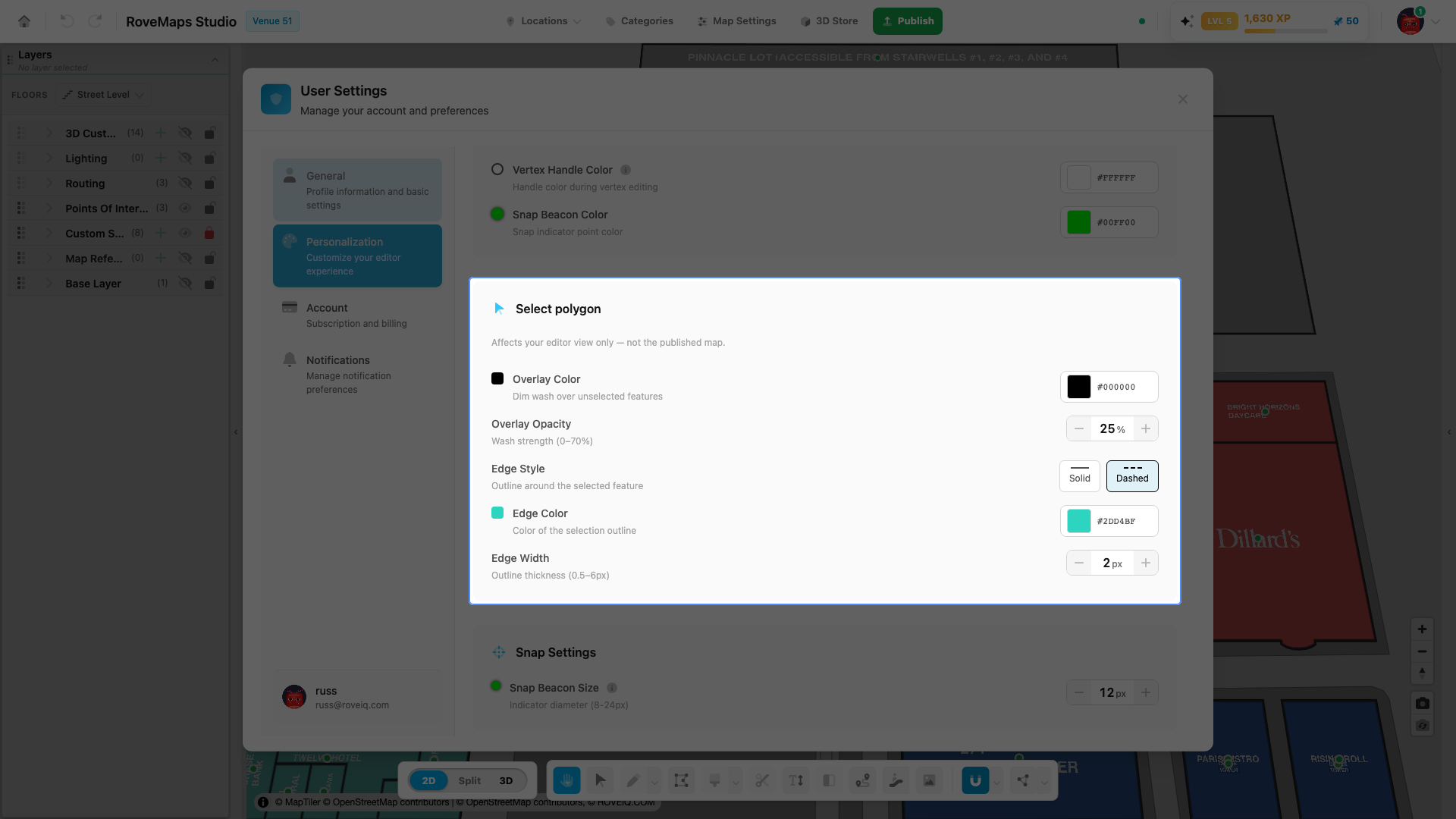
Selected-feature highlight color
The Select polygon card sets how a selected feature looks in your editor: a dim wash over the rest of the map plus a colored outline on your selection. It lives in the Personalization tab of User Settings. These are personal preferences saved in your browser and are not part of the map.
Steps
- Open User Settings from the user menu and select the Personalization tab.
- Find the Select polygon card.
- Adjust any control — changes apply to your editor immediately:
- Overlay Color / Overlay Opacity — the dim wash over everything except your selection. Default black at 25% (opacity ranges 0–70%).
- Edge Style — a Solid or Dashed outline. Default Dashed.
- Edge Color / Edge Width — the outline color and thickness. Default teal
#2dd4bfat 2px (width ranges 0.5–6px).
Notes
- This is per-user and affects only your editing view — never the published map or your collaborators’ views.
- The vertex/edit tool has its own Edit-Mode Styling (a solid outline by default) in the same tab.
- Use Reset to Defaults at the top of the Personalization tab to restore these along with every other editor preference.
- These controls replace the old single Selection Color swatch, which is gone — selection styling can no longer affect published map colors.