View Modes
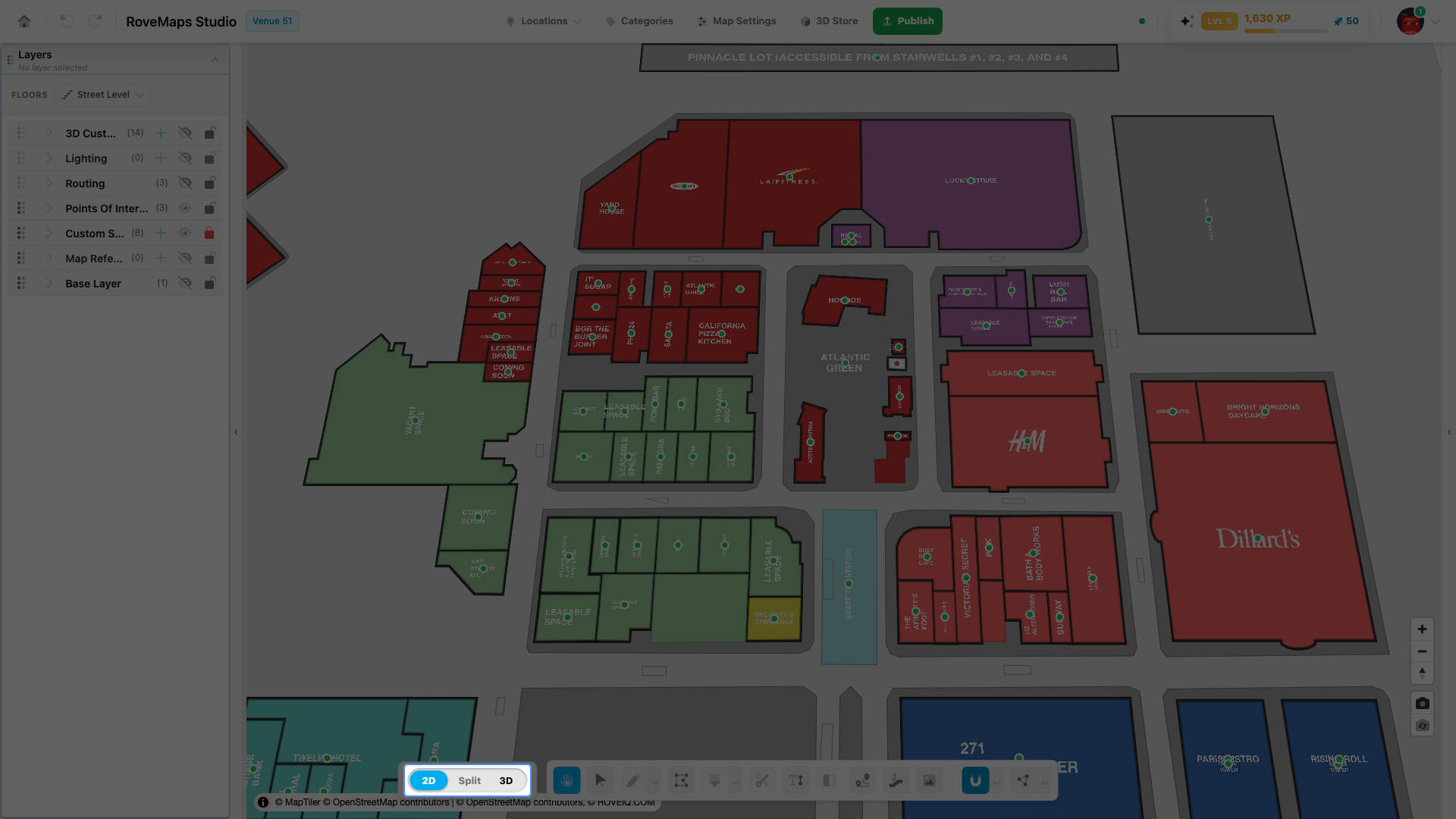
The view toggle switches how the editor draws your venue: a flat 2D map, a Split view showing 2D and 3D side by side, or a full 3D view. It sits in the center of the bottom toolbar as a three-segment control — 2D / Split / 3D.
2D
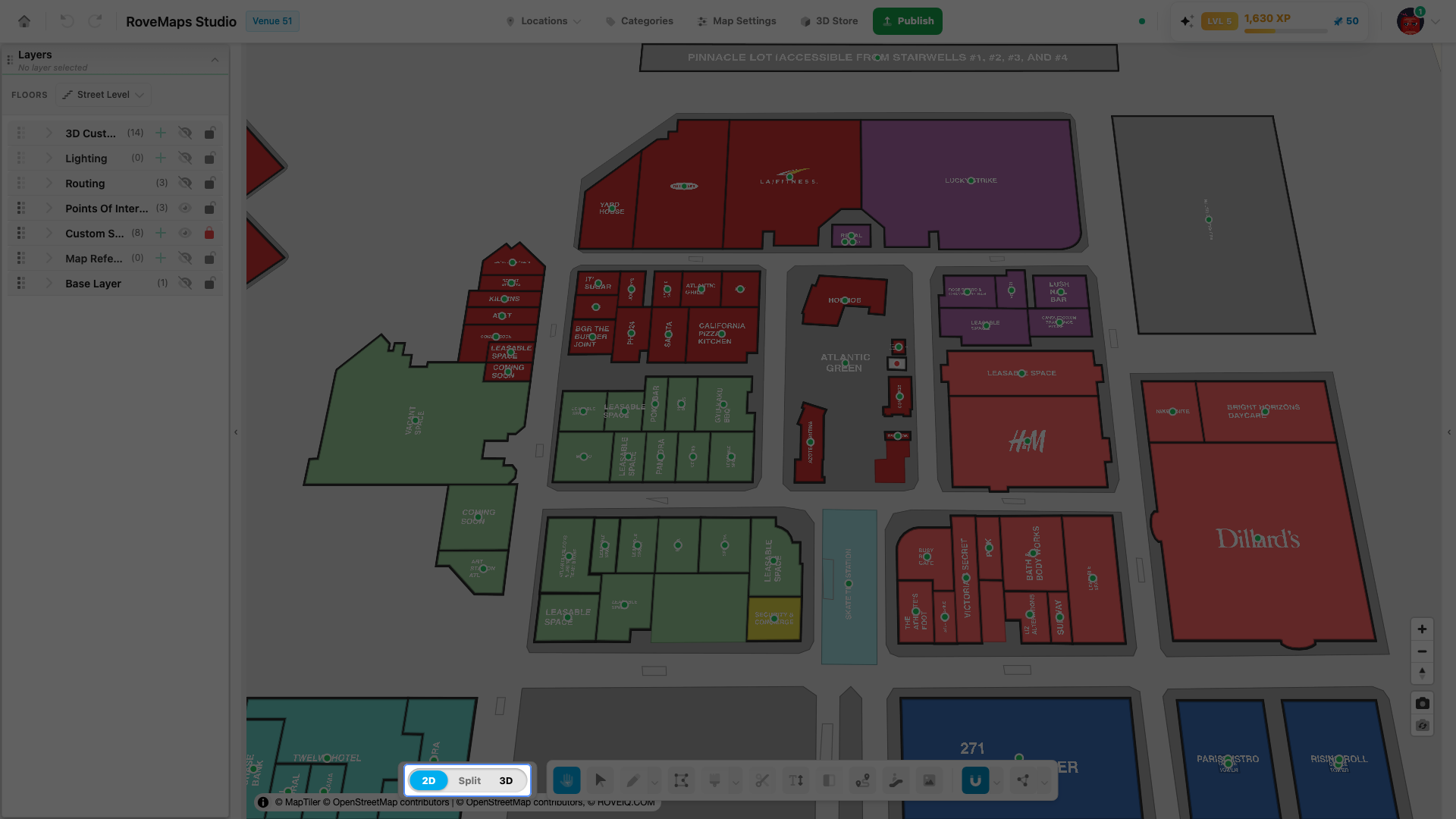
2D is the flat map. It’s the default view and the only one available until your venue’s 3D setup is complete. Everything you draw and edit works here; the 3D views render the same draft.
Split
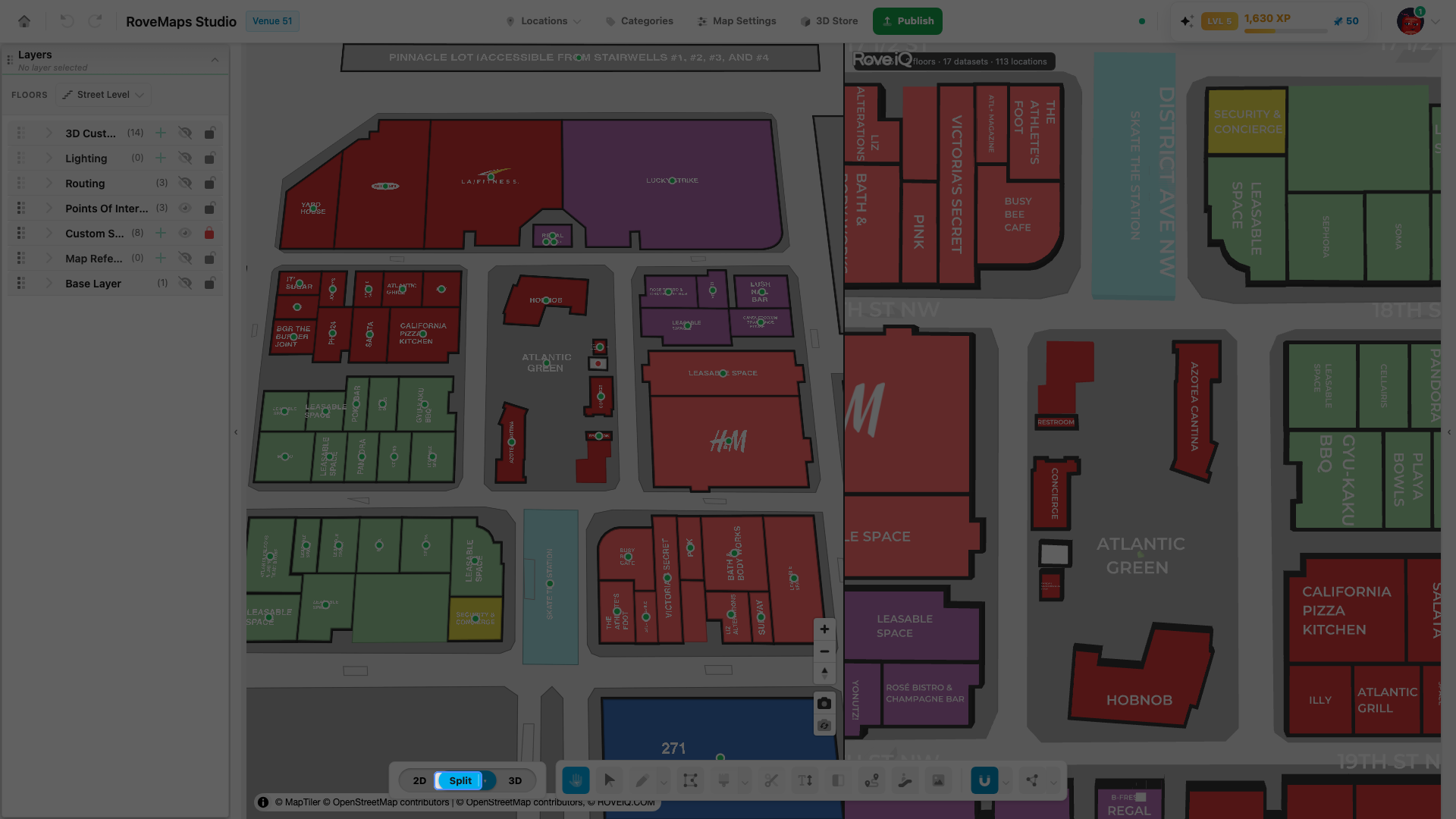
Split shows the 2D map and the 3D view at the same time, so you can edit in 2D and watch the result in 3D. Click the Split segment to activate it. Once Split is active, a ▾ caret appears next to it — click the caret to open the Split options popover (orientation, swap sides, link cameras).
Change orientation
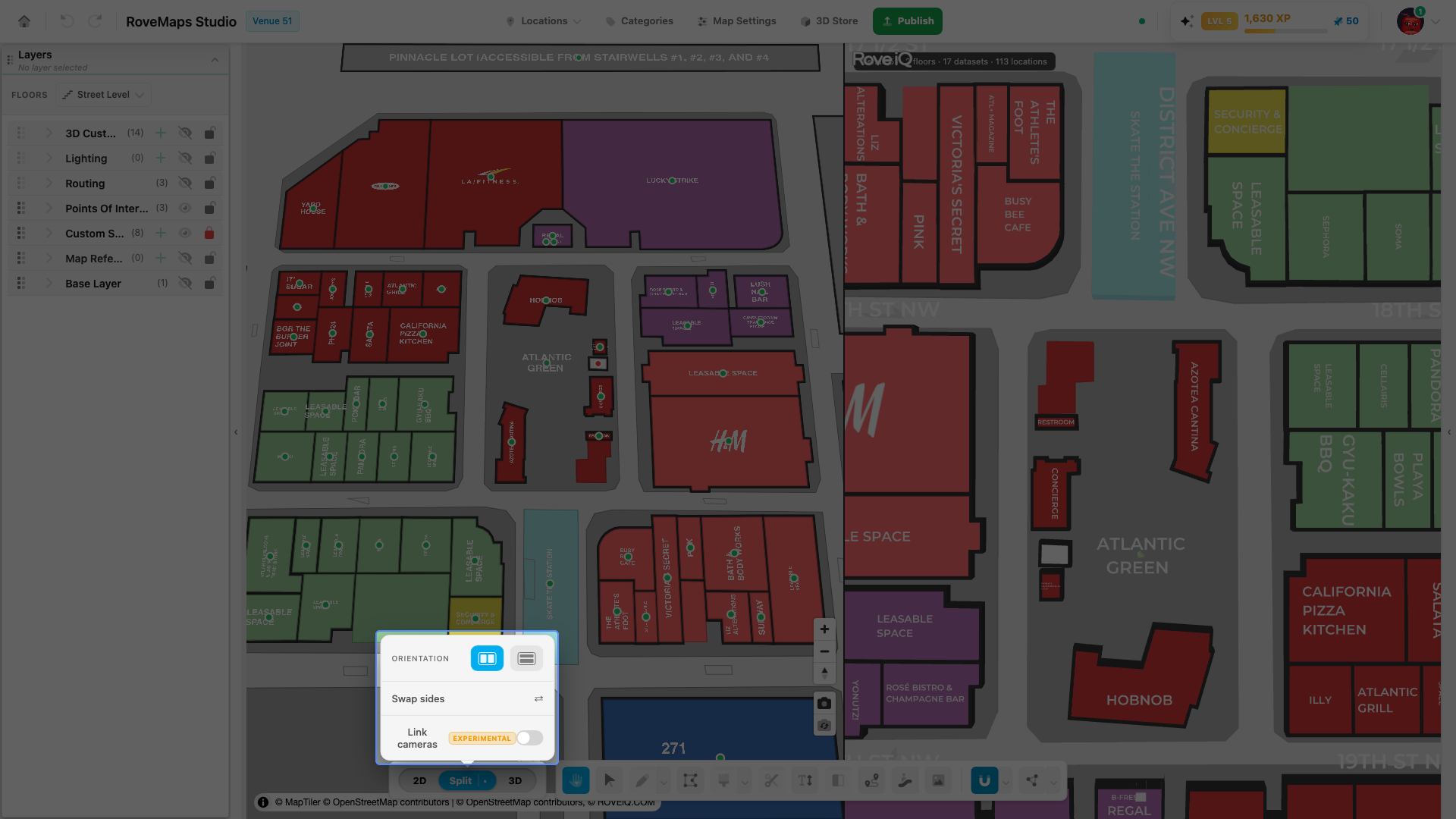
The two panes can sit vertical (side by side) or horizontal (stacked). Open Split options (the ▾ caret) and, under Orientation, choose:
- Vertical — panes side by side.
- Horizontal — panes stacked top and bottom.
The orientation is saved per venue, so reopening the editor restores your last layout.
Resize the panes
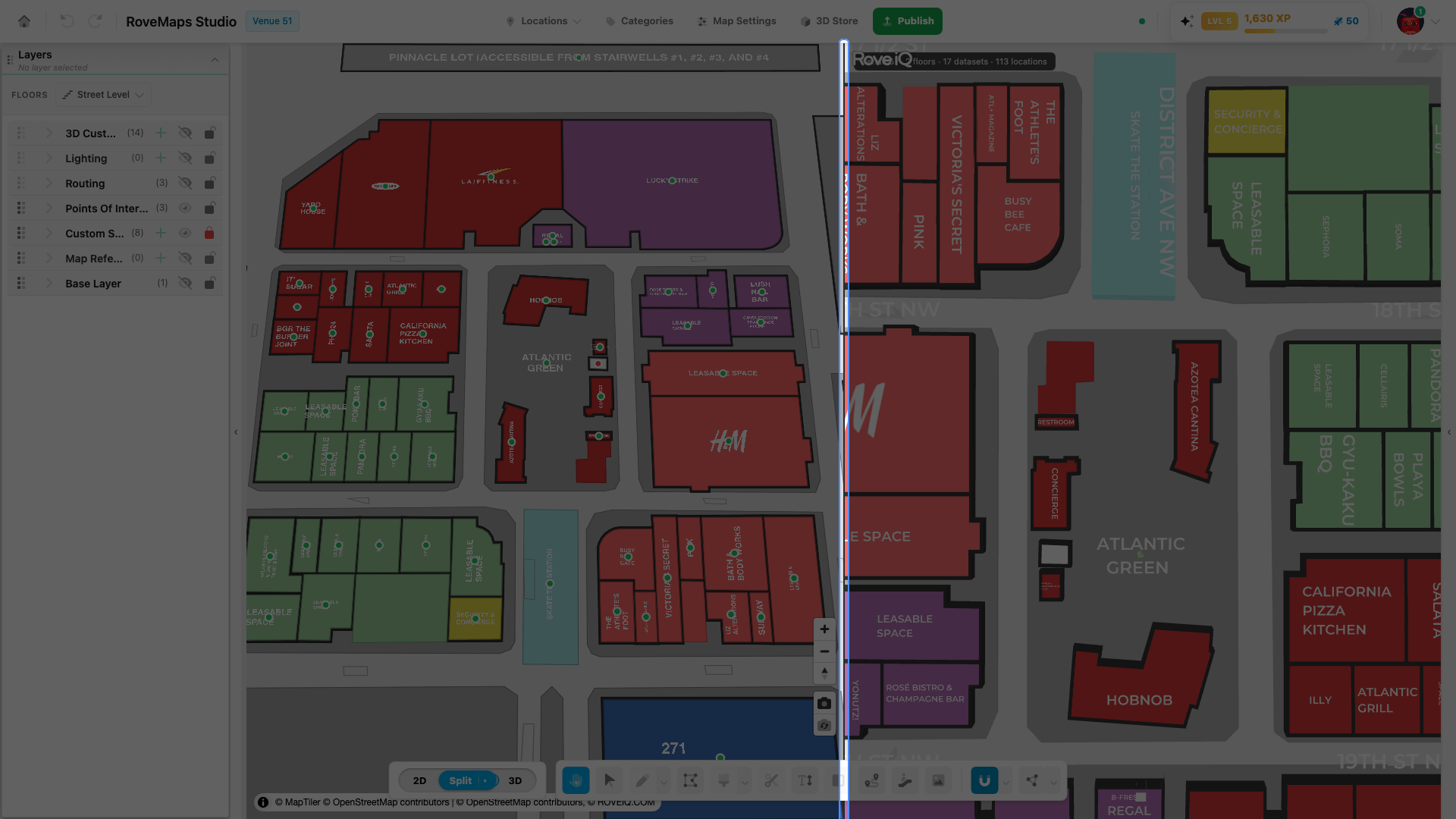
A divider sits between the two panes in Split view. Drag it to give one pane more room; the position is saved per venue.
- Keyboard: press Tab (or click) to focus the divider, then adjust in 2% steps — Left/Right in vertical orientation, Up/Down in horizontal. Home gives the smallest pane, End the largest.
- Each pane stays between 15% and 85% of the stage. The divider is shown only in Split view.
Swap sides and link cameras
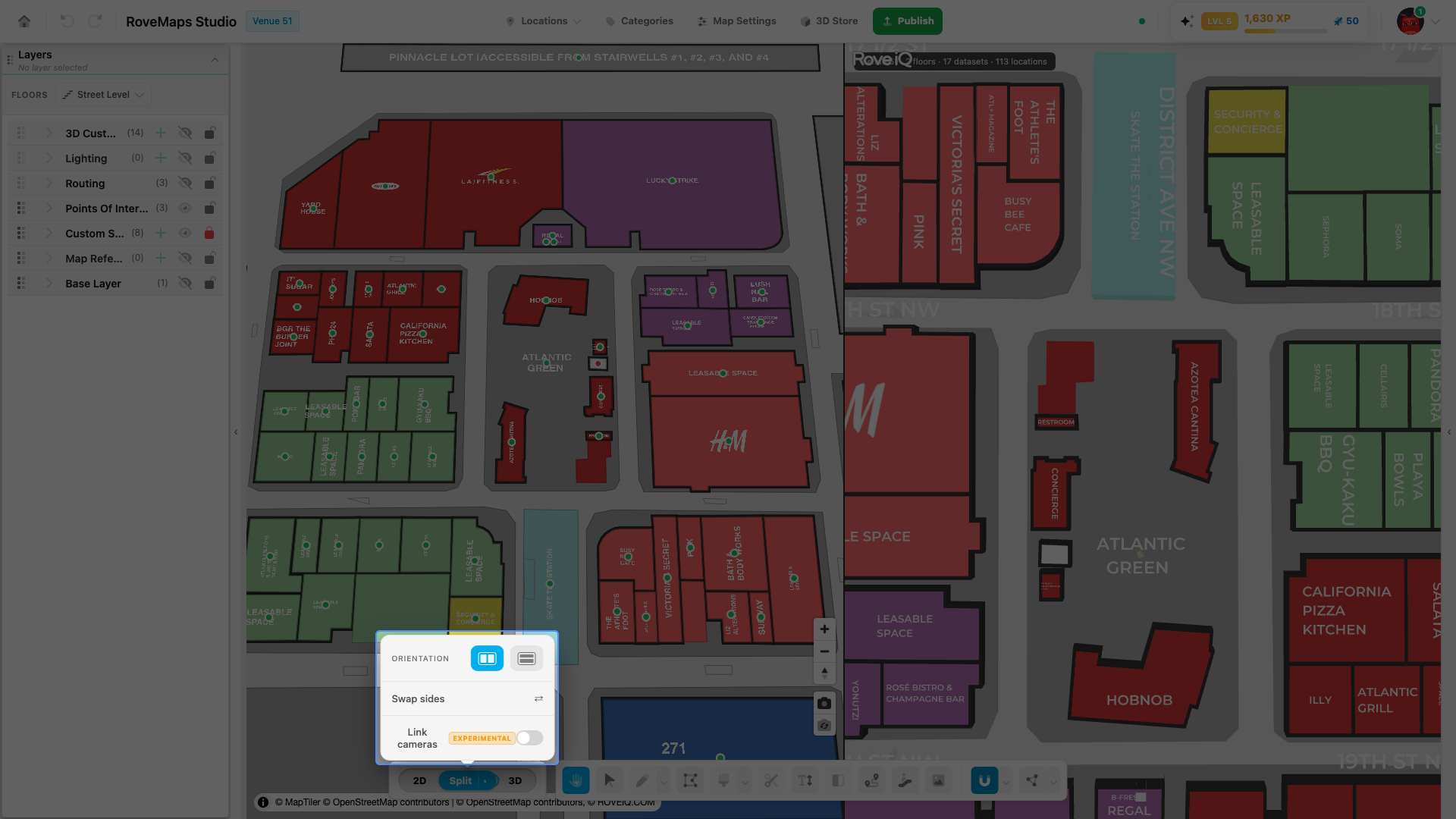
The Split options popover has two more controls:
- Swap sides — reverse which pane (2D or 3D) is on which side.
- Link cameras (experimental) — keep the 2D and 3D cameras in sync so panning or zooming one moves the other. This is off by default; turn it on from the popover when you want it. Because it’s experimental, expect the occasional rough edge.
3D
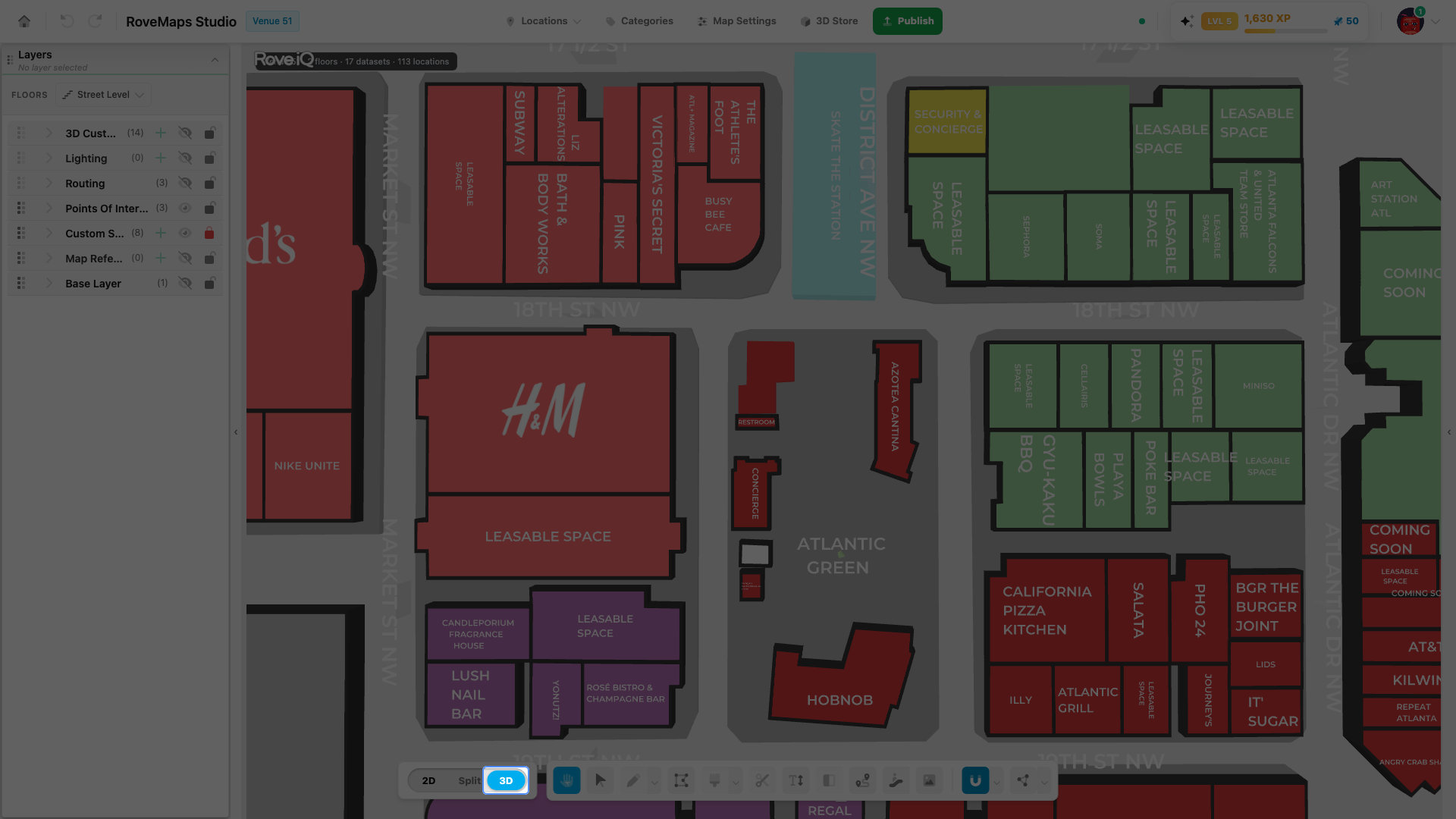
3D fills the canvas with the rendered view of your venue. Orbit, pan, and zoom to inspect it. 3D and Split are locked until the required setup is complete — while locked, only 2D is available. Finish setting up your venue to unlock them.
3D Live Previewer
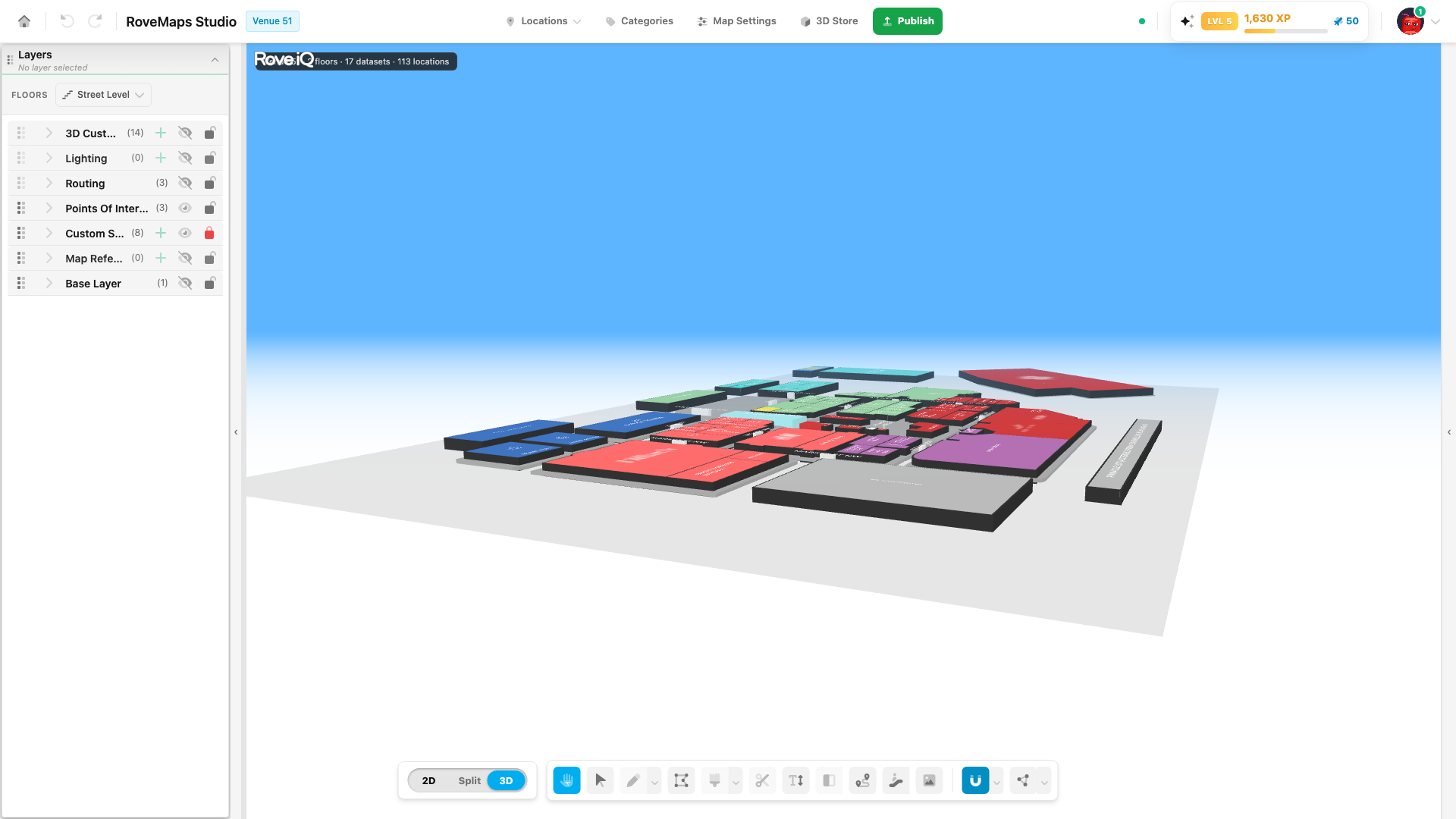
The 3D Live Previewer is the surface that renders the 3D views. It draws from your live draft, so it reflects unsaved edits as you make them (falling back to the last published version when no draft is loaded).
You can edit 3D objects directly in it:
- Click an object to select it — a transform gizmo appears and the object opens in the properties panel.
- Press W to move, E to rotate, or R to scale. (Lights move only.)
- Press Escape, Enter, double-click, or right-click empty space to leave edit mode.
Object transforms made here are part of your draft and are saved on Publish, like other edits. If the 3D view ever crashes (WebGL context lost), switch to 2D and back, or reload the page.
Glossary
- View toggle — the 2D / Split / 3D segmented control in the bottom toolbar.
- Split options — the popover opened by the ▾ caret beside an active Split segment (orientation, swap sides, link cameras).
- Link cameras — an experimental option that syncs the 2D and 3D cameras.
- Live Previewer — the 3D surface that renders your live draft.