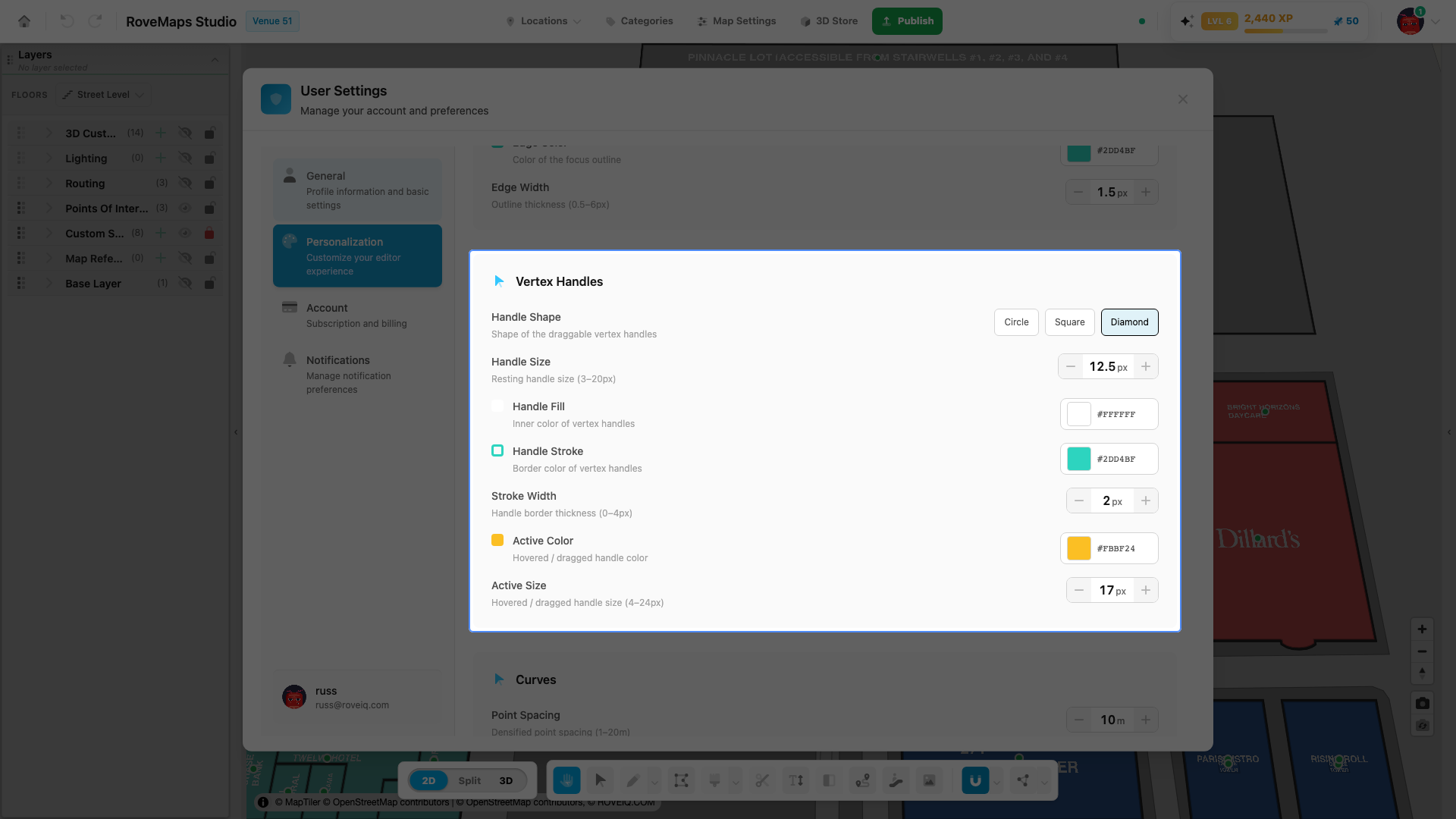
Vertex handle defaults
The Vertex Handles card sets the default look of the draggable handles the Vertex Tool shows on every vertex. It is part of the Edit-Mode Styling section in the Personalization tab. These are personal preferences saved in your browser and are not part of the map.
Steps
- Open User Settings from the user menu and select the Personalization tab.
- Scroll to Edit-Mode Styling, then the Vertex Handles card.
- Adjust any of the handle controls. Editing a value switches the active preset to Custom.
The controls
- Handle Shape — Circle, Square, or Diamond. Default Diamond.
- Handle Size — resting handle size, 3–20px. Default 12.5px.
- Handle Fill — inner color of the handles. Default
#ffffff. - Handle Stroke — border color of the handles. Default
#2dd4bf. - Stroke Width — handle border thickness, 0–4px. Default 2px.
- Active Color — color of the hovered or dragged handle. Default
#fbbf24. - Active Size — size of the hovered or dragged handle, 4–24px. Default 17px.
Notes
- The Edit-Mode Styling section offers preset styles at the top. Picking a preset sets every overlay value at once; editing any field afterward switches the preset to Custom.
- These settings style the Vertex Tool overlay and Edit Vertices mode. A separate Vertex Handle Color for the older vertex-editing handles lives in the Editor Colors card.
- Use Reset to Defaults at the top of the Personalization tab to restore the handle defaults.
- Preferences persist across sessions and are not part of the map.